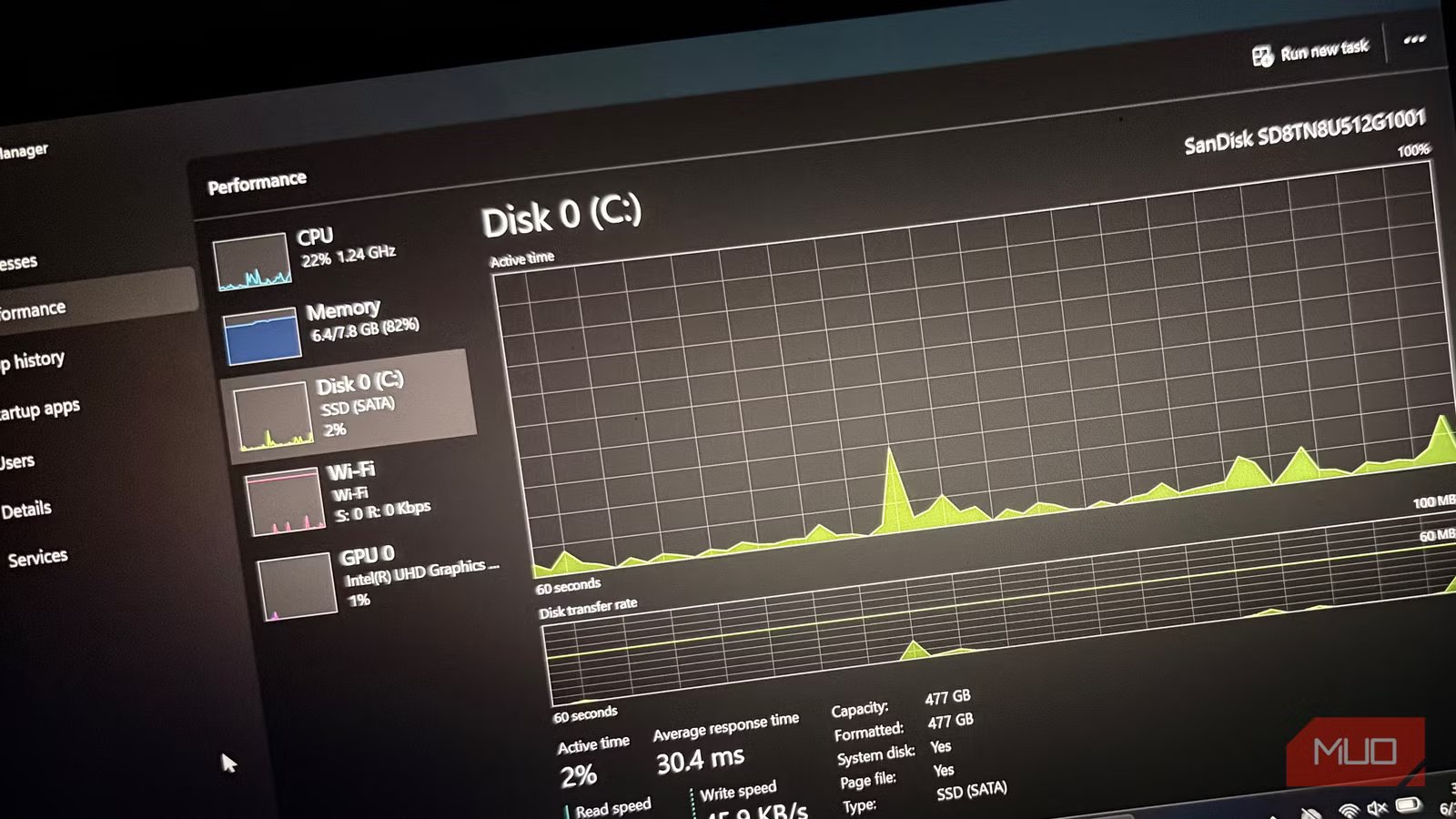
A failing SSD doesn’t click or grind — this is how it warns you instead
My SSD stopped working, and it felt like it had just stopped working unexpectedly. It felt this way because, unlike hard drives, there was no clicking — the warning sound that lingers for weeks to tell you something is failing.
However, SSDs usually give warnings before they fail. They’re simply more subtle, and you can easily mistake them for software-related issues. A random crash here or a corrupted file there may be telling you more about your SSD than your operating system. Knowing what to check prepares you, and it takes less than five minutes to check your drive’s health.
The warnings are easy to dismiss
Why a failing SSD often looks like a Windows problem

You’ve probably had a file that refused to save. At such times, it’s possible your first instinct is to blame a Windows update that happened overnight, or the specific app associated with that file.
However, a failing SSD can cause these same symptoms: Word documents failing to open, games crashing mid-install, or boot sequences getting stuck at the login screen. That’s very different from how a hard drive usually fails, and it may feel more like bad luck with your software.
Certain SSDs buy you some time by dropping into a read-only state when things are going wrong. This way, you can copy files. Note that not all SSDs drop to read-only; some fail catastrophically (show disk errors) and can disappear from the BIOS between reboots.
Without moving parts, an SSD lacks the mechanical indicators of gradual wear, so from working fine yesterday, it could be a total no-show today.
|
Hard drive |
SSD |
|---|---|
|
Clicking or grinding noises |
Usually silent |
|
Gradual mechanical decline |
Strange, software-like symptoms |
|
Easy to suspect hardware |
Often blamed on Windows |
|
Fails progressively |
Can disappear with little warning |
The clues Windows never shows you
SMART data reveals your SSD’s health
SMART data is the running log an SSD keeps of its own condition. Although Windows accesses this data, it doesn’t expose SMART in Settings, and you never get notifications or pop-ups showing SSD health. The fastest way to access the data is by using a third-party tool like CrystalDiskInfo. This free tool reads your drive’s health in seconds.
However, even before using the tool, you should note that the values aren’t usually labeled identically. The field names on Samsung drives could differ from those on Crucial or Western Digital drives. It’s better to pay attention to what each number means rather than the exact labels.
|
Indicator |
What it flags |
|---|---|
|
Overall Health Status |
The drive’s own overall health assessment |
|
Percentage Used |
Endurance consumed, useful as context, not a reason to panic on its own |
|
Available Spare / Critical Warning |
Backup capacity remaining and any fault the controller has flagged |
|
Media or Uncorrectable Errors |
Data the drive tried to read or write and couldn’t |
While all these are important indicators, on their own, they’re not guarantees. SMART is great for catching wear-related declines early; it doesn’t predict an outright controller failure, and it won’t show if a firmware bug renders the drive instantly unreadable.

- OS
-
Wiindows
- Price model
-
Free
CrystalDiskInfo is an open-source software for Windows. It monitors the health, temperature, and S.M.A.R.T. status of HDDs and SSDs and provides warnings before potential disk failures.
The five-minute check I run the moment something feels off
What actually tells you if it’s the drive or something else

If you’re running a diagnostic on an already failing drive, you should be aware that serious testing can make the drive fail altogether. So, the first step is to back up all the data you have on the drive.
With your data backed up, open CrystalDiskInfo. Start by checking the Overall Health Status along with the indicators listed above. For well-known brands, you can go a step further by running their own tools. You’ll get extra details that generic SMART readers tend to miss by using Samsung Magician, WD Dashboard, or Crucial Storage Executive. After using these tools, check Event Viewer if odd behavior persists. Don’t overreact to isolated, one-off events; look for repeating errors instead.
A clean report is a great sign and mainly means you’re in the clear, but don’t take it as a promise that all is fine. Sometimes it only indicates that SMART hasn’t detected measurable wear. A controller could still fail tomorrow. I make it a routine to check every few months. I prefer catching a slow decline early to finding out only because the drive won’t boot.
Protect the data before the drive decides for you
There comes a time to stop troubleshooting and start acting. Replace the SSD when drive errors become frequent, the health status in tools like CrystalDiskInfo drops from “Good”, or the drive constantly disappears or drops into read-only mode.
However, not every signal means you need a replacement. For instance, a high percentage used number on an NVMe drive isn’t a cause for panic. Manufacturers build real margin into endurance ratings, so most drives will be fine even after passing what feels like a safe figure. Also, you should note that as long as an SSD is under warranty, manufacturer tools are often able to export the diagnostic log needed for an RMA claim. It’s wise to pull that report now before the drive stops responding.
The main difference between hard drive and SSD failure is that while the former fails loudly, the latter fails quietly through subtle behavioral or data issues you might not monitor. You’ll save your files if you learn to notice this quiet failure.