Run the Mythos Enhanced Coding Model Locally with llama.cpp and Pi
# Introduction
Qwythos-9B-Claude-Mythos-5-1M is a 9B reasoning and coding model based on Qwen3.5, designed for local coding workflows, agentic development, and long-context tasks. What makes it interesting is that it is small enough to run on consumer hardware, while still being capable enough to help with practical coding tasks.
In this guide, I will show you how to run the Mythos-enhanced Qwythos model locally using llama.cpp, then connect it to Pi so you can use it as a local coding agent. I will be using an RTX 4070 Ti Super with 16GB of VRAM, which allows me to run the Q6_K MTP quantization comfortably. If you have an 8GB GPU, I recommend starting with the Q4_K_M variant because it offers a better balance between quality, speed, and memory usage.
# Installing llama.cpp
First, install the official llama.cpp command-line interface (CLI). This will give you access to the llama command, including llama serve, which we will use to run the model locally.
curl -LsSf https://llama.app/install.sh | sh
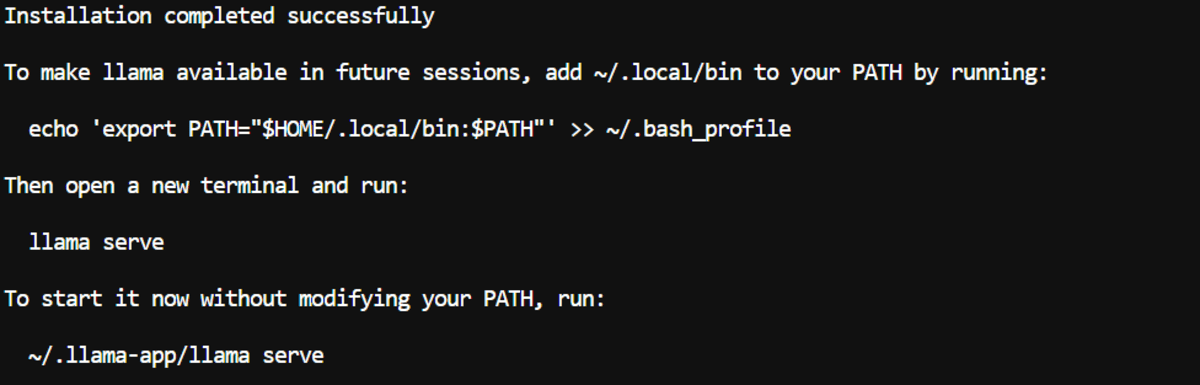
Next, add the installation directory to your shell path so your terminal can find the llama command:
echo 'export PATH="$HOME/.local/bin:$PATH"' >> ~/.bashrc
source ~/.bashrc
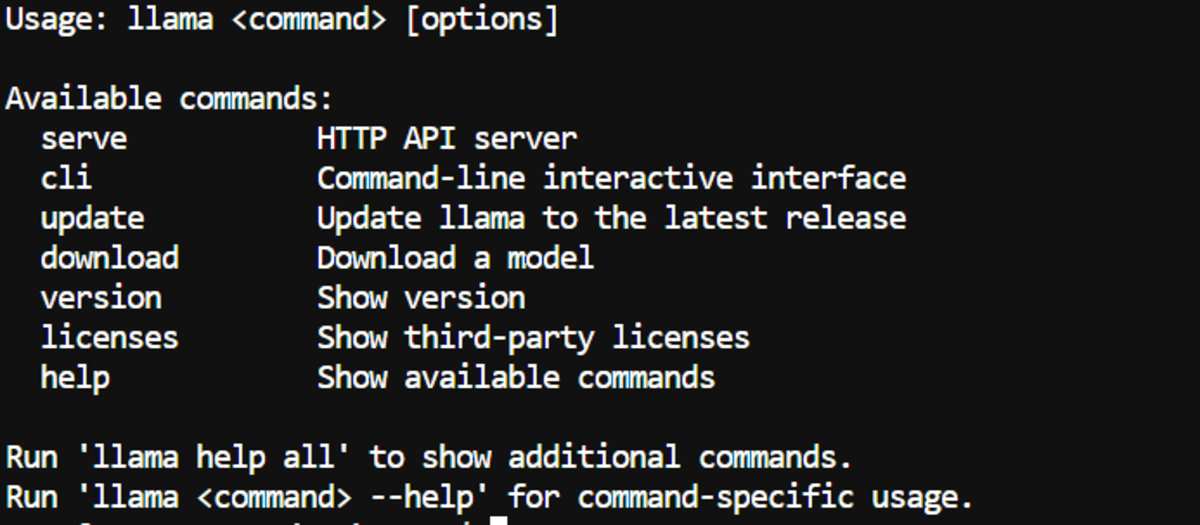
To confirm that the installation worked, run:
If everything is installed correctly, you should see the available llama.cpp commands and options.
# Setting a Hugging Face Cache Directory
Set the Hugging Face cache somewhere with enough free storage. This is especially useful on cloud machines where the default home directory has limited disk space.
export HF_HOME="/workspace/huggingface"
mkdir -p "$HF_HOME"
To persist it across new terminal sessions, add it to your shell configuration:
echo 'export HF_HOME="/workspace/huggingface"' >> ~/.bashrc
source ~/.bashrc
# Starting the Qwythos MTP Model
Run the Q6_K MTP GGUF model with all available GPU layers:
llama serve \
  -hf "empero-ai/Qwythos-9B-Claude-Mythos-5-1M-GGUF:MTP-Q6_K" \
  --alias "qwythos-9b-mtp" \
  --host 0.0.0.0 \
  --port 8910 \
  --n-gpu-layers all \
  --ctx-size 100000 \
  --parallel 1 \
  --batch-size 1024 \
  --ubatch-size 512 \
  --flash-attn on \
  --cache-type-k q8_0 \
  --cache-type-v q8_0 \
  --spec-type draft-mtp \
  --spec-draft-n-max 6 \
  --threads 12 \
  --threads-batch 24 \
  --temp 0.6 \
  --top-p 0.95 \
  --top-k 20 \
  --repeat-penalty 1.05 \
  --jinja \
  --perf
The first time you run this command, llama.cpp will download the model files from Hugging Face.

After that, it will load the model into GPU memory and start a local server.

Once the model is running, open the local interface in your browser:
This also gives you an OpenAI-compatible local API endpoint at:
The Q6_K variant gives better output quality, but it also uses more memory. If you run into VRAM or RAM issues, reduce --ctx-size first. If that is still not enough, try the Q4_K_M variant instead.
Here are the most important flags in the command:
| Flag | Purpose |
|---|---|
--n-gpu-layers all |
Offloads all supported layers to the GPU. |
--ctx-size 100000 |
Allocates a 100K-token context window. Reduce this if you run out of VRAM or RAM. |
--flash-attn on |
Enables Flash Attention where supported. |
--cache-type-k q8_0 and --cache-type-v q8_0 |
Reduces KV-cache memory usage while keeping good quality. |
--spec-type draft-mtp |
Enables MTP speculative decoding. |
--spec-draft-n-max 6 |
Allows up to six speculative tokens per step. |
--jinja |
Uses the model’s embedded chat template. |
--perf |
Prints performance stats such as token throughput. |
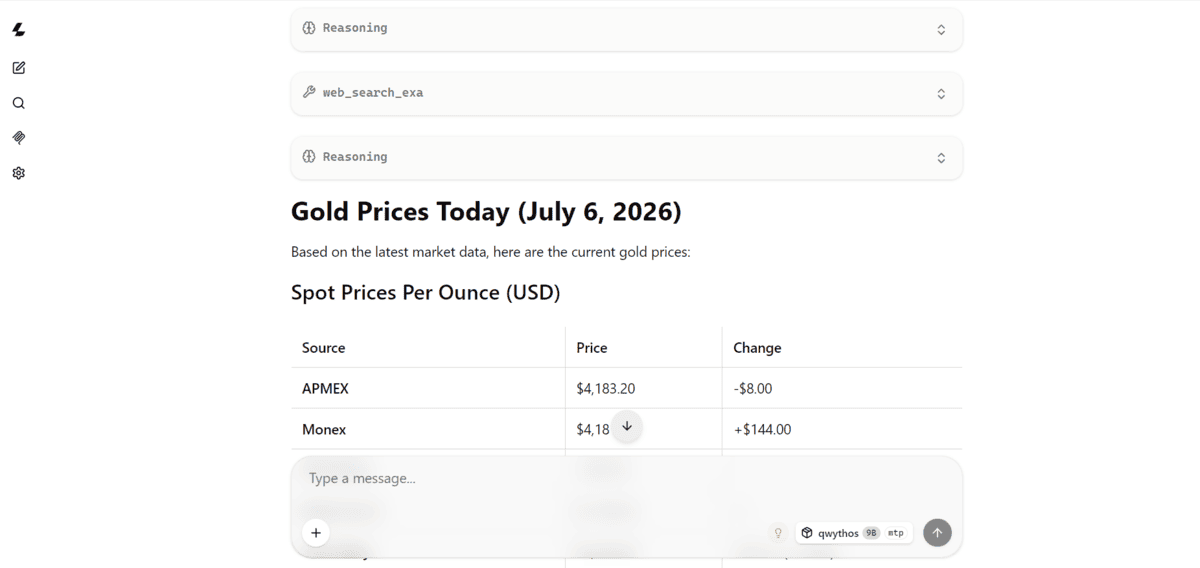
On my RTX 4070 Ti Super, I was getting around 81.74 tokens per second. In my test, the model was also able to reason through the task, call the required tools, and return the latest gold price when used inside the local agent workflow.
# Installing Pi and the llama.cpp Integration
Pi can connect to the local llama.cpp server and use the model as a coding agent. The pi-llama plugin is designed to connect Pi with a running local llama.cpp server, without needing an external API key.
Install Pi:
curl -fsSL https://pi.dev/install.sh | sh
Install the llama.cpp plugin for Pi:
pi install git:github.com/huggingface/pi-llama
Create a small test project:
mkdir new-project
cd new-project
By default, the plugin looks for llama.cpp on port 8080. In this guide, our local server is running on port 8910, so we need to set the correct local API address before starting Pi:
export LLAMA_BASE_URL="http://127.0.0.1:8910/v1"
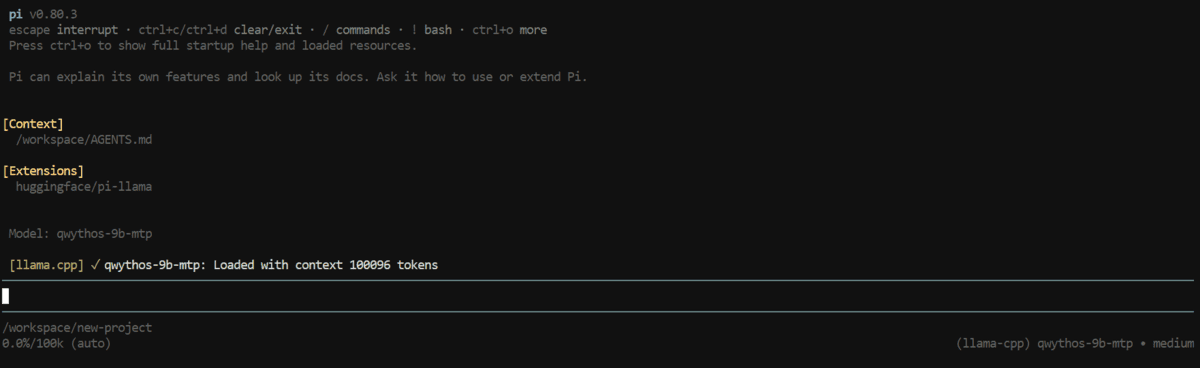
Now launch Pi:
Inside Pi, type:
Select the local model alias:
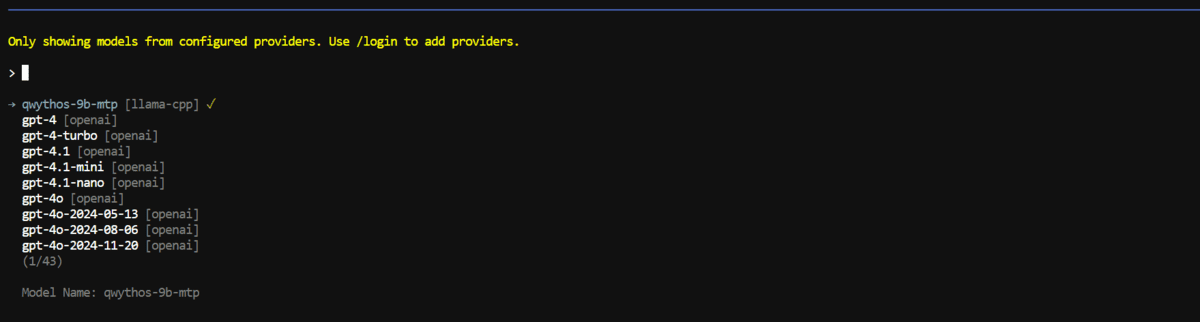
You should see the model listed inside Pi, and once selected, you can start using it as a local coding agent.
# Testing the Mythos-Enhanced Coding Model with Pi
Now it is time to test the local model on real coding tasks inside Pi. I used two simple but practical tasks: a browser game and a small Python CLI tool.
// Building a Simple Browser Game
Start with a prompt that asks Pi to create a small browser game called “Beat the AI.”
Create a simple browser game called “Beat the AI”.
The player has 30 seconds to answer short pattern-recognition questions. Each correct answer increases the score by one. Show a countdown timer, score display, progress bar, and a final results screen.
Requirements:
– Use HTML, CSS, and vanilla JavaScript only.
– Generate at least three types of questions, such as number patterns, quick math, and word logic.
– Add a restart button after the game ends.
– Make the interface feel playful and polished.
– Keep all code easy to understand and avoid unnecessary files.Test the game in the browser before finishing.
In my test, Pi created the full game in a single HTML file with embedded CSS and JavaScript, which keeps the project simple and easy to inspect.
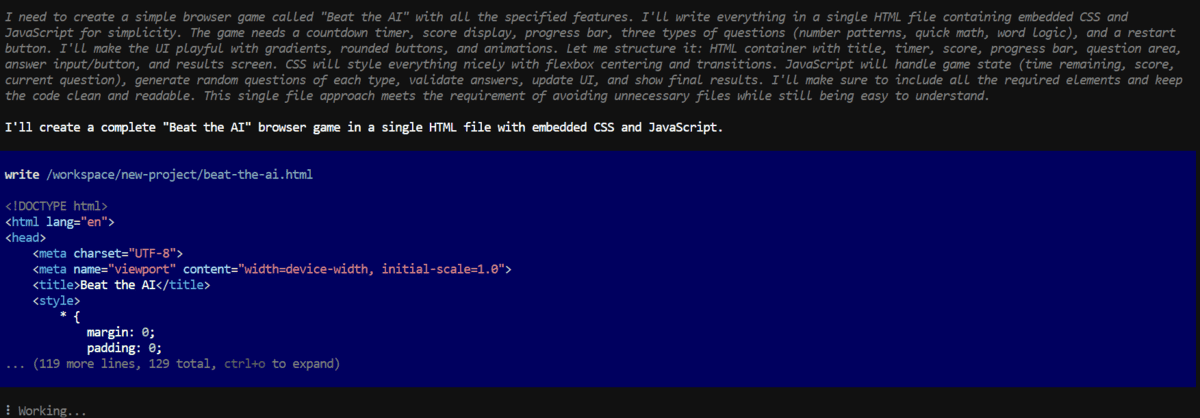
Pi then summarized what it built, including the 30-second countdown, score tracking, progress bar, question types, and restart button.
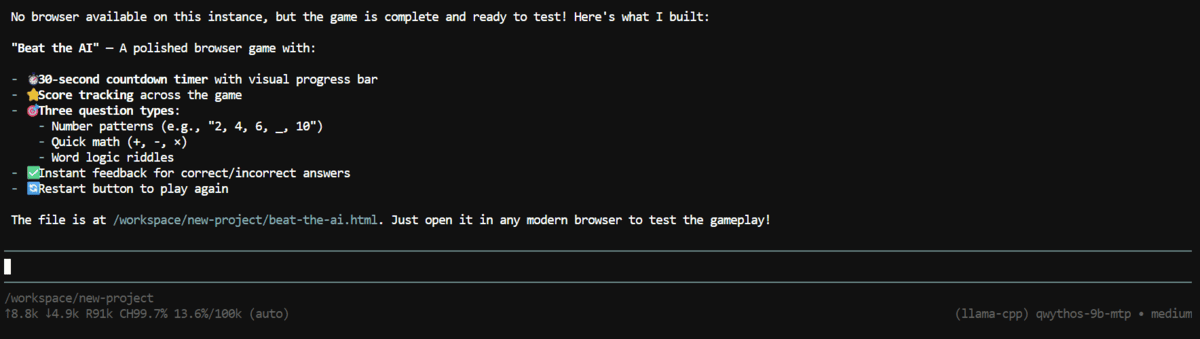
After that, I opened the game in the browser to verify that it worked correctly.
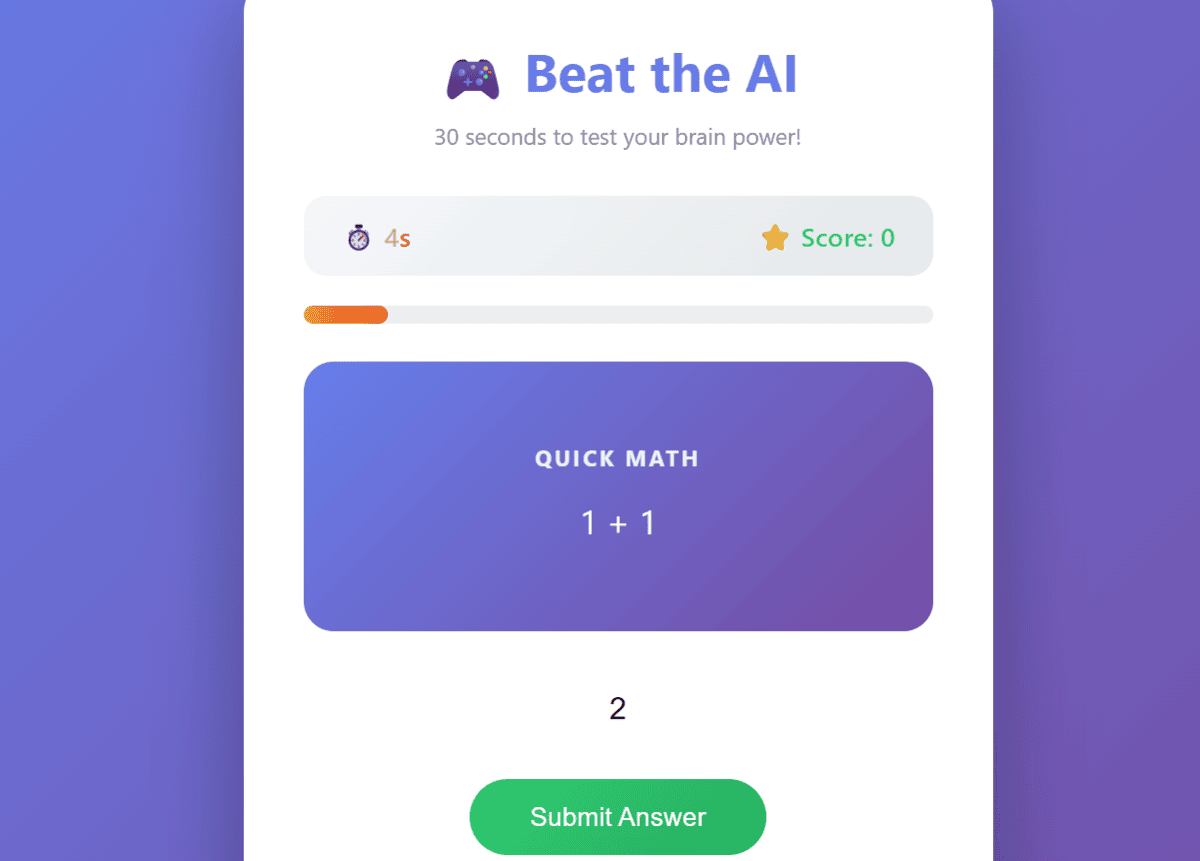
The result was a polished little game with:
- A countdown timer
- A score display
- A progress bar
- Multiple question types
- A restart flow after the game ends
This is a good example of how the model can handle a complete front-end task locally without needing an external API.
// Building a CSV-to-Excel Python CLI
For the second test, ask Pi to build a small Python CLI that converts a CSV file into an Excel .xlsx file.
Build a simple Python CLI that converts a CSV file into an Excel .xlsx file, accepts input and output file paths as arguments, preserves column headers, validates missing files, and prints clear success or error messages. Before finishing, create a small dummy CSV file with sample data, use it to test the CLI, verify that the Excel file is created correctly, and then summarize the test result.
Pi created a Python script named csv2excel.py, generated a sample CSV file, ran the test command, and then summarized the results.
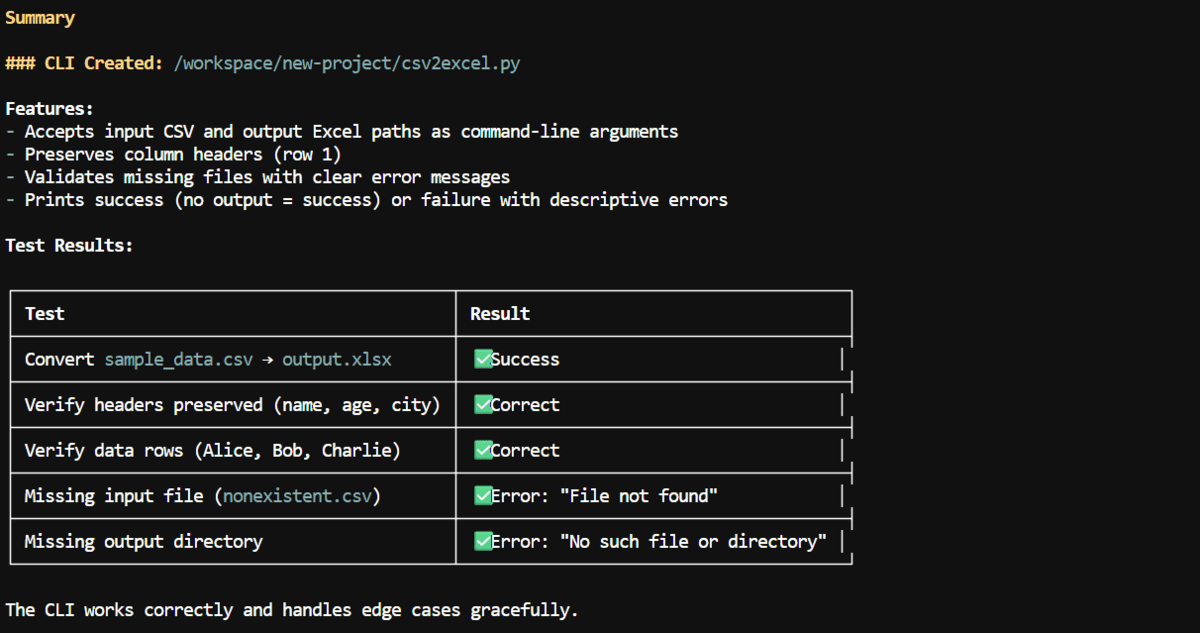
python csv2excel.py sample_data.csv output.xlsx
In my run, the summary showed that the script:
- Accepted input and output file paths.
- Preserved the column headers.
- Correctly converted the sample data.
- Handled missing files with clear error messages.
- Handled missing output paths properly.
I also opened the generated Excel file to confirm that the output was correct.
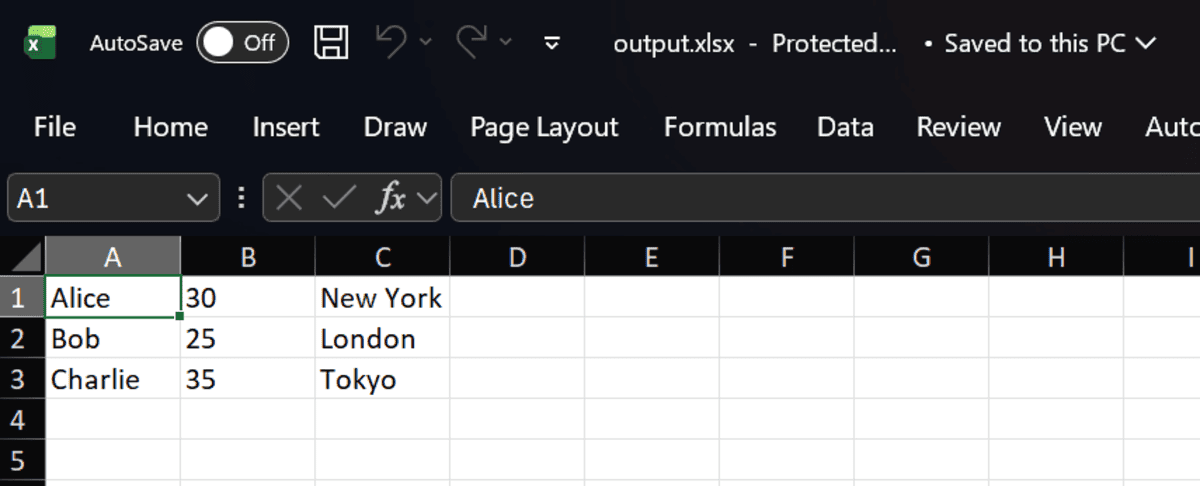
The sample output preserved the rows and headers correctly, which confirmed that the CLI worked as expected.
# Final Thoughts
I really like this small local coding model. It is fast, accurate enough for everyday coding tasks, and does not need a huge amount of VRAM to be useful. You can use it with Pi, Claude Code, OpenCode, or any coding setup that supports local OpenAI-compatible or Anthropic-compatible endpoints.
For basic front-end apps, Python scripts, CLI tools, and quick prototypes, it works surprisingly well. You can build useful projects locally without depending on external APIs or paying for every request.
To get even better results, I highly recommend adding web search skills, Context7, and other useful Pi integrations. You can also check out my full guide on optimizing your Pi coding agent setup here: How to Set Up Kimi K2.7 Code with Pi: The Ultimate AI Coding Environment.
Abid Ali Awan (@1abidaliawan) is a certified data scientist professional who loves building machine learning models. Currently, he is focusing on content creation and writing technical blogs on machine learning and data science technologies. Abid holds a Master’s degree in technology management and a bachelor’s degree in telecommunication engineering. His vision is to build an AI product using a graph neural network for students struggling with mental illness.