Google Contacts now lets you make your personal card; here’s how I set up mine
Google recently started rolling out an update to its Contacts application that makes it easier to create your own contact card so you can share it with others when they ask for your details.
If this sounds a bit familiar, it’s because Google already offers a personal “Calling Card” in the Phone app, but like all calling cards, that one only displays your preferred photo and font when you call people who already have your details.
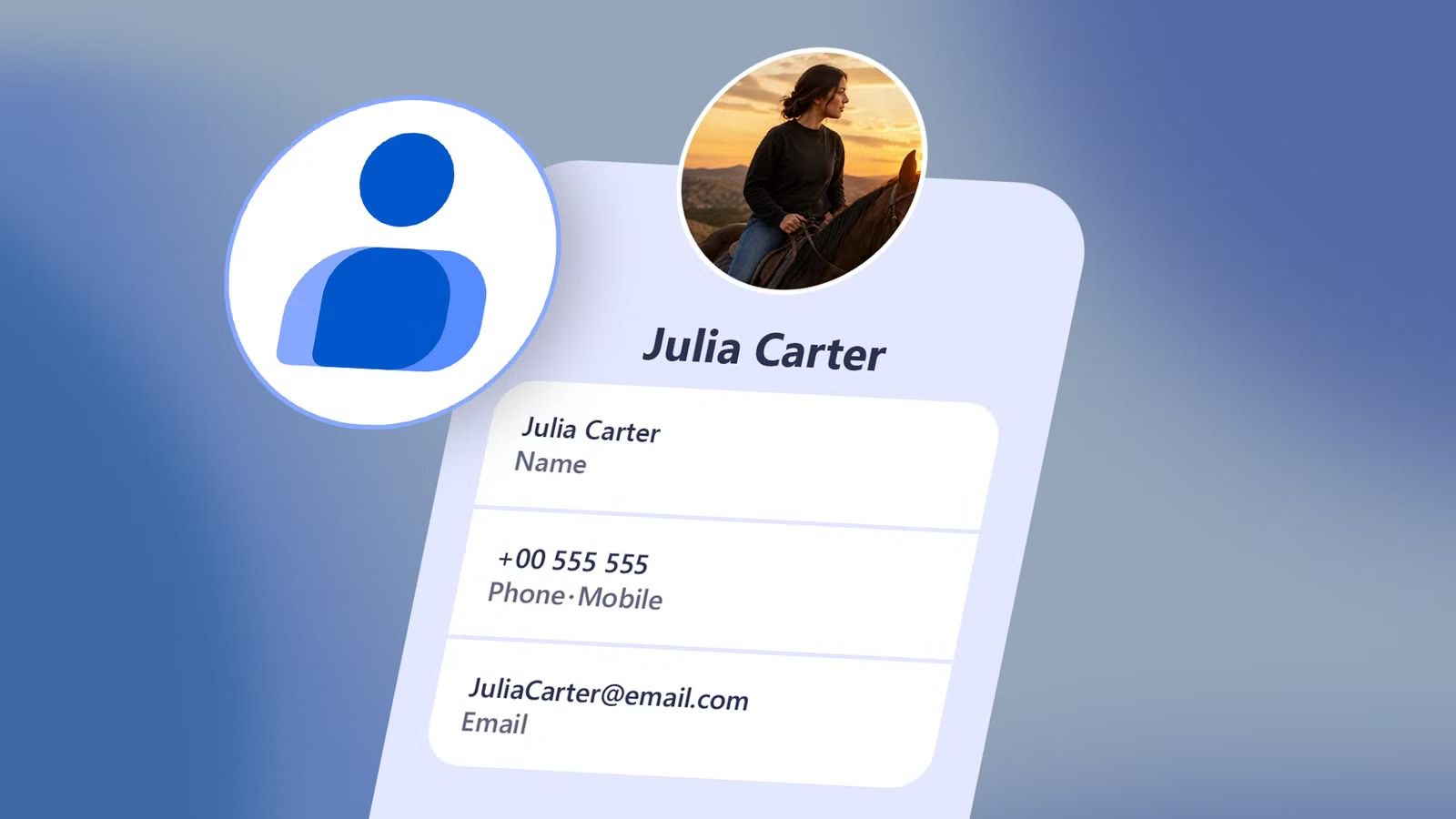
The new Your info card in Contacts is made for those who don’t have your details, and here’s how I edited it to suit my needs. I recommend you do too.
With the details that matter
Before the new Your info card showed up in Google Contacts, I had to save my personal information by creating a regular contact with my name, filling in the details, and adding it to favorites.
Then, I could easily share it if someone asked for my info.
Now, there’s a new Your info box at the top of the Google Contacts application that pulls in details from my Google account by default.
For me, that was my photo, phone number, and email address. But it’s easy to edit if you follow these steps:
- Tap the Your info card at the top of Google Contacts.
- Tap the pencil icon in the upper-right corner of the card that opens.
- Use the different existing fields to add a phone number, email address, physical address, or Other details (such as your job, company, department, and website).
- When you’re done adding everything, choose Save in the upper-right corner.
To edit the pre-filled details from your Google account, like your photo, email address, or personal phone number, go to your Google account’s online page and change them there.
I considered what I wanted to add and what I’d rather keep private and ended up choosing to fill in everything: both my personal and work email addresses, my physical address, my job title and company, and a link to my Android Police profile.
The benefit is that I have all the elements at hand and I can choose what to share with each person before sending them everything.
I love that I can customize what I share each time
Work contacts don’t get my personal email, and vice versa

I had been reticent to add all my personal details to this card until I realized that sharing it uses the same new contacts sharing interface that Google rolled out to all contacts earlier this year, which offers customization.
There’s a Choose details to share option on the contact card that lets me tailor the fields of my shared profile to the person receiving it.
By default, it picks the personal phone number and email address, but that’s easy to change.
It’s simple for me to give my phone number and email address when sharing my contact details with new friends, my work email address and website with new work contacts I run across, and only give my address to people I trust.
The entire process is as easy as ticking and unticking boxes, and when I’m sure of my choices, I select Next and then choose Share.
This generates a .vcf contact card that can be sent through any application and is read by all modern phones’ Contacts apps.
I tried it with Quick Share between my two phones and got the card exactly as designed and with only my selected fields.
Google should still improve this personal info card

I’m happy that Google has finally added a personal contact card that simplifies sharing your details with other people.
It’s much more streamlined than adding yourself as a random contact, and it stays up to date with your Google account photo and phone number.
However, I wish Google could find a way to bundle it with the new calling card. It makes no sense to edit details in two different apps, even if they serve different audiences — those who already have your info (calling card) and those who don’t (contacts card).
Google should also let me choose the default info to share. I’m much less likely to share my personal email address, for example, than my work one. Others might have different preferences.
Streamlining the process even more and reducing the friction of using two apps are crucial steps if Google wants us to adopt these personal cards in the long run.