3 things I do with ChatGPT Work that I couldn’t with ordinary ChatGPT
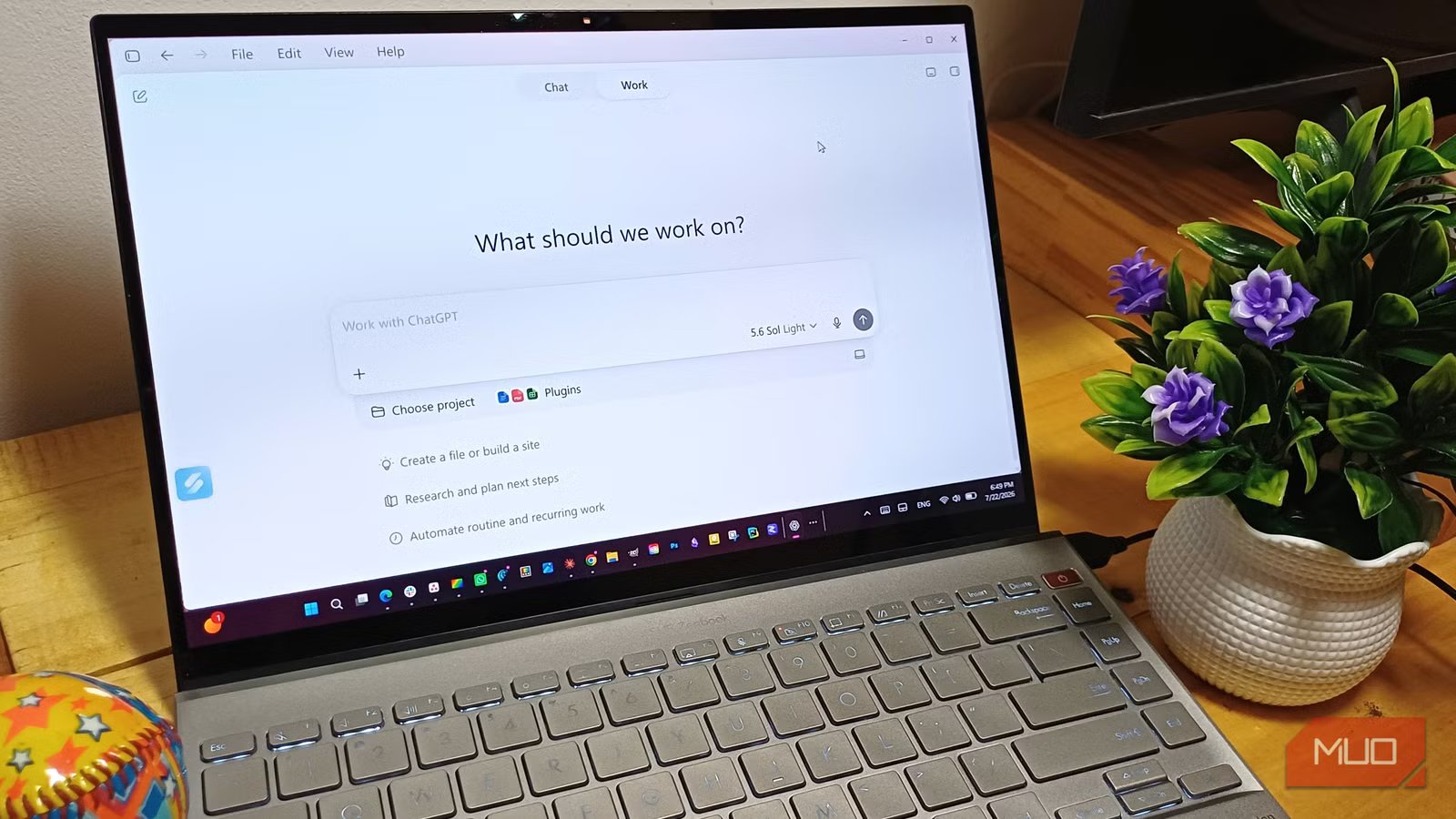
ChatGPT is one of the apps I open daily. I already use ChatGPT as a deep research tool when I need to dig into a topic. If I opened a download page that made it hard to find what I was looking for, I had to ask ChatGPT where to click, then click everything myself. That started to change when OpenAI launched ChatGPT Work on July 9.
OpenAI says Work is available on every plan in the desktop app, though it’s still rolling out to eligible accounts. It can take over a task for me, so I don’t waste time staring at the screen not knowing where I should click. That sounded too good to be true, so I spent several days testing it. Some things worked surprisingly well, and others had me wondering why I’d bothered.
I connected ChatGPT Work to a folder on my Windows 11 PC
It erased the images in a little over a minute

I can upload files to a Chat mode, but it can’t open a folder on my Windows 11 PC and change what’s in it. ChatGPT Work can, so I connected a folder called Test ChatGPT Folder. Then I added three images: a beach, my dogs, and a random tiki hut.
Work found all three without making me upload them one by one. My first request was simple: “Inspect the images in this folder and create a short visual report for each one.”
The screenshot shows that it opened and analyzed the images, but it was still working after 30 minutes and hadn’t made anything useful. So I stopped it.
I wondered if maybe my first request had been too broad, so I made the next one even easier: add “Hello World” to each image. That attempt took another 21 minutes, hit two network errors, and failed too. I don’t know whether the problem was Work or the network, but either way, I waited nearly an hour across two attempts and ended up with nothing.
I just wanted proof that Work could actually change something inside the folder. I told it to delete the images, and it finished in 1 minute and 10 seconds. I set it to ask for approval, and it did once when I first connected the folder. After that, though, it deleted the images without asking again. In my test, that approval seemed to cover the later changes it made inside the folder. I also checked the Recycle Bin, and the files weren’t there. That’s something I’d want to know before connecting Work to a folder with anything important in it.
I got mixed results. Work found and opened the files just fine, but it choked when I asked it to do anything more useful with them. Still, deleting them worked, and I didn’t have to open File Explorer, find the folder, and remove everything myself. I had already seen Claude Cowork do something similar, but I use ChatGPT more.
I watched ChatGPT Work control a live website for me
I saw it select five apps and stop before downloading anything
In Chat mode, I can ask where to click, but I still have to do the clicking myself.ChatGPT Work can take over that part, so I opened its built-in browser. When I first opened it, it offered to import my passwords and cookies from Chrome. I skipped that because I didn’t need it for this test. I told it to open Ninite, select Chrome, Firefox, VLC, GIMP, and 7-Zip, then stop before clicking “Get Your Ninite” or downloading anything. I wanted to see whether it would follow the whole request, including the part where I told it to stop.
I watched Work move around the page on its own and tick each box. It finished in 2 minutes and 31 seconds, selected all five apps, and stopped where I asked it to. It didn’t start a download or do anything extra. I’m sure I could’ve checked the boxes faster myself, but two and a half minutes isn’t that long of a wait. Besides, I wasn’t the one doing it.
OpenAI is shutting down Atlas and bringing the kind of browser control it offered into ChatGPT and Codex. What made this different from a regular ChatGPT conversation was that I didn’t have to bounce between the chat and the site, following instructions one click at a time. For a job like this, I could hand over the boring browser work, refill my coffee, and come back when the page is ready for me to check before I hit download or submit.
ChatGPT Work built and hosted a web app for me in about 7 minutes
Regular ChatGPT can write and preview the code, but Sites gave me a hosted version I could open

I could have made another printable cleaning schedule, but I wanted something I could keep open and actually click. I didn’t make anything too complicated, just something that’d show a few chores each day, with checkboxes, and some way to keep track of what I’d finished.
The prompt I used was “@Sites build me a simple website with a weekly house cleaning tracker. One page, organized by day from Monday to Sunday, a few chores under each day, and check boxes next to each chore that I can tick when it’s done.”
After that, I didn’t have anything to do. A ChatGPT panel showed me what it was working on and what had been done so far. The process took seven minutes and 18 seconds. ChatGPT Work made a link for my new website and set it so only I could see it, which I liked even though I hadn’t asked. I had to sign in to my account to open it.
To see how well it saved my progress, I ticked 9 of the 28 boxes. I refreshed the page to see if everything would disappear, but my progress was still there. I also reset the week with no issues. It had everything I asked for, including daily chores, a counter, and a Reset week button.
After resetting, I ticked a few boxes on my PC and a few more on my phone to compare. My PC showed 4 completed chores, but my phone showed 7.
I saw a small note that said, “Your progress is saved on this device,” but I hadn’t seen it before I did the comparison. Regular ChatGPT could have written the code for me, sure. But I’d still be staring at that code and trying to figure out how to put it online. With Sites, I could easily open and use it.
I found ChatGPT Work useful, but it wasn’t perfect
Sure, I lost an hour to a folder task, but that wasn’t a deal-breaker for me. Chat mode gives me instructions to follow, but Work can use a folder I’ve connected to or a website I’ve opened and do more of the task itself. Try Work with a copy of a file first, because my deleted images skipped the Recycle Bin.