6 things you’re doing that are ruining your Roku
I’ve had my Roku Streambar, the soundbar-and-streamer combo Roku launched in 2020, humming under my TV since it came out. More recently, the picture flickered, the bar ran warmer than it should, and the home screen turned into a wall of apps I never open. Turns out, I was causing most of that myself.
Powering your Roku stick through the TV’s USB port invites random crashes
Watch for the flashing red light
roku

If you’ve got a Roku Streaming Stick, it might seem like a good idea to skip using the wall adapter and just plug it directly into an empty powered USB port on the back of your TV. Roku says that it can work, but only if that port supplies enough power. Many TV USB ports, especially on older sets, don’t. When the power draw is too low, you’ll see a flashing red light or an on-screen low power warning, and your Roku can seem sluggish or even restart on its own.
Don’t worry too much, though: it doesn’t mean every stick running on TV power is doomed. The fix, according to Roku, is to use the cable and adapter that shipped with the device and plug straight into a wall outlet instead. If you’ve lost the original adapter, Roku recommends one rated for 5V and 1A.
Sealing it inside a cabinet is slowly cooking it
A warm device is normal, but a hot device is not

Roku says “It is normal for your Roku player to feel warm to the touch. This is by design and not a cause for concern unless you see the warning below.”
What isn’t normal is if your Roku device gets too hot. That can happen when you tuck it into a closed media cabinet, behind a stack of other devices (hello, gaming console, or up against a wall with no airflow. Roku says that you need to keep the device somewhere ventilated, never covered, and never stacked under other electronics.
Ignore that at your own peril. If you eventually see a solid red light or an on-screen overheating message, Roku says the only way to fix it is to unplug if for at least ten minutes. If it keeps overheating, stop using it and contact support. For Streaming Sticks specifically, moving the unit off the back of the TV with a cheap HDMI extender solves most of this, since the stick picks up extra heat from the TV itself.
Crushing the HDMI cable against the wall is not recommended
It might not be a cheap cable, but how you position it
bent hdmi

It’s tempting to blame a bargain HDMI cable for a flickering picture, but a certified cable that costs $10 can perform identically to one that costs $200 at typical living-room distances, since HDMI is a digital signal that either arrives intact or doesn’t. Smashing it up against a wall and bending the connectors at the plug end can shorten your cable’s life, no matter how expensive it was. This physical damage can happen even just hanging a heavy HDMI off the port on the TV, too, causing problems for both the cable and possibly the port on the TV itself.
To be clear, it’s not that cable quality never matters. If you’re running a longer cable to a receiver, or your Roku Streambar sits far from the TV, you’ll want a certified Ultra High Speed cable to carry 4K HDR reliably. For a standard setup a few feet away, though, secure the cable so it isn’t straining the port, and save your money.

- Length(s)
-
3ft, 6ft, 10ft, 15ft, 25ft
- Brand
-
Amazon
It might come as a bit of a surprise, but the one essential accessory you need for the Apple TV—an HDMI cable—isn’t included with the streaming box. But the Amazon Basics HDMI Cable provides an inexpensive way to get the Apple TV 4K connected to your TV. The cable is compatible with 4K video at 60Hz and provides up to 48-bit deep color. It also supports Audio Return Channel. The cable is available in either black or white to better fit into your home entertainment system. It’s also made for use in a wall for a cleaner installation. Depending on your setup, you can purchase the cable in a number of lengths. Even though there is a huge number of choices in a wide variety of price ranges, the Amazon Basics HDMI Cable will provide everything you need to get started with your Apple TV 4K.
Putting it too far from your router can ruin the picture
Buffering might mean a weak signal, not a slow Roku

Wi-Fi signal strength drops off fast with distance and walls, and Roku hides a wireless diagnostics menu that shows exactly how bad it’s gotten. Press Home five times, then Up, Down, Up, Down, Up, and you’ll see a signal-to-noise ratio, signal strength in dBm, and packet error rate update in real time. A reading below -70 dBm or under 20 dB SNR is where buffering typically starts, and a high packet error rate means frames are dropping and being resent before they’ll play.
Luckily, this is one of the easier fixes on the list. Just mover your router and roku closer together, or even just reposition one or the other, should improve those numbers right away, with no new hardware needed.
Letting your channel list turn into a junk drawer
It’s the clutter that slows you down

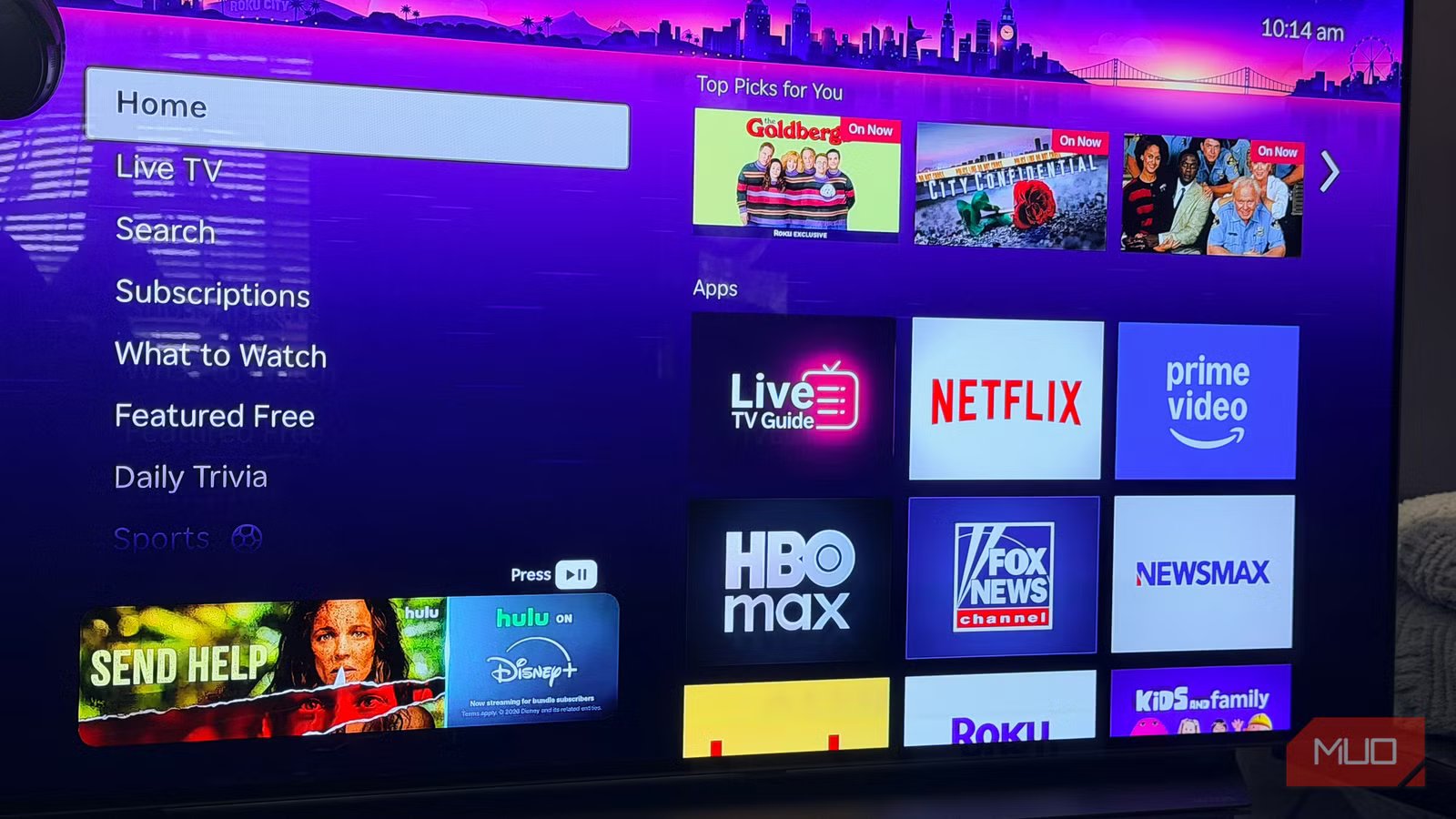
If you’re anything like I am, you’ve got a ton of unused channels on your Roku screen that you tried once, and then just never deleted. Just like your phone screen, your Roku home page can fill up fast. That means you’ll need to scroll more to find what you actually want to watch, not to mention how new apps you install drop to the bottom of the list by default. It’s not a hardware issue, here, but a standard of practice that causes the daily frustrations. Roku will let you hide the built-in promotional rows easily, too, like Live TV and What to Watch. Just hop into Settings > Home screen and check the box, so your layout can go back to just things you’ve added.
You can also stop new app installs from getting buried at the bottom of the grid. Highlight the channel you want to move, press the star button on the remote to open the Options menu, select the move option, and use the directional pad to drop it wherever you’d rather have it. Put the two or three services you actually open every day in the first row, and you’ll stop scrolling past everything else just to reach them.
Skipping restarts and software updates
A quick reboot solves more than you’d think

It’s easy to leave your Roku just running, as it sort of just works most of the time. Roku’s softare updates, though, can fix buts that show up as freezing and stuttering. A simple reboot can be found under Settings > System > System Restart will also clear out temporary glitches without wiping any of your accounts or preferences, and clearing the cache with a remote button combo can also help. While Roku rolls out automatically most of the time, they can lag behind a bit. If you’re having issues with your Roku device, try checking manually once in a while.
Your Roku might not be falling apart after all
Every habit on this list can feel harmless on its own, and that’s why they can be easy to miss. Checking my own setup for hardware issues, organizing my home screen, and doing an occasional restart keeps my Roku experience feeling responsive and new. Give some of these fixes a try and see if you get a similar positive result.