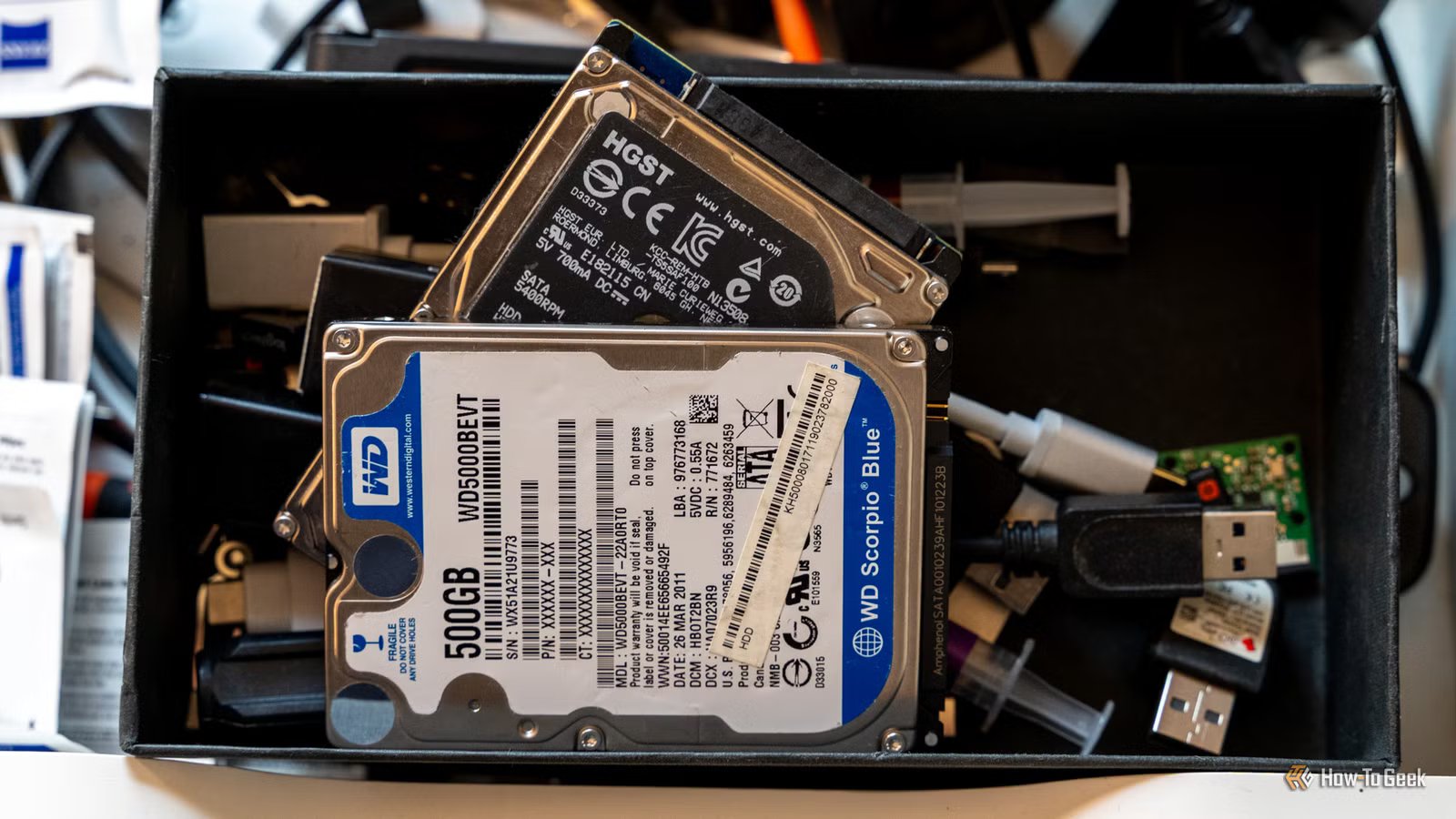
Your failed hard drives aren’t 100% dead: 6 things you can still do with them
Even tiny drives, like a 120GB SATA SSD, can come in handy. After all, if the drive is working, there’s nothing stopping you from giving it a more or less useful job.
But what if it’s fully, 100% dead? Kaput, no-go, knocked out cold? Well, that changes things. But before you take it to your nearest recycling center, check out my creative suggestions for what to do with a dead-dead HDD.
Find out whether the hard drive is fully dead
You might get a pleasant surprise
First things first. Before you fully deem that poor old HDD to be little else than trash, rule out some problems to make sure it’s really done for forever.
Swap the SATA or USB cable. Nothing? Okay, try a different port. Nothing? How about a whole different PC entirely? And don’t forget to check whether it actually shows up in the BIOS or Disk Management. If it does, it might have more life to it than you’d think.
An external drive might be dealing with a dead enclosure, while an internal HDD could just be dealing with a loose power connector or a failing cable. No need to throw those out, you just need to replace the faulty part.
Warning: If your HDD suddenly comes back to life, don’t just assume it’s all good now. Instead, use that brief moment to copy all your files to a safe place, following the 3-2-1 rule.
Harvest the magnets, screws, and other hardware
The storage may be toast, but check the parts

Once you’re super sure that HDD is gone for good, you can tear it apart for some parts.
HDDs contain some impressively strong magnets that help move the actuator arm across the platters. Once removed, they’re handy for holding tools, catching loose screws (a common problem in PC building, or attaching things to metal shelving). They’re way stronger than ordinary fridge magnets, so be careful with your fingers and keep them away from anything that might object to a powerful magnetic field.
You can also salvage Torx screws, rubber pads, brackets, spacers, and bits of the metal housing. None of it is major, but hey, it’s free.
Reuse the enclosure, cable, or power adapter
Provided they’re still fine

If you’re using an external HDD, the HDD itself may not always be the guilty party. But I’m going to assume you’ve done your homework, and indeed, the drive is gone. But the hardware surrounding it doesn’t have to be.
A standard SATA drive enclosure can often accept another compatible HDD or SSD, while the old cable and power adapter may work with other devices. Just check the voltage and connector before plugging a mystery adapter into anything you care about, because saving an enclosure is not worth killing another HDD.

Quiz
Weird and quirky storage drives
Trivia challenge
From hybrid SSHDs to bizarre form factors — how well do you really know the oddest corners of storage technology?
Hybrid DrivesForm FactorsHistoryHardwareOddities
What does the acronym SSHD stand for in the context of hybrid storage drives?
Correct! SSHD stands for Solid State Hybrid Drive. These drives combine a traditional spinning hard disk with a small amount of NAND flash memory to accelerate frequently accessed data, giving users a middle ground between HDD capacity and SSD-like speed.
Not quite — SSHD stands for Solid State Hybrid Drive. While ‘Solid State Hard Drive’ sounds convincing, it’s actually a common misconception. The ‘hybrid’ part is key, since these drives merge both spinning magnetic platters and flash memory into a single unit.
Which company is widely credited with popularizing the consumer SSHD by releasing the Momentus XT in 2010?
Correct! Seagate’s Momentus XT was a landmark product that brought the SSHD concept to mainstream consumers. It combined a 500GB spinning platter with 4GB of SLC NAND flash and used adaptive memory technology to learn which data to cache for faster access.
Not quite — it was Seagate that popularized the consumer SSHD with its Momentus XT in 2010. The drive used a modest 4GB of SLC NAND flash alongside a traditional 500GB platter, and it was groundbreaking enough to turn many heads in the enthusiast storage community.
What was unusual about the Intel Optane Memory H10, released in 2019?
Correct! The Intel Optane Memory H10 crammed both 3D XPoint Optane cache and QLC NAND storage onto a single M.2 2280 card. This meant the Optane portion acted as a super-fast buffer for the slower QLC NAND, all within one slot — a genuinely clever hybrid approach for thin laptops.
Not quite. The Intel Optane Memory H10 was unusual because it placed 3D XPoint Optane cache and QLC NAND SSD storage together on one M.2 card. This dual-storage-on-one-stick design was highly unconventional and required special Intel RST drivers to function correctly, making it a quirky product indeed.
The Sony Microvault and similar tiny USB drives once came in novelty shapes like food items and cartoon characters. What is the technical term for this category of novelty drives?
Correct! The industry term most commonly used is ‘promotional flash drives.’ They are widely produced as branded giveaways and collectibles, molded into virtually any shape imaginable — from sushi rolls to rubber ducks. Some rare novelty drives have become genuine collector’s items over the years.
Not quite — the most widely recognized industry term for novelty-shaped USB drives is ‘promotional flash drives.’ These quirky drives are manufactured in bulk for marketing campaigns and giveaways, and the moldable casings mean manufacturers have produced everything from mini pizza slices to tiny LEGO-style bricks.
Apple’s Fusion Drive, introduced in 2012, is a type of hybrid storage. How does it differ from a traditional SSHD?
Correct! Apple’s Fusion Drive is two separate physical drives — an SSD and an HDD — that macOS presents as a single unified volume using Core Storage (later APFS). Unlike an SSHD where everything is in one enclosure, Fusion Drive relies entirely on software-level management to decide what lives on the flash and what goes on the platter.
Not quite. The key difference is that Apple’s Fusion Drive consists of two separate physical drives — an SSD and an HDD — merged into one logical volume by macOS software. A traditional SSHD is a single self-contained unit with its own firmware controller managing the flash cache, making them architecturally quite different despite achieving similar goals.
What was the primary purpose of the Robson cache technology Intel developed before eventually pivoting toward SSDs?
Correct! Intel’s Robson technology — which became Intel Turbo Memory — placed a small NAND flash cache on a mini-PCIe card inside laptops to speed up hard drive access. It worked alongside Windows ReadyBoost and ReadyDrive but was largely underwhelming in real-world performance, and the project was quietly shelved as SSDs took over.
Not quite. Intel’s Robson/Turbo Memory technology used a small NAND flash chip on a mini-PCIe card to cache hard drive data on laptops. It leveraged Windows Vista’s ReadyBoost and ReadyDrive features but never lived up to the hype, and it was eventually abandoned as standalone SSDs became cheaper and far more effective.
The iomega Zip drive was a popular removable storage medium in the late 1990s. What was the original storage capacity of the first Zip disks released in 1994?
Correct! The original Iomega Zip disk launched in 1994 with a 100MB capacity, which was enormous compared to the 1.44MB floppy disks it aimed to replace. Later iterations pushed capacity to 250MB and even 750MB, but the original 100MB version was the one that captured the imagination of consumers and creative professionals alike.
Not quite — the first Iomega Zip disks released in 1994 held 100MB, a staggering amount at the time when standard floppy disks only held 1.44MB. Later versions expanded to 250MB and 750MB, but it was that original 100MB capacity that made the Zip drive a cultural phenomenon in offices and design studios throughout the late 1990s.
Western Digital’s Black² drive was a quirky dual-drive product released around 2013. What made it so unusual?
Correct! Western Digital’s Black² squeezed a 120GB SSD and a full 1TB HDD into a single 2.5-inch, 9.5mm-thick drive — the same size as a standard laptop hard drive. The catch was that it required special WD software to unlock the HDD portion, and it appeared as two separate drives to the operating system rather than one seamless volume.
Not quite — the Western Digital Black² was remarkable because it packed a 120GB SSD and a 1TB HDD into one standard 2.5-inch laptop-sized enclosure. Unusually, users had to install WD’s own software to unlock and access the HDD portion, and the two storage sections appeared as separate drives rather than being merged transparently like Apple’s Fusion Drive.
Your Score
/ 8
Thanks for playing!
Use it to learn how HDDs actually work
Let’s face it, tearing hardware down is fun

A fully dead drive is the perfect excuse to see what goes on inside of one. Remove the cover and you’ll find the platters, spindle, actuator arm, read/write heads, controller board, and magnets. All of it is fun stuff, especially when you can tear it up without worrying about what’ll happen to it next.
Digging into the insides of an HDD makes it easier to see why they make noise, why they dislike being dropped, and why they’re slow. You don’t have to bother with putting everything back together correctly, but you might as well try, for the challenge and for the learning experience.
Practice drive diagnostics without risking healthy storage
Experimenting on a drive with actual files is a bit scary

If the drive still spins up and shows up in your operating system but you can’t trust it enough to do anything else, you can still treat it as a proverbial guinea pig and practice for when you actually need it. Checking SMART data is a basic option, but you can also use tools like GSmartControl to check for drive problems.
Another bonus is that you’ve got the unique opportunity to learn the difference between a dead file system and dead hardware. A drive may appear as RAW, unallocated, or unreadable while still responding to commands, but a more serious failure may just wipe it off the face of the earth (or rather, your PC) entirely.
Turn the platters into coasters or desk decorations
No, I’m not joking

If the drive has virtually no other purpose, you can still use it … as decor.
Crack it open and take a look at the platters. They’re shiny, perfectly circular, and surprisingly nice to look at. They work well as coasters, ornaments, or just something vaguely techy to live on your shelf. But remember that disassembling the HDD may make any professional data recovery pretty much impossible.
Don’t throw stuff away when it can still have some use
With the prices of storage going wild in the past months, throwing any kind of storage media away just feels bad, plain and simple. Plus, we have enough e-waste in the world, and adding to it is unnecessary. Give your good ol’ HDD a chance, and if you really can’t find any use for it, just make sure no one else can get those files if they ever find it.