4 tweaks I always make to get more performance from my Windows 11 gaming handheld
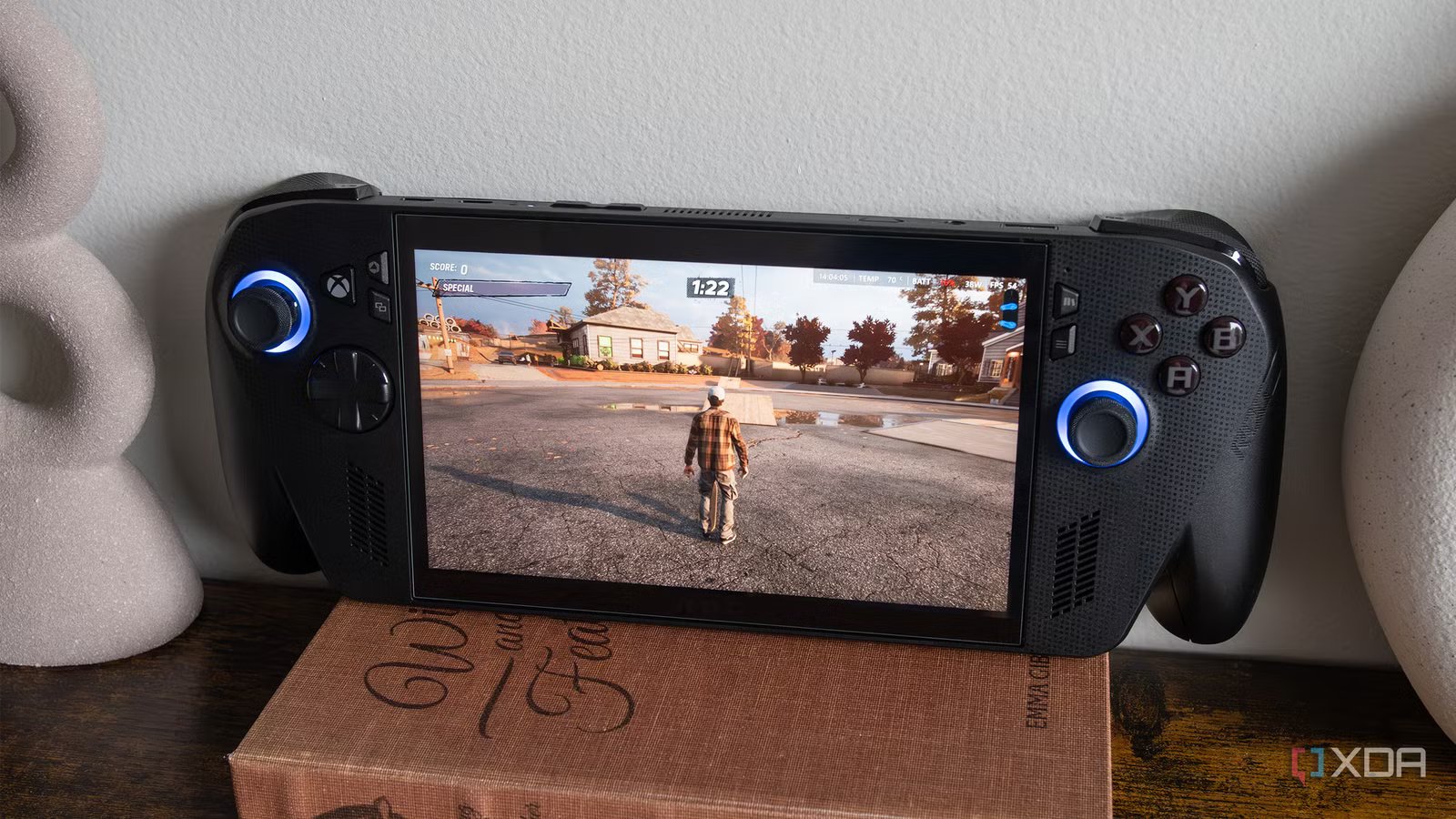
When it comes to Windows 11 gaming handhelds, my goal is to get the best visuals and frame rate from AAA games that I can. Sometimes this just isn’t possible, even with the ROG Xbox Ally X, and I’m forced to lower the resolution and graphics settings considerably just to barely hit 15-20fps. However, in most situations, I’ve managed to tweak my handheld’s settings enough to make recently released games surprisingly playable.
This is important to me because I use my ROG Xbox Ally X as an extension of my Windows 11 PC. If I don’t have the time to kick back for a lengthy gaming session in my office with my beefy Nvidia RTX 5090-powered gaming PC, and instead only have an extra 15 minutes to kill while my son is napping or busy doing something, I whip out my ROG Xbox Ally X and get a bit of gaming in. I’ve always appreciated the versatility Windows 11 handhelds offer because they fit really well into the stage of life I’m in right now.
With that in mind, I still want games running on the ROG Xbox Ally X to look and play reasonably well, and over the past several months, I’ve picked up a few tricks that accomplish exactly that.
While this story is focused on the ROG Xbox Ally X, I also took advantage of many of these settings with the ROG Ally X when it was my primary Windows 11 handheld.
On another note, I’ve been spending a lot of time with the MSI Claw 8 EX AI+ lately, and while the pricey handheld is powered by Intel’s Arc G3 chip and not AMD’s Z2 Extreme, the majority of the tweaks in this story still work, only you’ll need to use the handheld’s Center M software and Intel’s Graphics Software to change them.
Setting an in-game FPS limit can make a huge difference in performance
I prefer to set a limit for every game, rather than to use a global setting
There are a few ways you can limit a game’s frame rate with the ROG Xbox Ally X and other ROG Ally consoles. First, you can open up Armoury Crate by tapping the Xbox button and scrolling to Armoury Crate, or by pressing the dedicated Armoury Crate button on the handheld. Next, select FPS Limiter from the Command Center menu. You can toggle between several options, including 30fps, 40fps, 60fps, 90fps, and 120fps by tapping the button. You can also open up the AMD Software app and use Radeon Chill to create individual frame rate profiles for each game, but this isn’t a feature I’ve ever felt the need to take advantage of.
On a side note, I also always turn on the Minimal Real-time Monitor and slide it to the top right corner of the handheld to keep an eye on a game’s frame rate. To do this, open the Command Center and tap on Real-time Monitor, then slide the visualization where you want.
Generally, I prefer to just do this directly in games, since most titles feature a graphics setting that lets you cap the frame rate. For example, with Black Flag Resynced, the game I’ve been playing the most recently, I’ve capped the frame rate at 30fps in its graphics settings. Uncapped, I get somewhere between 35-45fps, depending on the in-game visual settings and what’s going on at the time (it fluctuates quite a bit).
In this case, capping the frame rate to 30fps allowed me to kick a few key graphics settings up a couple of extra notches. Some people will likely prefer a better frame rate over prettier visuals, but in nearly all cases, I want a balance between both.
Turning on FSR can be an absolute game changer
Not every game supports the feature, unfortunately (but a lot do)

AMD FidelityFX Super Resolution (FSR), which renders a game at a lower resolution, for example 720p, and then upscales it to 1080p using a temporal scaling algorithm. This is key to getting pretty much any visually demanding game to run well on the ROG Xbox Ally X. With almost every title, I turn FSR on and get a solid frame boost, ranging from 10% all the way up to 50% depending on what I set it to, whether that’s Quality, Balanced, Performance, or Ultra Performance.
In most cases, I opt for Balanced because it usually keeps games looking good while offering a solid frame rate boost. On Performance or Ultra Performance, titles often look muddy and blurry, which I’m not fond of. On a side note, games that support FSR 3 (and frame generation) tend to get the biggest frame boost from AMD FidelityFX Super Resolution. Unlike setting an FPS limit, FSR needs to be turned on for each title, and in some cases, you might encounter specific games that don’t support the feature.
AMD also offers Radeon Super Resolution (RSR), a driver-level upscaling feature. Since most games support some form of FSR, I’ve never felt the need to use it. I also don’t like that it needs to be turned on globally.
AMD also offers two different kinds of Frame Generation: AMD FidelityFX Super Resolution 3 (FSR 3) and AMD Fluid Motion Frames (AFMF). If a game supports FSR 3, it often also has frame generation built directly into it. However, sometimes there’s an in-game toggle for FSR and Frame Generation. Confusing, right? This is how it works with Assassin’s Creed Black Flag Resynced.
On top of that, there’s also AMD Fluid Motion Frames (AFMF), which you can use with games that don’t support FSR 3 and Frame Generation. AFMF isn’t directly embedded into a game and needs to be enabled globally through Armoury Crate. In my experience, AFMF creates latency problems with games, so I rarely use it (I also don’t like that it needs to be turned on globally). Still, if you need a performance boost for a game that doesn’t support any form of built-in FSR, it’s an option.
Make sure you spend time tweaking your in-game visual settings
This is absolutely key to AAA games running on Windows 11 handhelds

Above everything else I mention in this story, the key to getting a big-budget, recently released game to run well on a Windows 11 handheld is to spend time finding the right settings. For example, lowering the resolution from 1080p to 900p is sometimes worth it because it’ll let you turn other aspects of a title’s visuals up and can also result in a higher frame rate. Additionally, turning off features like VSync, lighting quality, character model detail, texture quality, shadow quality, and more can make a big difference with most titles.
Some games will offer handheld-specific graphics presets, but in most cases, you’ll need to scroll through the in-game list of visual settings and tweak them yourself. Sometimes titles have in-game benchmarking tools that offer recommendations for what settings make the most sense, but in many cases, figuring out what settings get you the best frame rate and visuals requires experimentation.
However, if you’re like me and often don’t have the time to figure out whether you can flip textures up from Low to Medium, ROG Ally Life is a great source of visual settings recommendations. The website is updated frequently and offers a wide range of suggestions, including VRAM, TDP, resolution, whether you should use CPU boost, and lastly, individual graphics settings. I recently used ROG Ally Life for both Assassin’s Creed Black Flag Resynced and Halo: Campaign Evolved, and with a few extra settings changes of my own, I’m very happy with how both games run on the ROG Xbox Ally X.
Picking the right TDP mode is key
Make sure you have the latest updates and set the VRAM

I’ve encountered a few situations where I’m getting horrible frame rates with my ROG Xbox Ally X, and I just can’t figure out why. Embarrassingly, it’s often because I’m accidentally running the handheld on the wrong TDP setting. In most cases, instead of Turbo, the handheld has accidentally switched to Performance or even Silent mode, reducing the typical 25W output to 17W or 13W. Given I rarely use the Xbox Ally X outside my home, and I’m often near a plug,
I frequently plug it in to take advantage of the 30W turbo plugged-in mode, letting me eke out a few more frames with high-end games. In total, there are four TDP modes: Silent (13W), Performance (17W), Turbo (25W), and plugged-in Turbo (30W). Of course, the harder you push the handheld, the less battery life you’ll get out of it, and the handheld’s fans will also start to sound like a jet engine.
While I’ve never bothered to do this because it drains the handheld’s battery rapidly, you can create a custom Manual power profile to get very close to the plugged-in 35W Turbo experience when the Xbox Ally X is unplugged. To do this, navigate to the Armoury Crate app and select Operating Mode. Now, set SPL to 25W, SPPT to 30W, and FPPT to 35W.
Lastly, I always recommend you make sure you have the latest Windows, game, and Xbox Ally X updates installed on the handheld. This doesn’t always make a difference, but it can, especially if it’s a recently released title with a day-one patch.