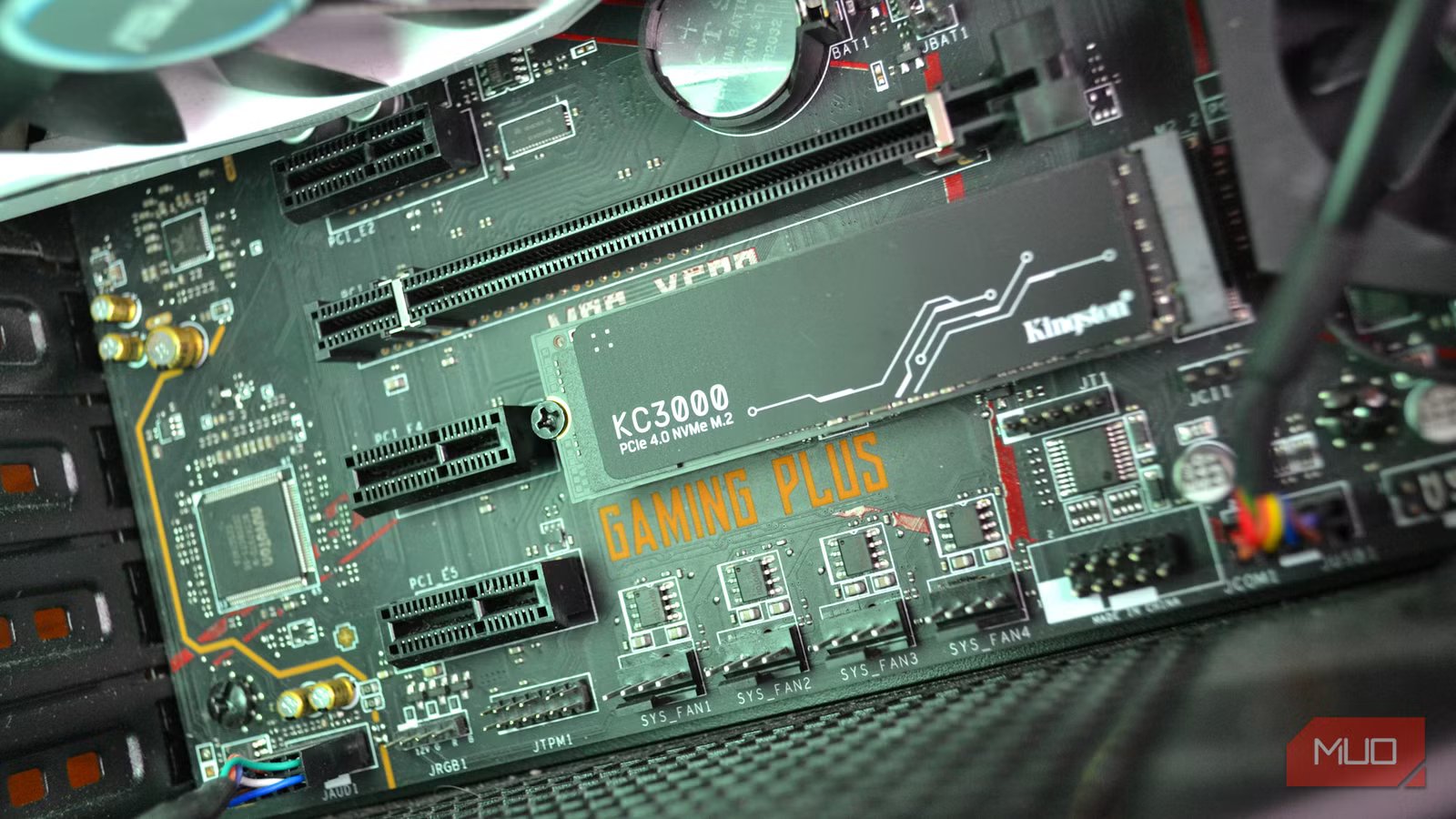
Your SSD might be stuck in a slow lane on your own motherboard
Did you know that buying a faster SSD doesn’t always guarantee you’ll get the advertised speed? The focus is often on the drive’s specs, but the motherboard slot you use affects whether it runs at full throttle or becomes a bottleneck. I only found out by accident after installing a new M.2 drive, which disabled two of my SATA ports. My research revealed that even a brand-new SSD can be stuck in the slow lane. You only need a few minutes to find out for yourself.
Your motherboard isn’t treating every SSD equally
Some M.2 slots are faster than others

This experience moved me to read the manual for my MSI B450 Tomahawk Max (AMD AM4) motherboard (it’s 102 pages, and I get why no one reads it). I came across a diagram showing how to install the M.2 module, and just underneath was a warning:
SATA5 and SATA6 ports will be unavailable when installing a M.2 device in M.2 slot.This diagram explains a hardware compromise.
I could see that my high-speed M.2 slot was directly sharing motherboard resources with my SATA ports. Plugging in an NVMe drive triggered the motherboard to automatically disable SATA ports 5 and 6.
It was the explanation for why the two SATA ports no longer appeared in Windows. I hadn’t broken anything per se. This specific motherboard sacrificed SATA ports to ensure the SSD ran at full speed. However, the compromise may be different on other boards where an SSD may run through fewer lanes or an older PCIe connection.
It’s more common than you would think on both budget and flagship consumer motherboards. Since motherboards have a limited number of high-speed lanes that come straight from the CPU, routing secondary slots through slower chipsets is how manufacturers can offer multiple M.2 slots on mid-range boards. This means they share bandwidth with other components, and putting your main drive in that slot can limit the drive to below its advertised capability. In the manual, this may be indicated by a note about shared bandwidth, a SATA port that is disabled when an M.2 drive is plugged in, or a “preferred slot.”

- Brand
-
MSI
- CPU Included
-
No
- Graphics Card Interface
-
1x PCIe 5.0 x16
- Integrated Graphics
-
No
The MSI MPG Z790I Edge WiFi is an excellent Mini-ITX motherboard for compact builds.
Some M.2 slots are B-key or B+M-key only, meaning they’ll physically fit your SSD but may only support SATA (not NVMe).
Check whether your SSD is taking the fast route
It only takes a couple of minutes to verify

Don’t simply assume you have the same problem because your SSD feels slow. Confirming with a two-minute check first will save you from applying fixes that don’t apply. Your first check should be the motherboard’s model. This is often printed on the board or may be found in the BIOS.
With that, you can find your motherboard’s manual and go through its storage layout page. M2_1, M2_2, or M2A_CPU are the common slot labels you’d see, and the manual typically indicates the one that connects directly to the CPU and which ones run through the chipset.
You can double-check if what you see in the manual matches reality using CrystalDiskInfo. This free tool will show your SSD’s current PCIe link speed and negotiated lane configuration.
|
Check |
What it tells you |
|---|---|
|
Motherboard manual |
Which slot gets full bandwidth, and which ones share resources |
|
CrystalDiskInfo |
Whether your SSD is running at the connection it should be |
Your manual remains the most reliable resource since you can expect motherboards to wire slots differently. And don’t trust any guide that tells you to always use a particular slot.

- OS
-
Wiindows
- Price model
-
Free
CrystalDiskInfo is an open-source software for Windows. It monitors the health, temperature, and S.M.A.R.T. status of HDDs and SSDs and provides warnings before potential disk failures.
Your motherboard’s layout can cost you speed
A few common errors catch even careful builders
One common mistake is dropping a PCIe 4.0 or 5.0 SSD into a slot that only supports an older generation. Your drive will still run fine, but it will do so at a fraction of its full speed, with no obvious on-screen sign.
Also, don’t make the mistake of populating a secondary M.2 slot without checking what it disables. It’s common for that second drive to turn off one or two SATA ports, as it did for me.
PCIe lanes may even be reassigned on some boards when an expansion card is added. While it’s less common than the M.2 and SATA sharing design, this can affect nearby M.2 slots. Checking the manual usually makes all this clear.
Your board isn’t poorly made just because you fall into any of these categories. Every board has a layout; you just didn’t know it before buying.
Don’t buy a new SSD just yet
Moving your main drive into the CPU-connected slot won’t necessarily fix every performance issue. For instance, your slot may support the full drive’s speed, but if your work isn’t pushing much data at once, you may not feel the difference. It’s important to take note of this before tearing your computer’s case apart.
If you move your boot drive, shut down fully instead of using sleep, and double-check your BIOS boot order afterward, since some systems won’t automatically point to the SSD in its new slot.
More importantly, before you decide to buy a new SSD, go through this short list:
- Is your drive running on the same PCIe generation the slot supports (e.g., PCIe 3.0, 4.0, 5.0)?
- Does your manual mention any slots that share bandwidth?
You can end up saving some money just by answering these questions. You don’t always need new hardware.