This Home Assistant tool lets you control smart lights by snapping your fingers
If you’ve ever wanted Thanos-like control over your smart home, you’re about to get your wish. Developer David Ruiz has released a Maestro app in beta that lets you activate devices just by snapping your fingers.
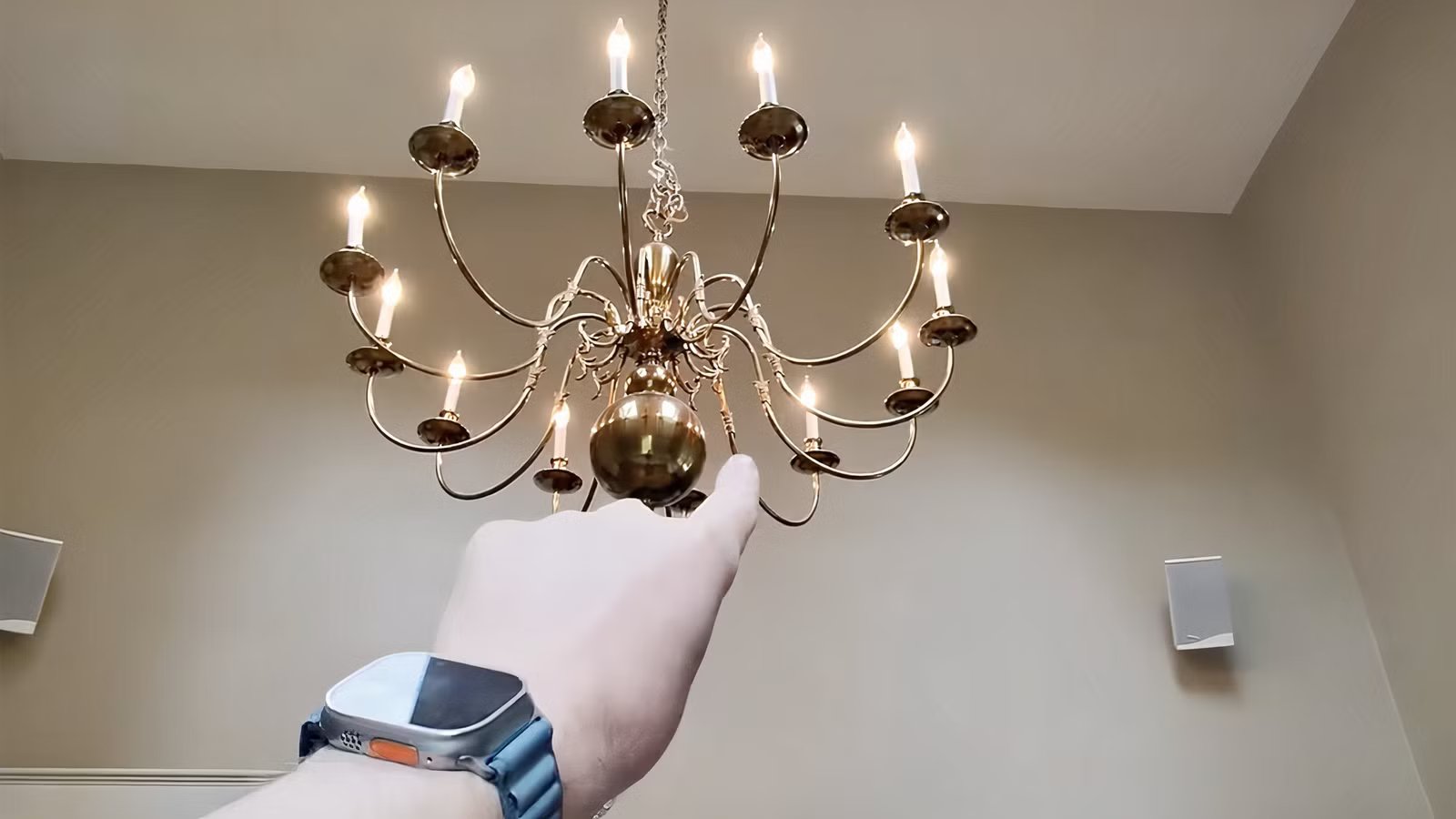
The early software uses the combination of an iPhone and Apple Watch to control either your Home Assistant server or Apple Home through gestures. You first “paint” your smart home landscape by sweeping your arm, using your watch motion sensors and Bluetooth device environment to create a virtual map. When you want to toggle a device, you point at it and snap (or tap) your fingers.
You can also create scenes that run multiple devices at once, such as a “goodnight” scene that turns all the lights off when you snap at the hallway from your bedroom.
While Maestro won’t necessarily offer perfect responses from the start, you can correct the app on-screen until it learns the right behavior. The map still works away from home, even though gestures don’t. And no, you can’t accidentally unlock your front door — you need to both snap your fingers and tap your watch to control smart locks.
As Ruiz explains, he invented Maestro because he’s “lazy” and “think[s] it’s awesome.” He adds in an FAQ that it’s a more elegant alternative to Siri, as you don’t have to awkwardly issue voice commands in front of others. You look powerful and not “silly,” Ruiz adds.
When can I snap my fingers to control my home?
Soon, with limits
The Maestro beta is available now for free through TestFlight, although access is full as of this writing. It requires at least an Apple Watch Series 5, aa it depends on the wearable’s compass to paint the map.
Ruiz hasn’t said when the finished version will be ready, and there’s no mention of an Android equivalent. However, the completed Maestro will always allow one-room, one-device control for free. A one-time $9 purchase will unlock full access, as the developer doesn’t think this warrants a subscription.
The app will require that you first launch Maestro “for now,” he adds. WatchOS doesn’t let apps monitor your arm activity in the background, and that would likely drain your battery. At the moment, Ruiz recommends either adding a Maestro complication to your watch face or (with an Apple Watch Ultra) setting the Action button to launch it. You can also visit Settings -> General -> Return to Clock -> Maestro to set a longer delay before the app quits.