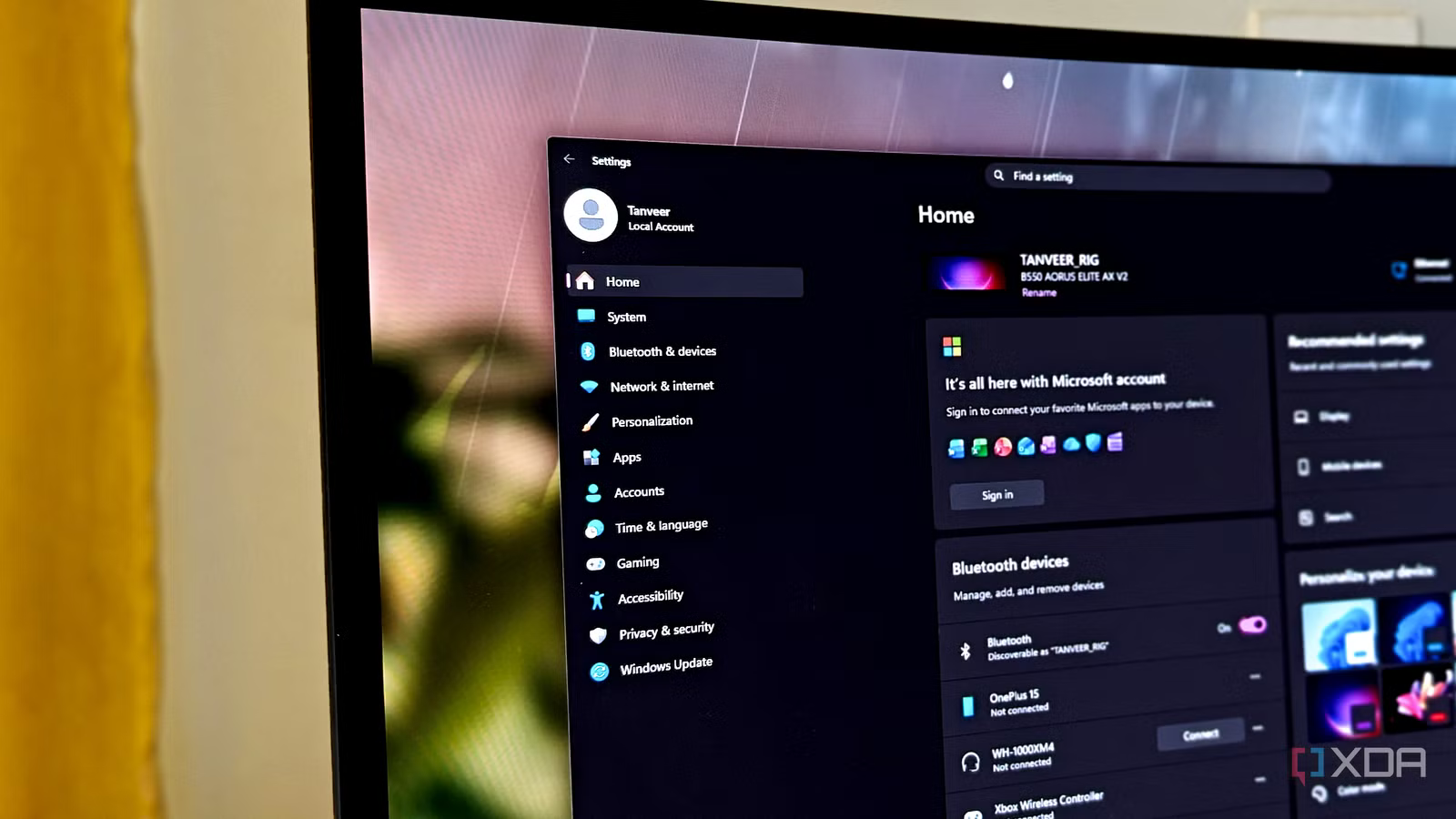
Microsoft says I need a Microsoft account to set up Windows 11, but that’s still not true in 2026
The relationship between Windows 11 users and Microsoft is one of the most toxic ones I’ve ever seen. As one of those users myself, I can’t leave Windows 11 for good, but I can’t accept Microsoft’s arbitrary restrictions either. For instance, the mandatory Microsoft account requirement has forced Windows 11 users to resort to registry changes, command prompt workarounds, and third-party utilities.
People just want the choice to use a local account instead, but Microsoft just doesn’t like local accounts on Windows. Recently, the company made it harder to set up Windows with a local account by removing a bunch of workarounds. That said, you can still make it happen by spending a few extra minutes in the ISO preparation phase.
I set up Windows 11 with a local account, despite what Microsoft says
Thankfully, Rufus still works

When I had to move to Windows 11 after years of resisting the move, I was still reluctant. The reputation of Windows 11 preceded it, and I wasn’t looking forward to the flurry of ads, intrusive data tracking, and, of course, a mandatory Microsoft account. Thankfully, the tool I always use to create a bootable ISO was all I needed to bypass each one of these “features.”
Using Rufus, I was not only able to remove the Microsoft account requirement from the bootable ISO. The setup never prompted me to create an online Microsoft account, and I easily created a local account instead. As a bonus, I also debloated Windows 11 to a significant degree. Rufus allows you to remove bloatware like Teams, OneDrive, Copilot, and Outlook from the installation media itself.
Rufus has remained the best way to bypass a Microsoft account on a new Windows 11 installation. You can also use Ventoy to achieve the same result, but I like Rufus since I’ve been using it for many years.
You can still use the official bypass method on Windows 11 Pro
The Pro edition does have some benefits

Unlike Windows 11 Home, the Pro, Enterprise, and Education versions officially allow you to create a local account during setup. However, since most people encounter the Home version on their PC, this official support doesn’t benefit them. If you are using Windows 11 Pro, though, you can simply create a local account without using any tricks, hacks, or third-party tools.
On the account creation screen, you need to choose Set up for work or school when prompted, and then use the Domain join instead option in Sign-in options. You can then enter a username and password of your choice for your local account. This is one of the areas where it pays to use Windows 11 Pro instead of Home.
Note that command prompt workarounds like start ms-cxh:localonly and oobe/bypassnro aren’t supported anymore on the latest Windows 11 builds. Even if they work on your build, they might not be supported for long. Microsoft is working hard to remove these bypass methods permanently. Fortunately, there’s another trick that works quite well, which brings me to the last section.
Create a custom XML file to force a local account and a lot more
It’s one of the most powerful methods out there

Every OS allows you to create an unattended installation media, where the setup is completed without any user input. This method is useful in enterprise environments where a large fleet of systems needs to be configured, but you can do it for your PC, too. By creating an autounattend.xml file, you can install Windows 11 hands-free, but more importantly, you can tweak the file to remove the Microsoft account requirement, among other things.
The Schneegans.de website makes this quite simple by giving you a step-wise list of configurable options, where you can choose all the options that Windows 11 normally asks you during the setup. Within this list, you can check the Let Windows Setup create the following local (“offline”) accounts bullet, and enter the local account username and password you want. You can then download the XML file and place it in the root directory of your bootable USB drive.
This method also allows you to disable Windows Update, User Account Control (UAC), Fast Startup, TPM and Secure Boot requirements, and the internet connection requirement, among many other things. It’s a pretty powerful tool to tailor your Windows 11 installation to your needs.
It sucks that users need to fight to keep Windows 11 sane
Microsoft should have listened to user pushback around unhelpful Windows 11 requirements a long time ago. We wouldn’t need to use tricks and tools to remove features that shouldn’t be there in the first place. There’s no telling if Microsoft will do better in the near future or crack down on the bypass mechanisms even more. If you’ve had enough of Windows, though, you can always switch to Linux.