It’s impossible to recommend paid Windows cleanup utilities when Windows Sysinternals does everything for free
There are very few things that frustrate me as much as Windows “utility” suites that promise to clean and speed up your Windows PC, all for the price of a yearly subscription. What subscribers really get from them are just startup managers, process monitors, file shredders, and a few other handpicked maintenance tools that they could think of, all onto one single dashboard. The idea they purport is that Windows can’t look after itself, while the reality is that Windows, and by extension, you, the user, can clean things up just as well without paying a single cent.
A lot of the value from these so-called Windows-cleanup apps disappears when you separate the genuinely useful tools from the marketing fluff. Windows already handles a ton of the routine maintenance for free, and it’s Microsoft’s own Sysinternals suite that does most of the heavy lifting. It covers the advanced jobs that paid utilities love to advertise.
Autoruns is better than the startup managers you’re paying for
Microsoft’s free tool gives you complete control
If you’ve ever used CCleaner, IObit Advanced SystemCare, or Glary Utilities, you’ve definitely seen their Startup Manager front and center. What these apps try to sell is that they’ll disable a few apps and shorten your boot time, thus making Windows feel snappier. However, these tools barely scratch the surface, showing only the handful of startup entries they’re comfortable exposing.
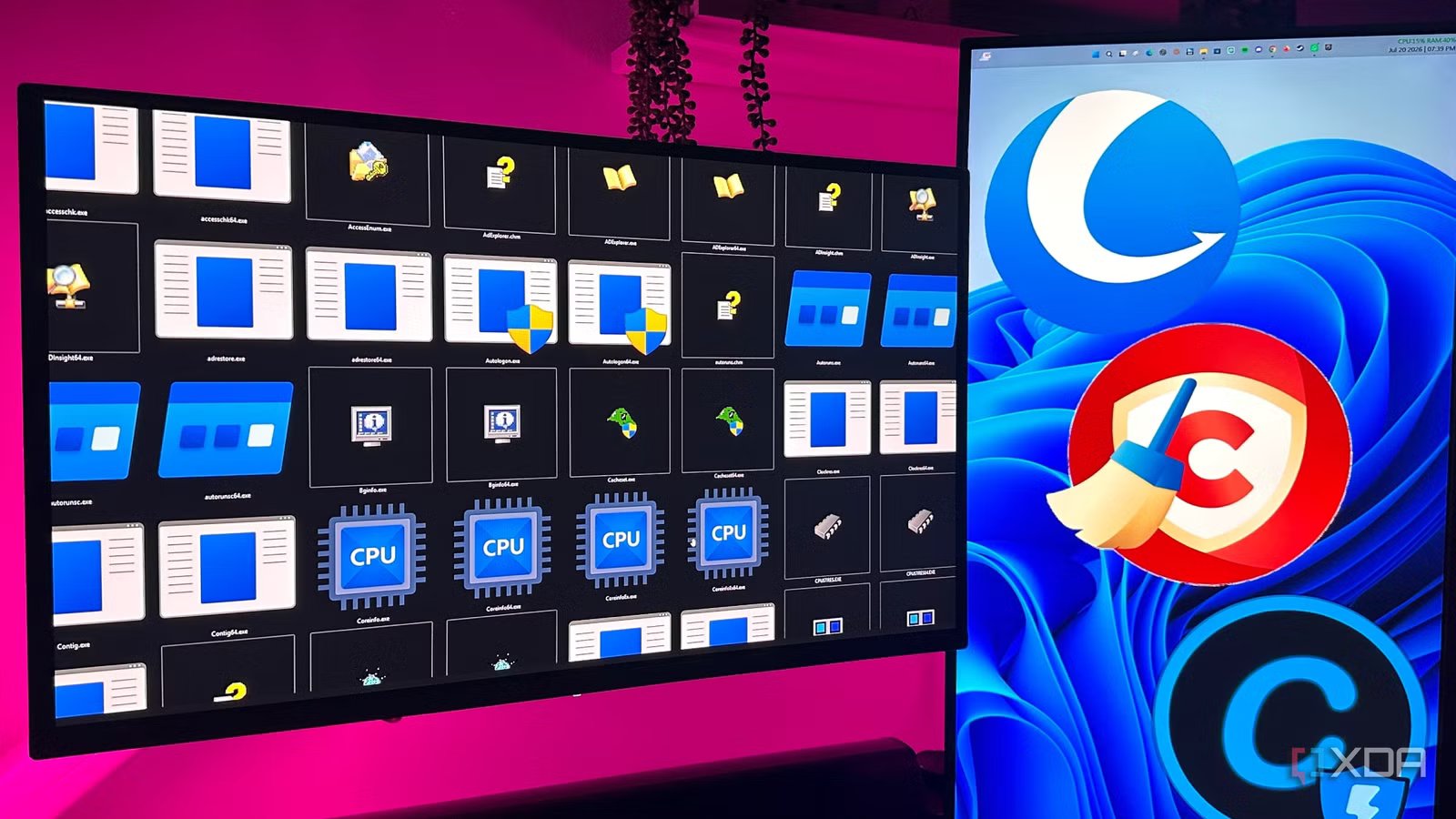
Autoruns in Sysinternals, on the other hand, doesn’t have such limitations. Instead of presenting a curated list, it reveals virtually every location that Windows can use to launch something automatically. That includes registry Run keys and scheduled tasks to services, drivers, Explorer shell extensions, browser add-ons, and every other place. Autoruns even integrates with VirusTotal, so unfamiliar startup entries can be checked against dozens of antivirus engines in seconds instead of forcing you to blindly trust a filename.
Process Explorer makes me roll my eyes at “PC health” dashboards
Windows becomes its own troubleshooting toolkit for free
Another feature that paid utility suites love to advertise is “real-time PC monitoring.” It could be IObit Advanced SystemCare, Glary Utilities (again), or similar tools that all promise to identify what’s slowing your system down and flag “suspicious” processes so that they can help you regain lost performance. Most of the time, though, they simply put a prettier face on information that Windows can easily expose through Sysinternals.
Process Explorer in Sysinternals goes much further than you might guess. It’s pretty much a Task Manager on steroids that runs on years of power-user upgrades. It shows you detailed process trees, parent-child relationships, loaded DLLs, open handles, GPU activity, and exactly which application is consuming your CPU, memory, or storage. Furthermore, Microsoft’s built-in VirusTotal integration lets you check running processes against dozens of antivirus engines with just a few clicks, if and when something looks slightly out of place.
I’ve used Process Explorer countless times to hunt down weird background apps trying to hide from me, runaway processes, and other apps and software that just refused to behave one fine day. It’s a genuinely strong free alternative that offers an incredible amount of detail without trying to upsell you like the paid utilities do.
SDelete replaces the file shredders bundled into paid utility suites
Secure deletion is a genuinely premium feature, and Microsoft gives it away for free
Going through the paid Windows utility suites that I’ve found on the PCs of some of my less tech-savvy friends, and even on my father’s laptop, I’ve almost always found a file shredder. Now, this one does serve a legitimate purpose (unlike registry cleaners or RAM boosters). Deleting a file the normal way never immediately erases its contents from your drive. Instead, it just deletes the file’s address link from Windows, and shows that particular storage sector on your drive as empty, while in reality, that sector still has the file and is just waiting to be overwritten by the next file. This is what makes it rather easy to recover those files using software like Disk Drill and EaseUS Data Recovery.
This is where SDelete comes in. It was developed as a part of Microsoft’s Sysinternals suite, and it securely overwrites deleted data with multiple passes of random 0s and 1s in order to make deleted files near-impossible to recover. It actually runs from the command line instead of a one-click dashboard, but I use this highly-reliable GUI that makes things a lot easier. The underlying capability is exactly the same as the one paid suites happily charge you to unlock.
This is pretty much the recurring theme here with Sysinternals. The tools inside Sysinternals don’t wow you with polished or glossy UI, but they do get the job done. Like much of Sysinternals, SDelete, too, offers a premium utility feature worth having without asking you to pay for it.
There is, however, a trade-off
Every time there is a free feature, there’s elbow grease involved

It’s pretty ironic how many of the headline features that paid Windows utility suites love to market are the ones you should be skeptical of on any day of the week. Registry cleaners are almost always high-risk, low-reward tweaks. RAM boosters, too, solve a problem that Windows already manages on its own without you having to prod it. Take RAMMap, for example. It’s a much more credible and in-built Windows tool than any paid app would have you use. In a nutshell, a surprising amount of what you’re paying for is either redundant with Windows or built around features that are better left untouched in the first place.
That’s also where I’ll give paid utilities some credit. I did delete CCleaner from my dad’s laptop, but that does mean I’ll have to run routine Sysinternals maintenance on that device myself. Sysinternals simply isn’t designed for beginners, and it wears its power-user roots on its sleeve. There’s no giant “Speed Boost” or “Fix All” button, so tools like SDelete and Autoruns do expect you to have prerequisite knowledge of them before you disable or tweak anything.
That’s where the trade-off lies, after all. Paid utilities sell convenience and polished UI, while Sysinternals can offer a deeper and more capable suite, but only to those who know what they’re doing. There’s a learning curve that will take time to master, but it won’t take money from your pocket.
Free doesn’t have to mean second best
One of my favorite things about Sysinternals is what it represents. Unlike a lot of paid utility apps that I’ve named, Sysinternals doesn’t try to convince you that your PC is constantly in trouble. Sysinternals operates almost at the other end of the spectrum, with marketing taking a backseat while it solves real problems.
As more utilities chase subscriptions and AI-powered buzzwords, it’s always refreshing to have tools that simply do their job exceptionally well, ask nothing in return, and prove that “free” doesn’t mean “less.”