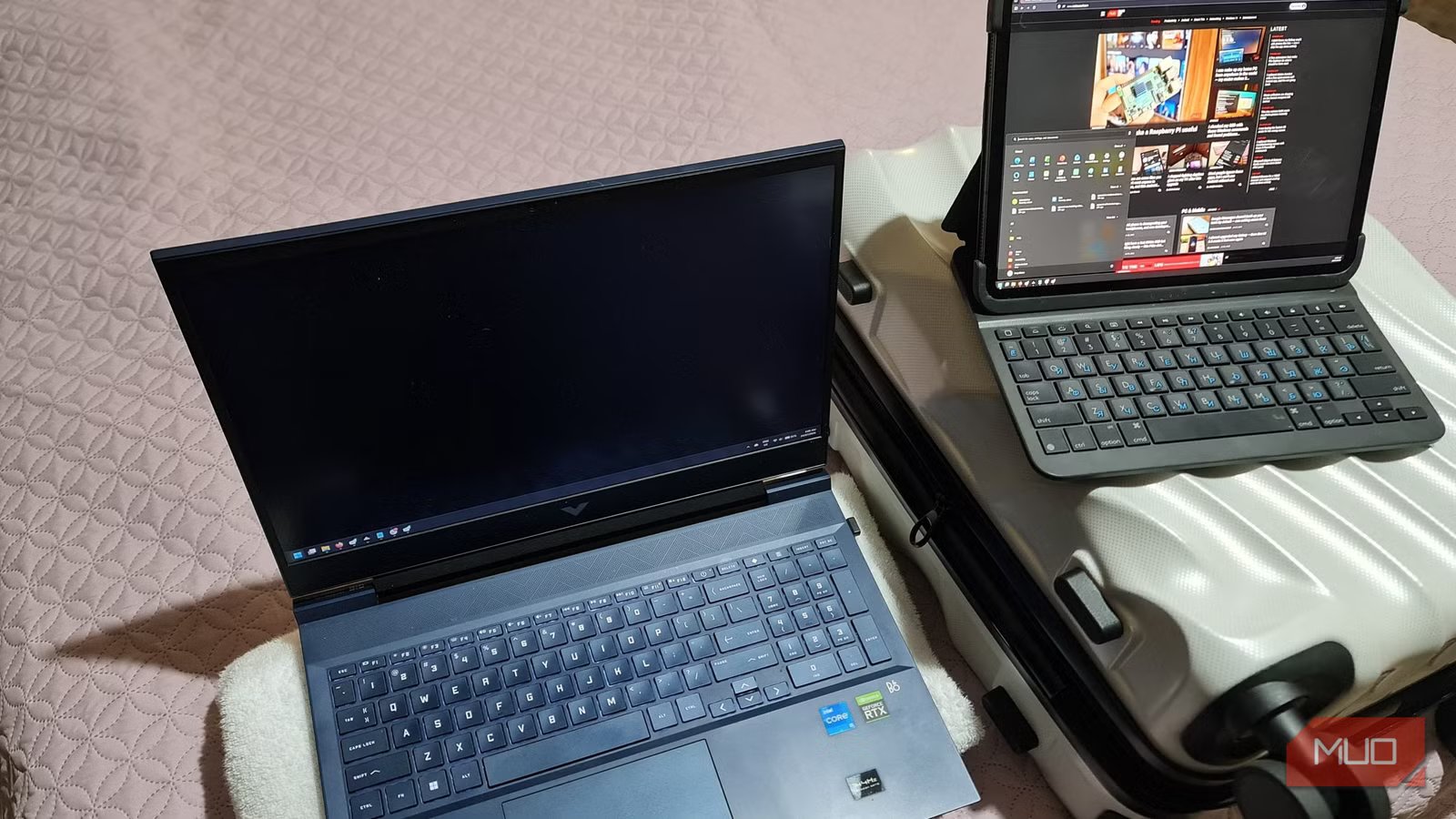
I desperately needed a second monitor while traveling and found one in my carry-on
I’m so reliant on two monitors to stay productive while working that returning to one laptop screen while traveling feels like being back in the Middle Ages. Since I work remotely, traveling usually means I still have deadlines but no second display. Buying a portable monitor is, of course, always an option, but for occasional trips it feels excessive.
While on a recent trip and staring at the iPad in the carry-on luggage that I brought solely for digital art, I wondered whether it could become the second screen I needed. That question led me to the free screen-sharing app, Spacedesk.
I installed the Windows driver and app for the iPad, then connected both through the 5G modem I brought for internet access. Seconds later, Windows recognized the iPad as an extended display, and I was back in business with a dual-monitor setup.
My iPad was the portable monitor I nearly bought
I already had the screen, stand, and network sitting in my bag
I’d played around with screencasting and mirroring apps before and never had much luck. Lag, pixelization, and cut-outs always made the experience more of a hassle than it was worth. Spacedesk is different because it actually splits the job between two apps:
- The Spacedesk viewer
- Windows driver console
I installed the driver on my Windows laptop and the viewer on my iPad. I then had both devices join the Wi-Fi network hosted by my 5G mobile modem, enabled the driver, and the Viewer found the laptop almost instantaneously.
On the iPad, my laptop appeared as an IP address and hostname. Tapping it initiated the session, and a second display appeared in Windows Display settings just as a plug-in monitor would. I then chose Extend the displays, adjusted the orientation to suit the iPad’s physical layout, and adjusted scaling until the text was comfortable to read.
That was literally it. The iPad wasn’t showing a copy of my desktop, but an extension with the same behavior as a physical second monitor. I could move windows onto it exactly as I would with a monitor plugged into HDMI.
I could then pop all my research and source materials on the iPad and keep working on my tasks. Things like email, Slack, notes, and anything else that’s annoying to keep bringing up behind my main work applications also lived over on the second screen. Spacedesk also passed touch input back into Windows, which was super handy for scrolling.
The best part about Spacedesk is that my 5G modem could be used as a local network through its Wi-Fi hotspot. Spacedesk does officially support this arrangement, so the stream session didn’t eat into my precious mobile data allowance and could work without internet access.
My modem, tablet stand, and spare screen had been in my carry-on luggage all along. Spacedesk essentially saved me from having to buy more hardware to recreate a setup that I already owned.
Spacedesk can also be used with an iPad or Android tablet via USB-C. It just needs to be enabled within the Windows Driver console first.

- OS
-
Android, iOS, Windows
- Price model
-
Free
SpaceDesk is a free app that turns any Android, iOS, or Windows device into a wireless second monitor for your Windows PC. It works over Wi-Fi or USB, requires no account or subscription, and takes about ten minutes to set up. Useful if you already own a tablet and want more screen real estate without buying dedicated hardware.
Then I realized the hotel TV could join in
The little Chromecast in my luggage unlocked a much bigger screen.

Once the iPad was working and my work tasks were all done, I did what any sensible person would do and immediately wondered how far I could push it. Since the Spacedesk app was technically available on Android as well, I wondered whether it could be installed on a Google Chromecast sitting in my luggage.
As it turns out, yes, it can. I plugged it into the hotel’s 55-inch TV, connected it to my modem’s Wi-Fi network, and Windows promptly gained another, much larger display. I could now extend my laptop’s desktop onto the TV.
It was another productivity boost, and I could display dashboards and work documents in high-definition. Just kidding. I used it to watch YouTube and movies, as Spacedesk allows audio pass-through to the Chromecast and the TV. It also saved me from signing in to yet another Netflix account on a hotel TV that I might forget to sign out of and give the next guest free access to watch the Avatar movies.
I would still avoid the hotel Wi-Fi if possible
My own hotspot made the connection faster, simpler, and considerably less public

Using the slower hotel Wi-Fi instead of my hotspot was an obvious option, but Spacedesk works by sending the desktop across local networks. Even if other guests can’t see every device, I’d still be running it over shared infrastructure.
Most hotels nowadays also enable client isolation, which protects guests from accidentally exposing their devices, but would also stop my iPad from seeing my laptop. Just like using a travel router, my password-protected 5G hotspot avoided both of these issues by creating a small private network for my laptop, iPad, and Chromecast.
If hotel Wi-Fi were my only choice, and sometimes it is, I would enable Spacedesk’s password protection and encryption. This is located under Control in the Spacedesk Driver Console and encrypts the connection, requiring the Viewer to provide the generated password before it can connect.
It’s easy enough to do, and the quality doesn’t even suffer that much, but my hotspot still felt like the cleaner option. If I didn’t have the modem’s hotspot, I could also use the hotspot on my smartphone, or even the Windows Mobile Hotspot feature, both of which are preferable to using open Wi-Fi.
It can’t replace a real monitor, but it rescued my workspace
Some compression and delay bothered me far less than losing an entire screen

I’m not going to pretend that an iPad running Spacedesk is as good as a dedicated monitor connected over HDMI. Its screen is smaller than most portable monitors, text can look a bit soft, and Wi-Fi network latency can get obvious if you’re pushing it with video or games.
But none of that really affected the work I needed it for. I just needed room for research, messages, and notes, and not a zero-latency extended desktop. Having those apps and windows up on the iPad was way better than having to dig through my windows using Alt-Tab or even the Windows snap layouts.
I wouldn’t call my iPad a perfect monitor. Even so, it has now earned a permanent role in my travel setup because it solved the problem with equipment I was bringing along, anyway.