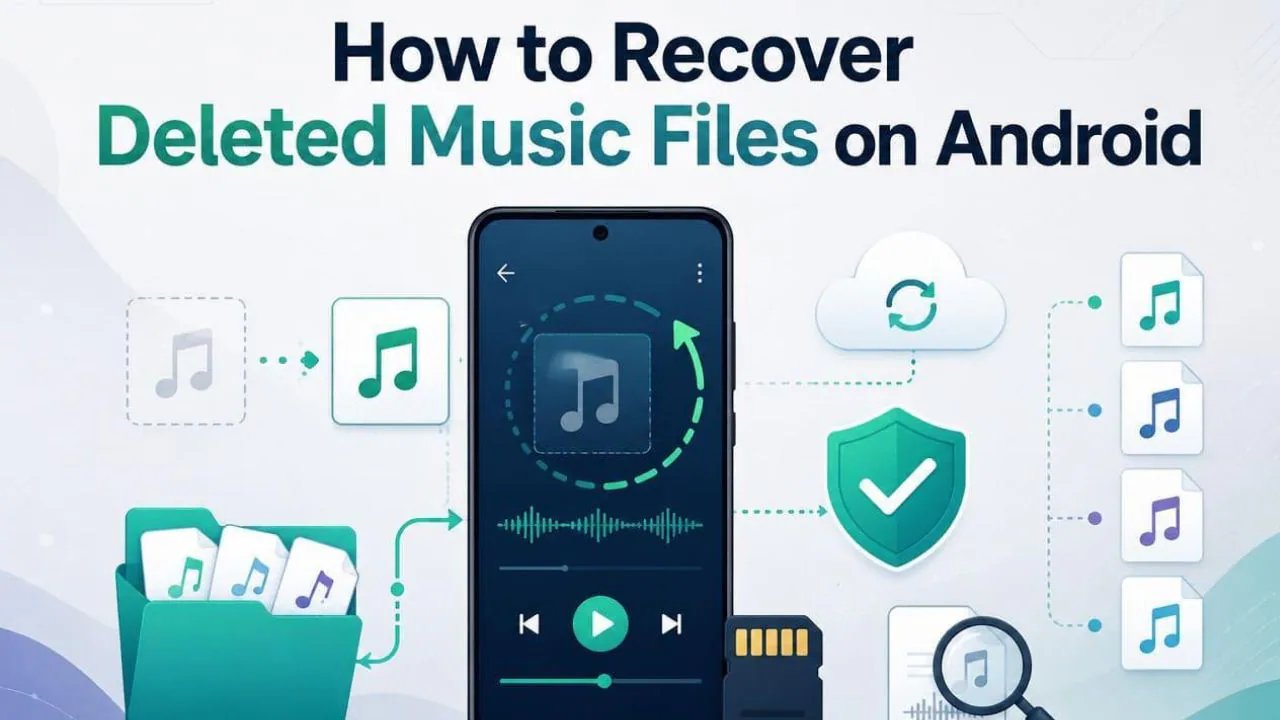
How to Recover Deleted Music Files on Android: Complete Guide
Now suppose that you found your favourite music file disappeared from your music app on Android. Since this can happen for numerous reasons, it can cause panic when those files hold sentimental value. But those music files aren’t deleted forever, however, and if you know the right way to do it, you can have them back.
So, this guide will describe about the deletion of music and its recovery through official methods on Android. Once you get familiar with the limitations of official ways, discover how Dr.Fone – Data Recovery software Android app can be helpful.
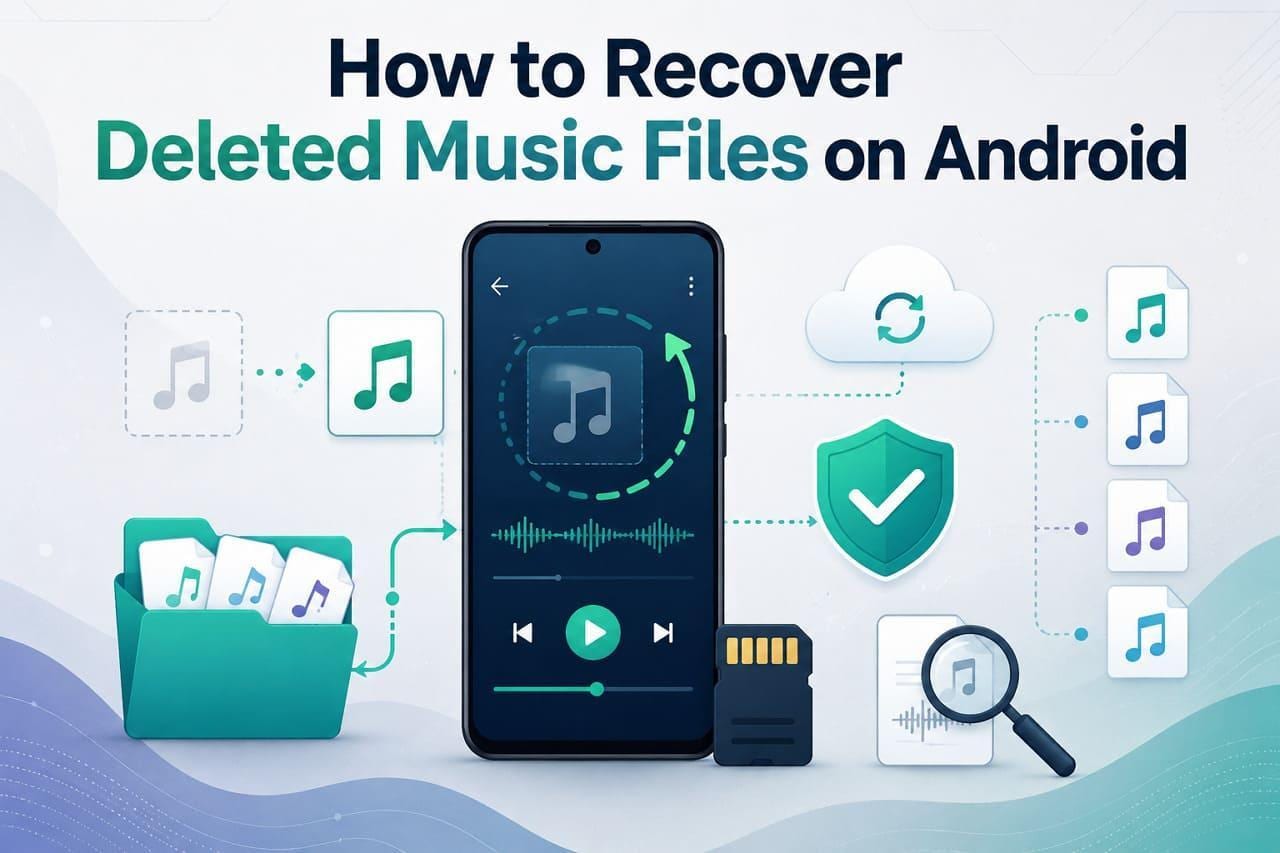
Part 1. Music File Deletion on Android: Permanent or Recoverable?
To know how to recover deleted music files on Android, it’s important to learn how the deletion works. The success of recovery depends on where those music files were stored and what happened after they were deleted. According to Android Developers, music files stored in internal storage or on an SD card may be recoverable because Android marks the deleted storage space as available for new data.
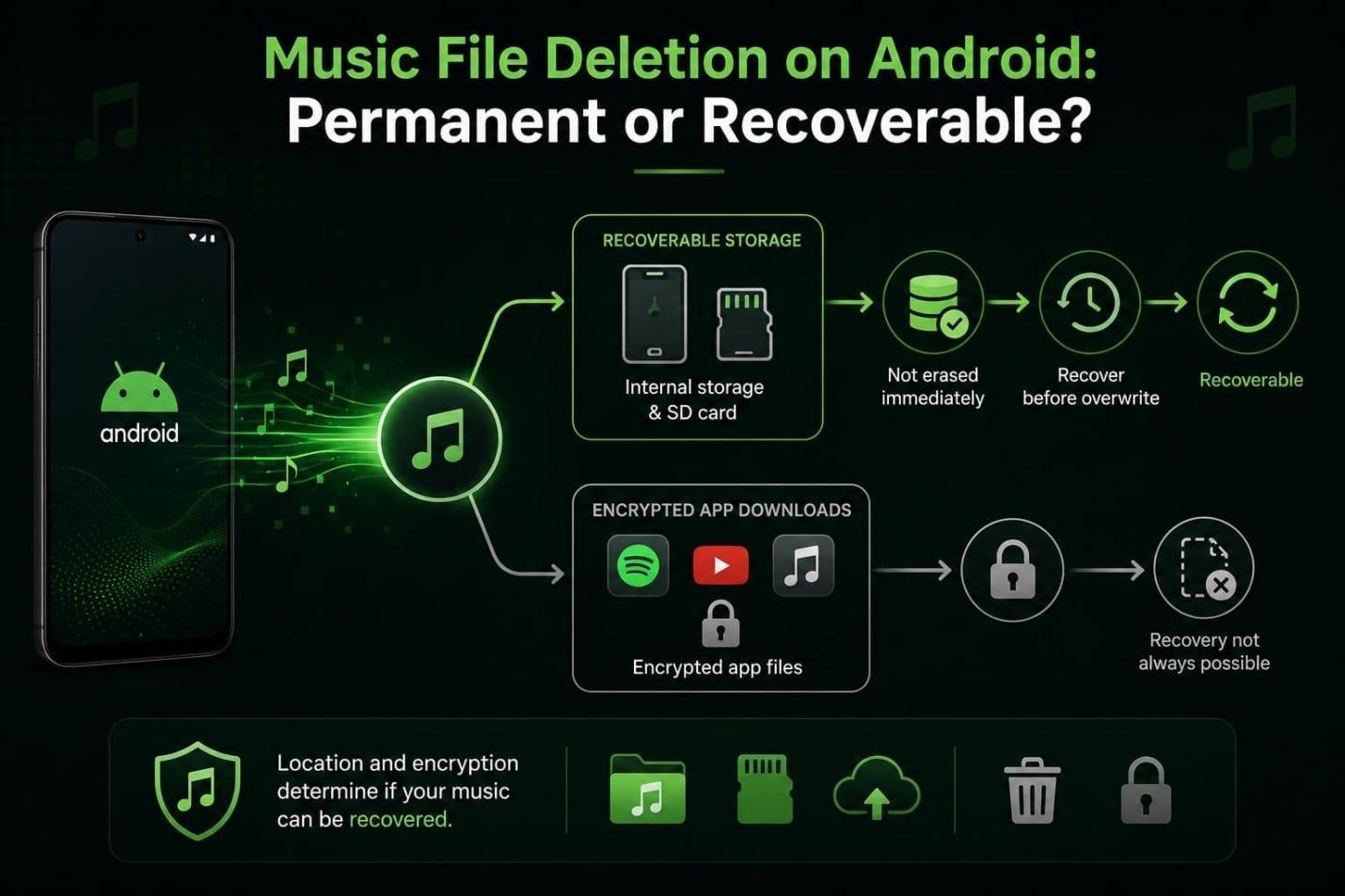
It does not erase the data immediately, but recovery becomes harder once new data overwrites that space. However, the downloaded music from YouTube Music or other apps is different and is stored in encrypted folders. Thus, they cannot be recovered as playable songs with standard recovery tools after they are deleted or the app data is removed.
Part 2. Why Standard Methods Don’t Always Work
If you want to locate the trash folder or backup, know that they only work when the data is not overwritten and the device works fine. If there is a hardware problem, simple fixes can resolve it, but they cannot restore the music files. So, when the music is important, and the device is damaged, you can use Dr.Fone Android recovery software to scan the Android storage.
A Quick Table of Standard Methods with Limitations
Nonetheless, glance at some official methods and their limitations to know why recovery software is a suitable choice:
| Method | Works When | Limitation |
| Trash | File deleted within 30 days. | Not all Android versions have this. |
| Google Drive Backup | Backup was enabled beforehand. | Won’t work without prior backup. |
| SD Card Recovery | The file was on the SD card. | Fails if the card is damaged. |
| Cloud Music Services | Music was synced to the cloud. | Only works for streamed/synced music. |
Part 3. How to Restore Deleted Music Using Dr.Fone Android Recovery
Based on the official pitfalls, Dr.Fone – Data Recovery software Android app can help you get back music and other audio files, along with 14+ other data types. Without any root needed, it can retrieve music files even from a broken device because of its read-only scan. Since this scan is free and you do not need USB debugging, you can also use this tool on 6000+ Android devices to recover data from other apps.
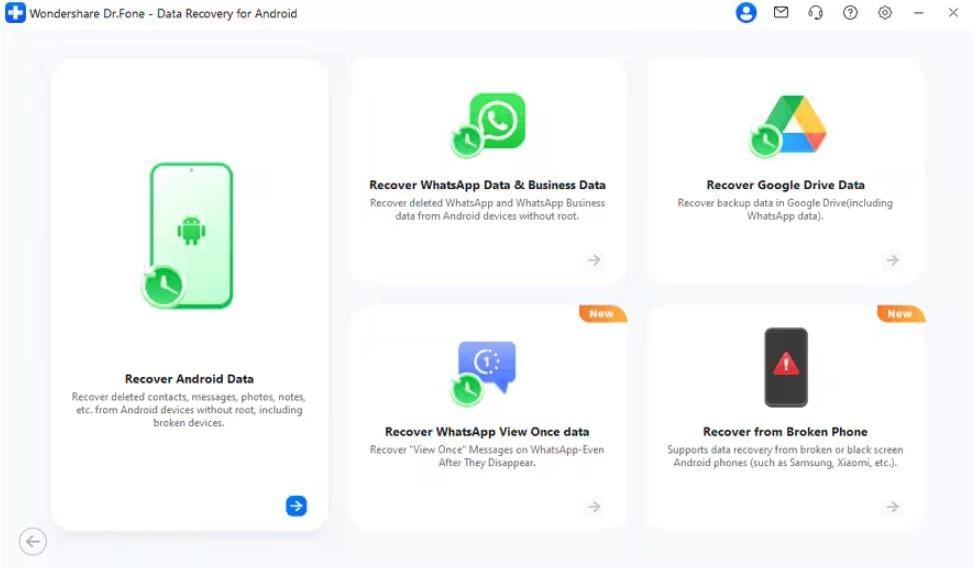
This also includes WhatsApp & Business data and View Once media files, which makes Dr.Fone a versatile choice. As for the music file recovery, you can choose what to keep or skip, then save it to your phone. In addition, you can filter music from deleted and existing data and get 100% free thumbnail previews on 1-5 mobile devices and 2 PCs.
Step-by-Step Music Recovery with Dr.Fone Android Recovery
To know how to recover deleted music files on an Android device, this section provides a detailed guide for you:
Step 1. Choose Music to Recover Android Data
Tap the “Recover Android Data” option from the Data Recovery tool of Android, connect the device via USB, then select “Audio” and “Start Scan.”
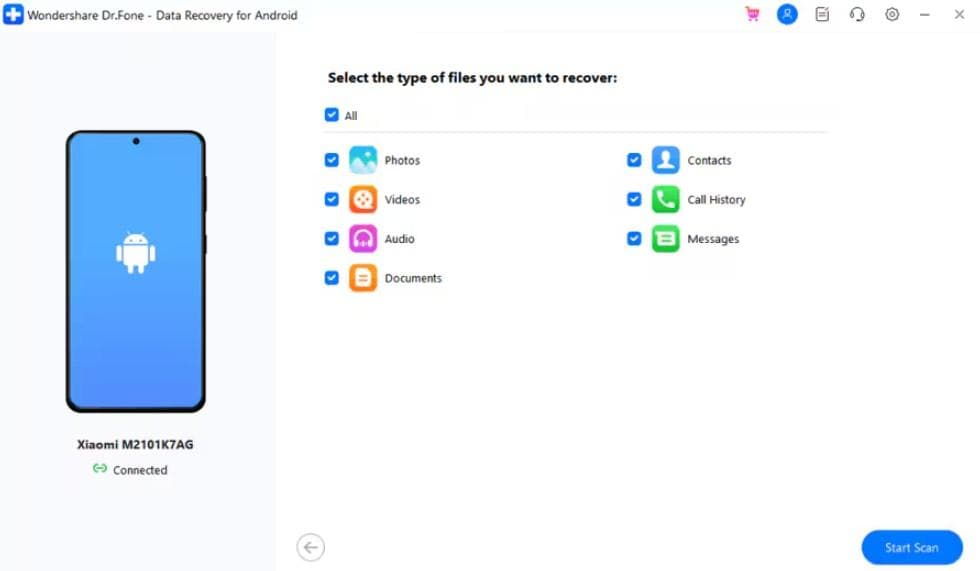
Step 2. Complete the Scan on Dr.Fone Android
Wait for the scan slider to end and filter the audio files from the “Show All” menu to preview.
Step 3. Pick the Desired Export Option
Once the data is verified, click the “Recover” button, pick the “Export To” location, and tap “Recover” again to save the music files.
Part 4. How to Keep Your Music Library Safe for Good
In addition to official methods, now you know how Dr.Fone Android recovery software can easily recover music files. To avoid data loss in the future, adhere to the mentioned tips and keep your music files safe:
| Tip | How To Do It | Benefit |
| Enable Google Drive Backup | Settings > Google > Backup > Back Up Now | Auto-saves files to the cloud and restores them on any Android device. |
| Copy Music to SD Card | File Manager > Music Folder > Copy > Paste to SD Card | Creates a physical backup separate from internal storage. |
| Use a Cloud Music Service | Upload the library to Google Play Music, Amazon Music, or Spotify | Keeps music accessible even if the device is lost or damaged. |
| Avoid Unverified File Cleaners | Only use trusted apps from the Google Play Store | Prevents accidental deletion by aggressive cleaner apps. |
| Lock Important Music Folders | Open Files by Google > Collections (or the bottom menu) > Safe Folder. | Stops accidental deletion or overwriting of key files. |
| Regular Manual Backups | Connect phone > Open File Manager on PC > Copy Music Folder | Ensures an offline copy is always available on your computer. |
| Check SD Card Health | Settings > Storage > SD Card > Check Available Space | Catches corruption early before files are lost. |
Conclusion

Android music or audio files can be deleted for multiple reasons, and recovery depends on the storage and device condition. Since they are prone to data overwriting, you can use the Dr.Fone – Data Recovery software Android app instead. The tool is designed to extract data from 3 modes and to choose which files to restore across 14+ data types.