Changing this one setting made my Pixel’s home screen so much cleaner
Some things are inevitable, and a phone’s home screen accumulating clutter is one of them. I’ve used many phones over the years, and after downloading numerous apps, their home screens became a mess. Of course, you can delete unnecessary apps to free up space, or go the folder route and group your apps together, but that only gets you so far.
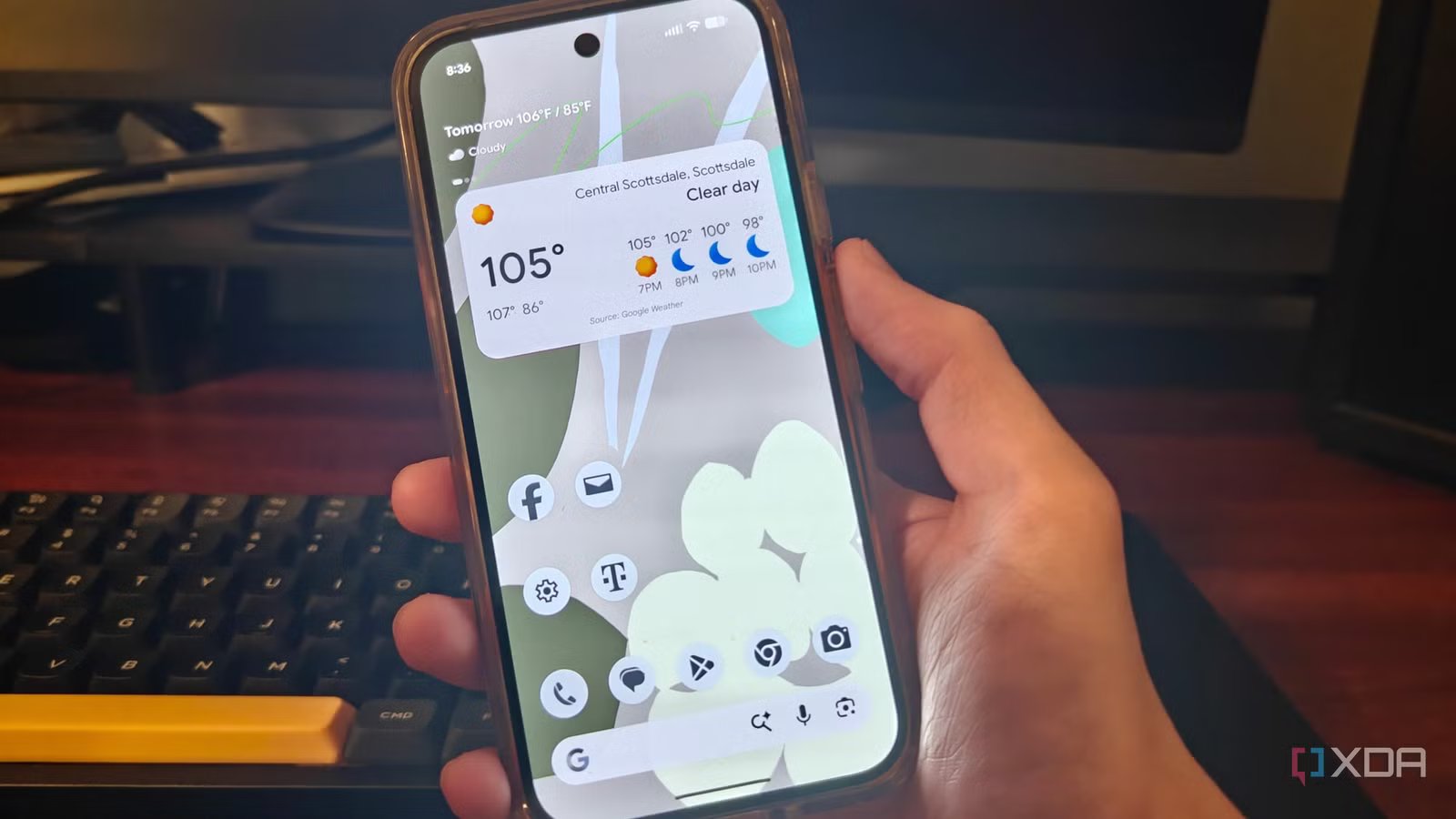
Luckily, Android 17 adds a setting (that has been available on other phones for years) that addresses this very issue. After updating your Pixel, you will finally be able to hide app names, and doing so adds extra space to the home screen, making it look so much cleaner.
Make sure to update your phone to Android 17
This feature is an Android 17 exclusive

In order to hide app names, your Pixel needs to be updated to Android 17. To do this you need to go into Settings and tap System. Then, tap Software Updates. Then tap System update. If your Android Version is Android 16 or lower, even if it says “Your system is up to date,” still tap the Check for update button. As long as you have a Pixel 6 or newer, you should be prompted to download the latest update.
Hiding app names isn’t the only reason to download Android 17. There are now better multitasking and gaming features for the Pixel, as well as a new screen reaction feature. There is also a multitude of new security updates and features.
How to hide app names to free up screen real estate
You might not realize it, but app names add to the clutter of your home screen. Even things seemingly insignificant such as small-font text take up some space, and if you have a lot of apps, add to the visual noise of the home screen. Even if you don’t have many apps, these names can be an annoyance. If you are like me, and like having your phone be as minimal as possible, these names might stick out to you as well.
In order to hide app names, all you need to do is go back into Settings, tap Wallpaper & style, select Home screen, and then Icons. Tap Names, and then disable the Show app names setting. Now, only the app icons will be displayed, and your home screen will have more empty space.
Because most people are pretty familiar with their phones at this point, there isn’t any benefit to displaying app names. Anyone who has used their phone for over a week should recognize each of their app icons (or at least the ones of their most used apps), and for some, navigating to certain apps is muscle memory. Hiding app names doesn’t make it any harder to navigate your phone.
Other ways to clean up your Pixel’s home screen
Your home screen may need some more love

Another thing you can do to clean up your home screen is to enable gesture navigation. By default, the Pixel has three buttons at the bottom of the screen: Home, Back, and Recents. This takes up permanent space at the bottom of your screen. Enabling gesture navigation allows you to go return to the home screen, go back, and view your recently open apps just by swiping. Not only is this more intuitive (especially if you are coming from an iPhone), but it clears up the bottom of your screen. To do this, go into Settings, tap Display & touch, then go into Navigation mode and select Gesture navigation.
You can also change your wallpaper to a more minimal one. A busy wallpaper also adds to the clutter of your home screen. To do this, go into Settings, tap Wallpaper & style, and tap Wallpapers. Try to find a wallpaper that matches your app icon theme as uniformity adds to the clean look of your home screen. Your color scheme will auto adjust itself accordingly, but you can also change the colors by selecting Colors while under Wallpaper & style.
Finally, you can also clean up your Pixels home screen by changing the app icons to be more minimal. Once again, you go into Settings, tap Wallpaper & style, select Home screen, and then tap Icons. Then, select Minimal. This will make all app icons only have two colors which match the color scheme chosen for your phone based on your wallpaper.
Hiding app names is still the quickest fix to cleaning your Pixel’s home screen
In general, hiding app names is the easiest and least time-consuming way to clean up your Pixel’s home screen. Displaying app names doesn’t really serve any purpose after you become acquainted with your phone, and all that text eventually accumulates and creates clutter. Plus, it’s one more setting for you to use whilst customizing your Pixel!