Comfer Launcher’s hidden gestures ended my search for a Pixel Launcher replacement
I love exploring new launchers for my Android phone.
At least once a month, I download and test a new one from the Google Play Store, but I’m usually disappointed.
I’m always looking for a worthy challenger to the Pixel Launcher, which already does everything I ask for.
So I was pleasantly surprised when I downloaded Comfer Launcher and kept using it.
It has the same minimalist touches as the Pixel Launcher, but with a creative angle that makes it far more interesting.
Comfer Launcher’s gestures are a true ‘wow’ moment
I’ve never experienced a launcher this intuitive before
Coming across a truly unique Android app in 2026 is rare, but Comfer Launcher managed to wow me again and again.
There’s a lot to love about it, from its minimalist layout to its home screen customization tools, but what really sets it apart from other launchers is the gesture controls.
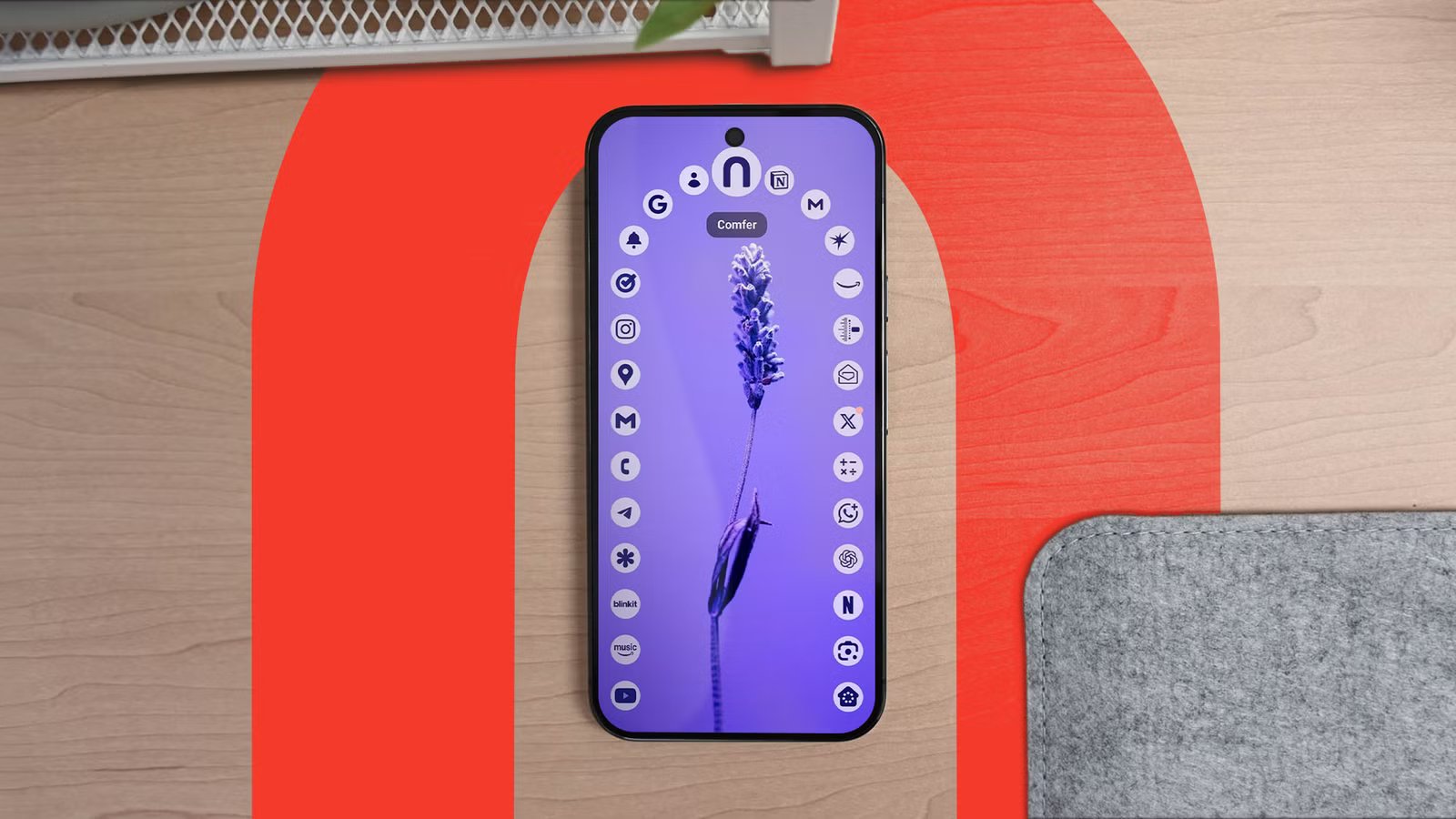
The home screen shows nine app shortcuts and a search bar. But it’s really 16.
The “hidden” seven apps are opened by swiping on the home screen with either one of four right-angled swipes, a circular swipe, or a left or right swipe.


A subtle benefit of Comfer Launcher is that everything is designed to be used with one hand.
I didn’t realize until I was well into my time with the launcher that I hadn’t needed to use my left hand once to type or swipe.
The only action that required me to adjust my grip was the Quick Settings tools. But this is no fault of Comfer’s, so I’ll give it a pass.
Swipe up, and what is probably the most unique app drawer I’ve ever seen opens. Apps are displayed in an alphabetical ring that you scroll through by swiping left or right.


Now, I won’t lie. I’m not 100% convinced by this design. It’s taken a lot of mental retraining to spot apps in a row rather than a grid, but I’m still enjoying the experience.
But if my muscle memory was confused by the app drawer, it was flabbergasted by Comfer Launcher’s search function.
A great example of how to do minimalism effectively
It’s a frustration-free experience
After mastering the gesture controls in Comfer Launcher (which took me less than five minutes), I opened the search interface.
I expected Gboard to emerge from the depths of my phone as usual, but instead I was presented with an alphabetical spiral layout.
Forget QWERTY, we’re in uncharted territory.
I would find this layout impossible for regular typing, but for single-word searches? It’s perfect.
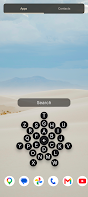

It didn’t take me long to predict where the next letter would be intuitively, and as I’m searching for apps, only two or three letters were sufficient.
I’ve struggled to enjoy minimalist apps like Niagara Launcher. I find their approach frustrating, as helpful visual cues are stripped out.
I was worried that I would experience the same effect with Comfer, but I’ve adapted to it faster than any other launcher I’ve tried.
Best of all, it still has plenty of fun and useful customization tools.
Just enough to give you control
Most of Comfer Launcher’s customization options revolve around the home screen. You can remove app shortcuts, rearrange or add widgets, and change the wallpaper.
It’s not the most extensive suite of options I’ve seen, but it’s perfect for me.
The range of font options for the time/date widget is impressive, and I love how I can adjust its curvature to fit my wallpaper.


Speaking of, Comfer Launcher ships with a range of pretty, if generic, wallpapers. Nothing to stimulate the imagination, but ideal if you have nothing better at hand.
Comfer Launcher also offers a dedicated widgets page, which is slightly redundant since Android 16 introduced lock screen widgets.
Nevertheless, it’s nice to have, especially when Comfer Launcher has only one home screen.
Comfer Launcher still has some rough edges
Bizarre feature omissions and jarring gestures
While playing with Comfer Launcher’s customization options, I was bemused to see no option to reset my changes to the default settings.
There’s an option to reset widget positions, but nothing for the individual controls. So if I wanted to straighten out a curved widget, I had to do it by eye.
I was also annoyed that I had to swipe twice to exit the search interface. When every other gesture is so seamless, the unnecessary status bar pop-up felt jarring.
I also wish for a sensitivity option for the app drawer. The idea of swiping then double-tapping to open an app is great in theory, but I’m regularly missing the app I want.
However, these issues don’t detract much from what is a fantastic launcher overall.
Comfer Launcher is a harmonious marriage of minimalism and practicality
I’ve never used a launcher that balances a minimalist aesthetic with practical design choices like Comfer Launcher.
Never did I feel like the design choices were getting in the way, and the gesture support surpasses everything on Pixel Launcher.
While I’m still taking time to get used to some features (namely the app drawer!), I know that I can return to traditional layouts if needed.
Best of all, Comfer Launcher is completely free, with no ads or in-app purchases.