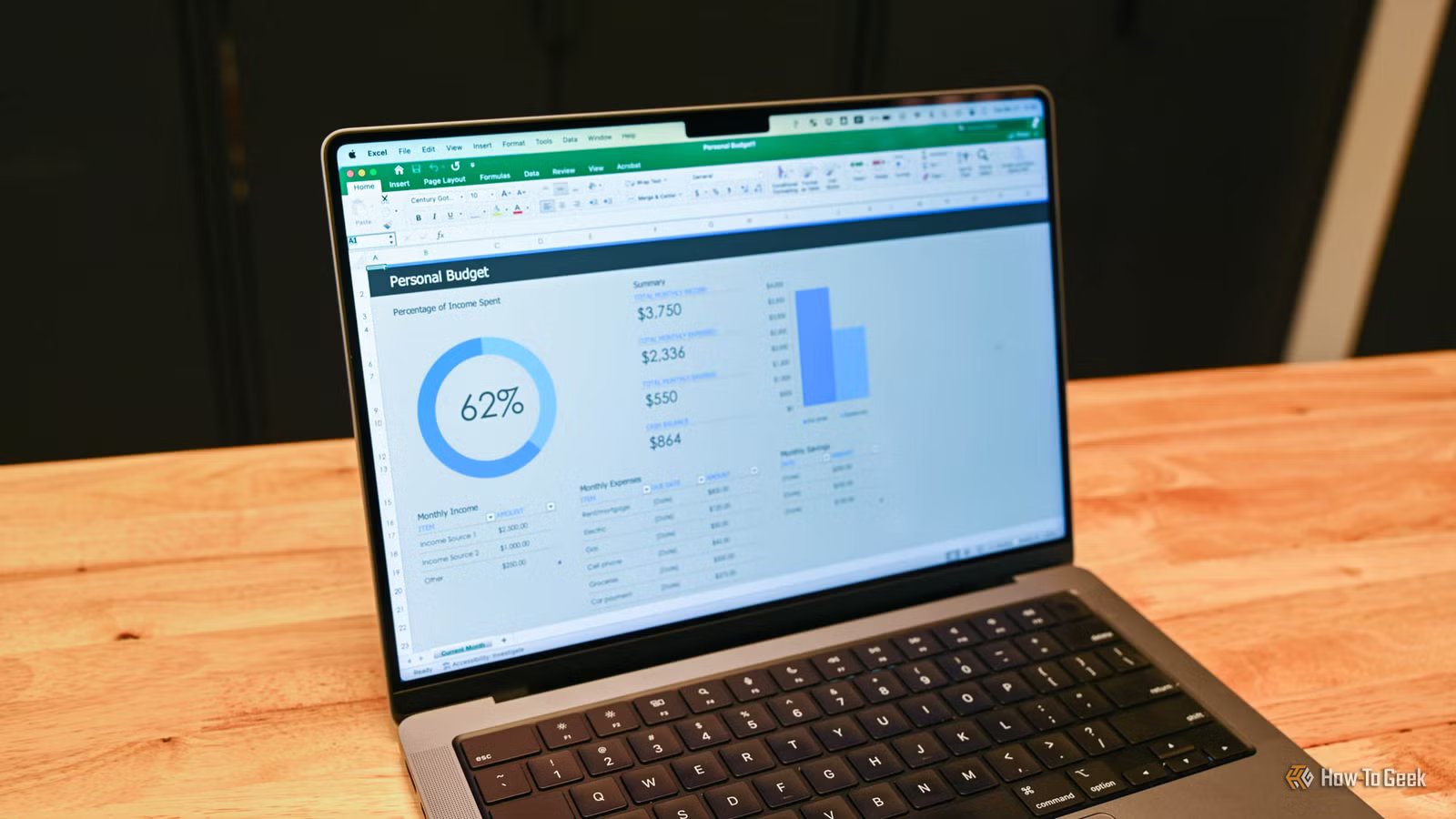
Haven’t used Excel in years? These new features will surprise you
If you haven’t used Excel in a while, you may be surprised by how much it has changed. Whether you switched to Google Sheets, moved to open-source software, stayed with an older version, or simply stopped following updates, Microsoft has added features that could dramatically change how you work with spreadsheets.
Excel formulas work very differently now
One formula can now replace hundreds of copied calculations
Building calculated lists used to involve a lot of repetitive work. You wrote an expression in one cell and painstakingly dragged it down across hundreds of rows. When your dataset expanded, you had to remember to extend those calculations down the sheet.
Modern Excel takes away much of that repetitive work. Dynamic arrays have been around for several years now, but they signal one of the biggest changes to how Excel formulas behave. A single expression in one cell can automatically spill its calculated results across adjacent open cells. Yes, other spreadsheet apps have adopted similar ideas, but if you’re returning from classic desktop Excel, this changes what you can expect from an Excel formula.
This behavior isn’t limited to newer functions like FILTER, SORTBY, and UNIQUE, which make it easier to pull matching records, reorder data, and remove duplicates without creating extra formulas or helper columns. The bigger change is that Excel formulas themselves now behave differently: many functions you’ve used for years can automatically spill into multiple cells when a calculation produces multiple results.
Excel has also gained a range of functions designed for more advanced tasks. TOROW and TOCOL make reshaping data easier, while functions like LAMBDA, MAP, and BYCOL let you build reusable logic directly in the formula bar.
Looking up data became much easier
Finding information no longer requires fragile formulas
Finding matching information across tables was historically one of the most frustrating tasks in Excel. You probably remember relying on VLOOKUP, which forced you to hardcode exact column numbers and only searched from left to right. Inserting a new column into your source data could easily break your formula.
More experienced Excel users often moved to INDEX and MATCH, which offered more flexibility but required learning a more complex syntax. Modern Excel improved both approaches with two newer functions.
XLOOKUP removes many of the lookup frustrations that defined older versions of Excel. It searches in any direction and defaults to finding exact matches without extra parameter flags. For those of you who built lookup formulas with INDEX and MATCH, XMATCH provides a more capable replacement for the matching part of that process, with additional options and a cleaner syntax.
Because XLOOKUP and XMATCH rely on direct range selections rather than arbitrary column counts, your formulas are much more resilient when you restructure your layout, move columns around, or insert new data fields.
- OS
-
Windows, macOS, iPhone, iPad, Android
- Free trial
-
1 month
Microsoft 365 includes access to Office apps like Word, Excel, and PowerPoint on up to five devices, 1 TB of OneDrive storage, and more.
Excel can now help you write formulas
Smart suggestions remove the intimidation factor
If simpler spreadsheet apps appealed to you because they felt easier to learn, Microsoft has spent recent years making Excel easier to approach. The app no longer expects you to know every function before you can get useful results, making it easier for casual users to solve problems without first knowing the exact formula they need.
With features like Formula by Example in Excel for the web, the app can detect patterns in your data entry and automatically suggest the formula required to finish the task.
If you have access to Microsoft Copilot, AI assistance takes this a step further. You can state your goal using natural English, and the assistant can generate formulas and translate plain-language requests into spreadsheet logic.
Excel fixed some everyday frustrations
Small improvements make large workbooks easier to manage
Not every improvement changes how Excel works. Some simply remove the frustrations that appear when you spend hours inside large workbooks. For example, tracking a single data point across dozens of columns often meant losing your row position, while navigating a workbook with scattered tables meant constant scrolling. To address these, Microsoft has added smaller changes that make everyday tasks easier.
Focus Cell is a good example. As you move around a large worksheet, it highlights the active row and column headers, making it easier to follow large sheets without losing your place. The Navigation pane solves a different problem by providing a searchable overview of important workbook elements, making it easier to move around large, complicated files.
Excel became more interactive
Checkboxes and images make sheets feel less like grids
Making an Excel spreadsheet feel interactive previously required enabling the Developer tab, inserting form controls, and dealing with objects that floated above your cells. Standard worksheets were primarily designed around rows, columns, and text-based data.
Today, Excel feels much less like a plain grid and much more like a flexible workspace. Native checkboxes can now live directly inside cells rather than sitting as separate controls on top of your worksheet. This lets you create interactive task lists and project trackers with a single click. Behind the scenes, the checkbox changes the cell value between TRUE and FALSE, meaning you can connect it to formulas and conditional formatting.
In-cell pictures solve another long-standing frustration. Instead of adding images that float above your data and move around when you resize rows or columns, graphics can now sit directly inside individual cells using Place in Cell or the IMAGE function.
Advanced analysis moved inside the grid
The grid can now handle far more than formulas
If you thought Excel was only useful for formulas and tables, Python in Excel shows how far the app has expanded. Pushing beyond standard calculations used to mean exporting your data into dedicated analytics tools or external programming environments.
You probably won’t replace everyday formulas with Python, but its arrival is another example of how Excel can now handle much more than it used to. Advanced users can now bring Python libraries such as pandas, NumPy, and matplotlib into Excel for data cleaning, analysis, and visualization without moving their data elsewhere. You can also clean complex datasets, explore statistical models, and render visualizations directly within your workbook.
Excel is worth another look
Excel isn’t the same tool you might remember from years ago. It’s more flexible, more approachable, and capable of handling tasks that once required other software. For me, that evolution is one of the reasons Microsoft 365 has remained part of my everyday workflow. If you haven’t used Excel in a while, it’s worth opening it up again—even if you start by trying Excel for the web for free.