I asked ChatGPT to improve my Apple Notes app — here are the 7 changes I actually kept
I’ve used Apple Notes for years. It’s where I keep all my ideas, random thoughts and lists to stay organized. But like a lot of the Apple apps that come with the phone, I’d never really stopped to explore what it could do. So I decided to try something different. Instead of searching YouTube or scrolling through Reddit for tips, I asked ChatGPT one simple question:
“How can I make Apple Notes more useful in my everyday life?”
The suggestions were surprisingly practical. Rather than suggesting third-party tools, ChatGPT showed me how to unlock power features already sitting inside the app. Here are the eight changes that completely transformed my daily workflow.

1. Create a ‘Dashboard’ note instead of dozens of random notes
My biggest problem was finding notes after making them. What good was a brainstorm if the ideas were lost in my phone? To solve this, ChatGPT suggested building a single “Dashboard” note (essentially a Map of Content) using internal note links to connect everything I use regularly.
This brilliant trick put a halt to endlessly searching through hundreds of flat notes. Now I open one main note and use it as the control center. It turns Apple Notes into a personal wiki.
Mine now includes linked sections for:
Work & Projects
Story & Article Ideas
Family Reminders & Shared Lists
Frequently Used Links & Resources
2. Pin the Notes you actually need

I’d ignored the Pin feature for years. Now, my Dashboard, weekly to-do list and active project notes stay permanently anchored to the top of the app. It saves more time than I expected because I’m no longer hunting through old entries several times a day.
3. Turn one giant note into collapsible sections
I tend to dump everything into giant, sprawling text files. ChatGPT suggested organizing long notes using “Headings” combined with collapsible sections. Now, for long-form brainstorming or article ideas, I can expand or hide categories as needed. It keeps huge notes organized and very easy to navigate.
4. Scan paper documents intead of taking photos

I used to snap blurry camera photos of physical documents. Not only did that clutter my photos, but the quality of the image just wasn’t good. But Apple Notes has a built-in scanner that crops, flattens and sharpens paper into high-contrast PDFs.
I now scan warranty info, school forms, insurance paperwork and receipts directly into designated folders. They look cleaner, take up less storage and the text inside them is fully searchable.
5. Let ChatGPT organize messy brain dumps
This ended up being my favorite workflow. When I have messy, unorganized meeting notes or rapid-fire ideas, I copy the mess into ChatGPT and ask it to structure the information:
“Organize these notes into bulleted categories.”
“Turn these raw thoughts into an prioritized action list.”
“Summarize key takeaways and highlight unresolved questions.”
Once ChatGPT cleans and formats the text, I paste the polished version back into Apple Notes. It gives me the speed of raw note-taking with the clarity of an organized system.
6. Build reusable Note templates
There are certain structures I use over and over. I now keep a dedicated folder of master templates for:
Packing Lists
Weekly Planning & Reviews
Meeting Agendas
Vacation Itineraries
Whenever I need one, I simply duplicate the template note instead of building it from scratch.

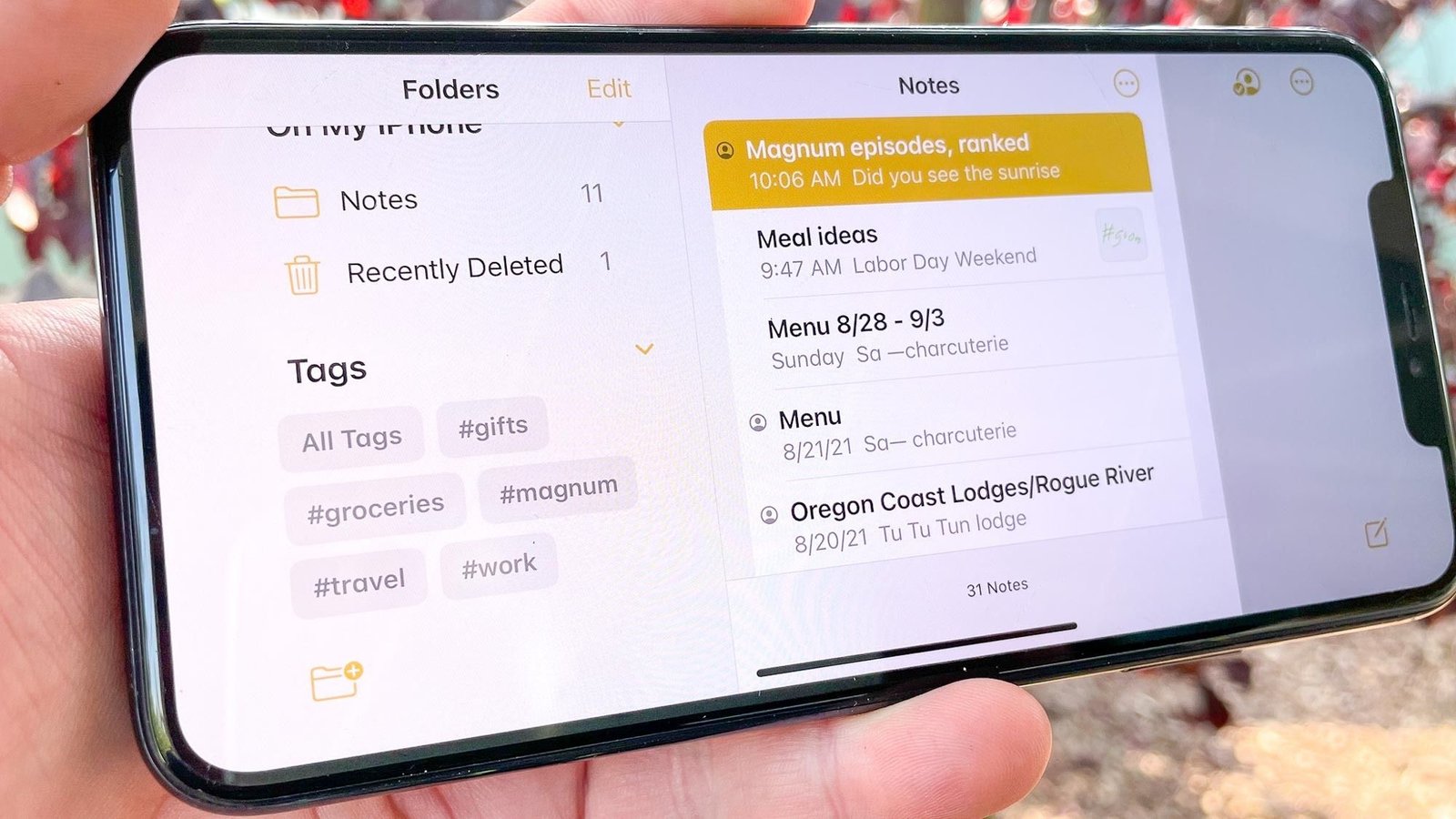
Instead of manually moving notes into nested subfolders, I started tagging entries with hashtags like #work, #recipes, #travel or #ideas.
Using Smart Folders, Apple Notes automatically pulls every tagged note into its corresponding hub. I can save a quick thought, slap a tag on it, and trust that it will route itself to the right place.
Bonus: trigger ‘Quick Notes’ and auto-templates with iOS Shortcuts

To take automation a step further, I paired Apple Notes with Apple’s native Shortcuts app and Quick Notes.
Quick Notes: Swiping up from the bottom-right corner of an iPad or tapping the Quick Note control in iPhone’s Control Center opens an instant scratchpad without opening the main app.
Automated Templates: I set up a simple Shortcut on my home screen titled “New Weekly Plan.” Clicking it automatically generates a fresh, pre-formatted Apple Note with the current date, ready for my weekly review.
My biggest takeaway
Before asking ChatGPT to help, I had pretty much given up on my notes app and resorted to just emailing myself everything. That has led to a whole slew of disorganization issues. I needed a solution and ChatGPT delivered!
I expected AI to suggest something like Notion or Obsidian. Instead, it showed me how to get 90% of those advanced workflows using tools Apple had provided all along.
The biggest improvement was getting my Apple Notes to a place where they are useful again, despite being full of ideas. ChatGPT helped me go from a digital sticky note graveyard to the backbone of my everyday organization.

Follow Tom’s Guide on Google News and add us as a preferred source to get our up-to-date news, analysis, and reviews in your feeds. Subscribe to Tom’s Guide on YouTube and follow us on TikTok. Finally, you can visit our dedicated Tom’s Guide Savings Squad hub for expert help on getting the best products for less.