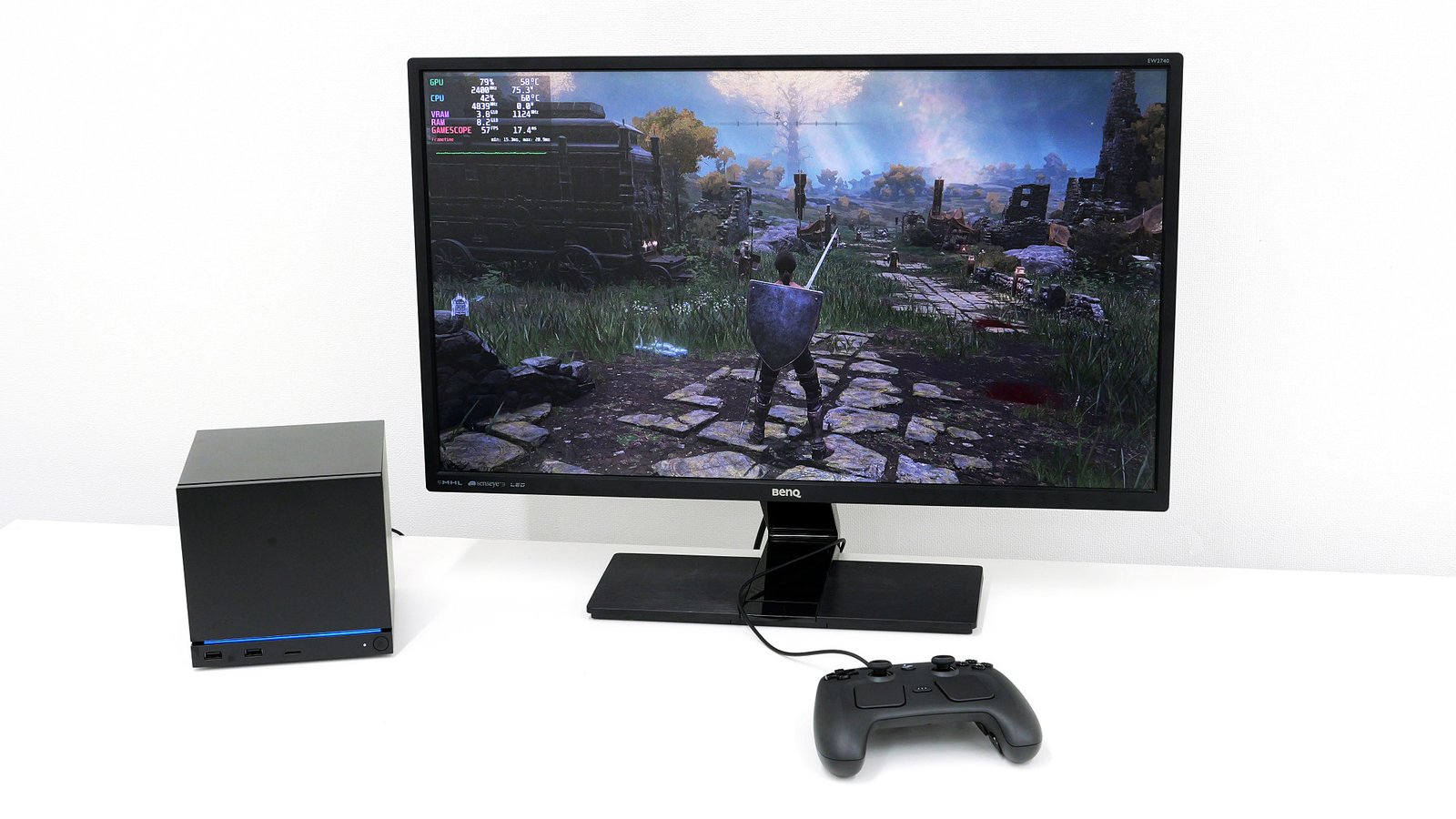
I set up Steam Machine and tried playing games – here’s my review.
The Steam Machine is an official Steam gaming PC that was released on June 23, 2026. The GIGAZINE editorial team managed to purchase a Steam Machine as soon as it was released, so after
checking its appearance , we tested its actual gameplay and recording capabilities.
Steam Machine
https://store.steampowered.com/hardware/steammachine
Steam Machine – KOMODO STATION
https://komodostation.com/product/steam-machine_jpy/
·table of contents
◆1: I tried playing games on Steam Machine
◆2: I tried using Steam Machine’s continuous recording function.
◆1: I tried playing games on Steam Machine
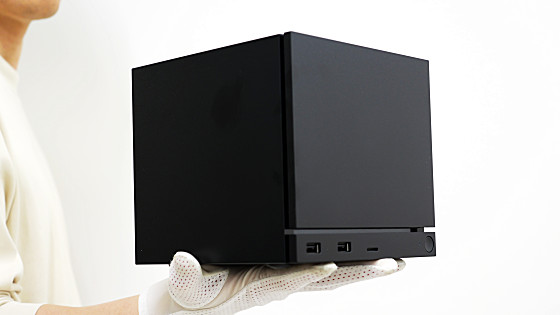
The Steam Machine is a small gaming PC running Steam OS. Details about its appearance and ports are summarized in the article below.
Connect your Steam Controller , display, keyboard, and mouse to your Steam Machine for setup. While setup is possible with just the Steam Controller, it’s recommended to use a keyboard and mouse to avoid the hassle of entering passwords and other information. Additionally, you’ll need to sign in with your Steam account during setup, so a wired LAN or Wi-Fi internet connection is essential.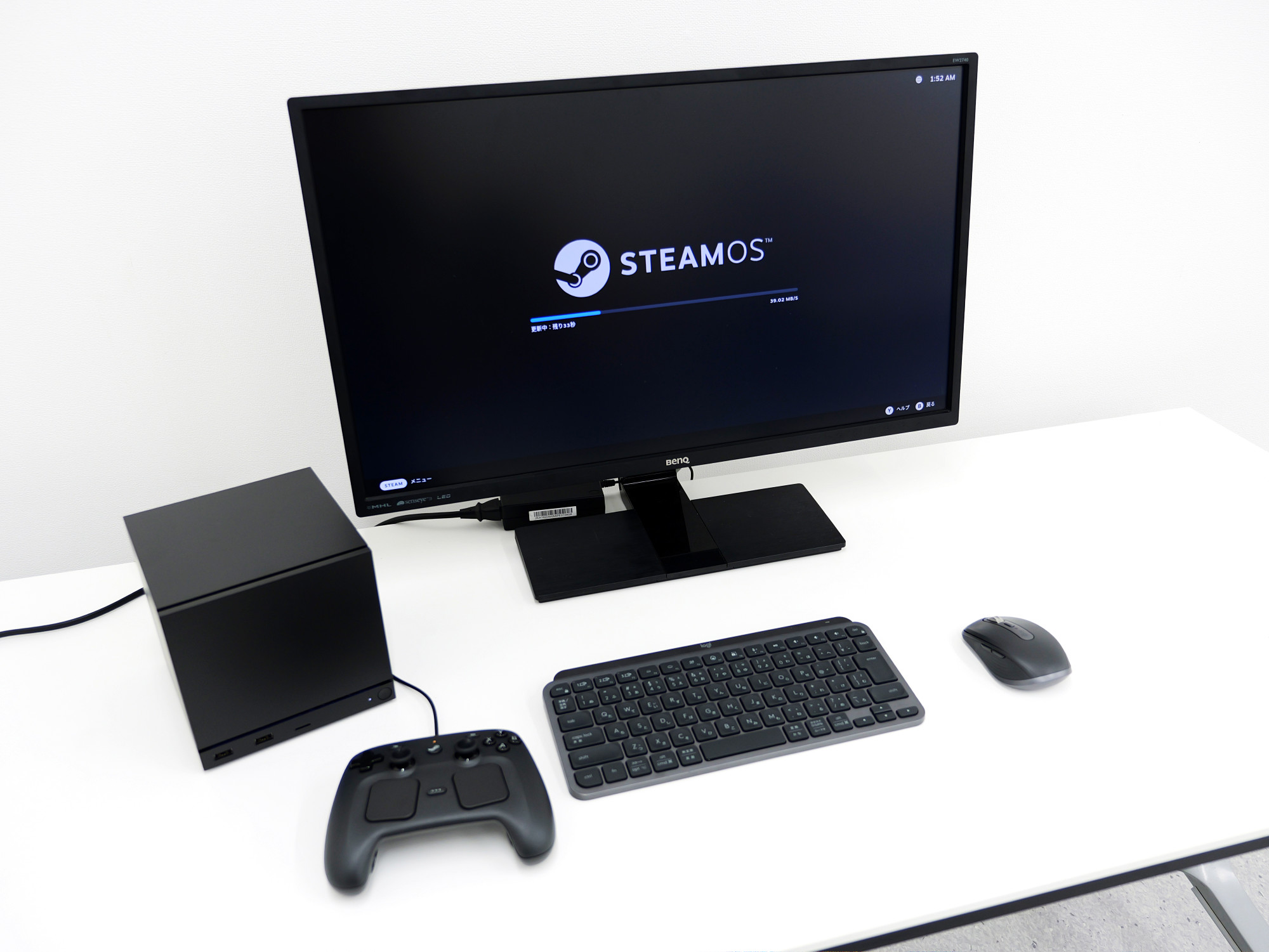
Once setup is complete, the Steam home screen will be displayed in full screen. Steam Machine’s OS is Linux-based ‘Steam OS,’ but unless you perform any special operations, your desktop PC screen will not be displayed, so no knowledge of Linux is required.
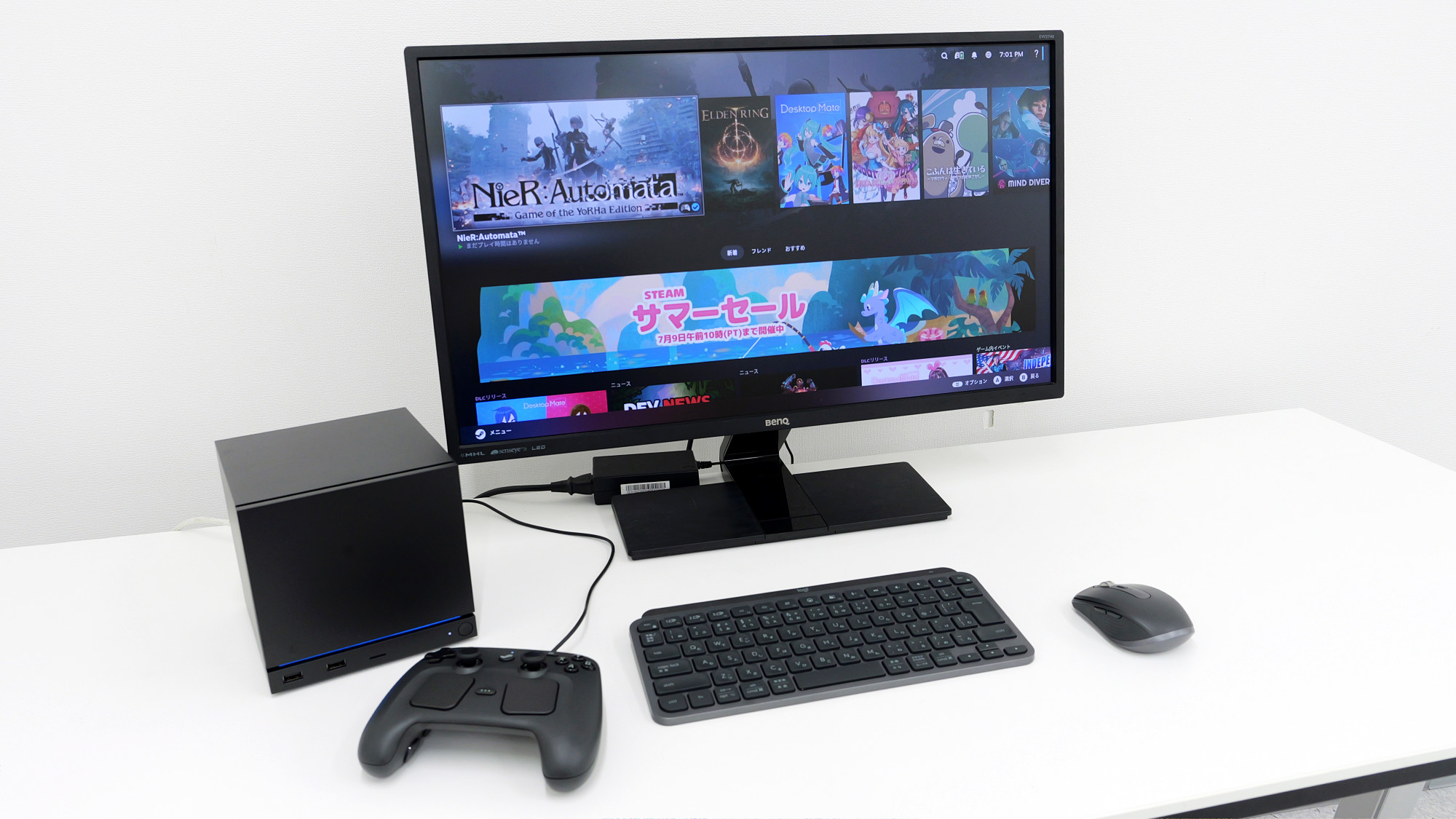
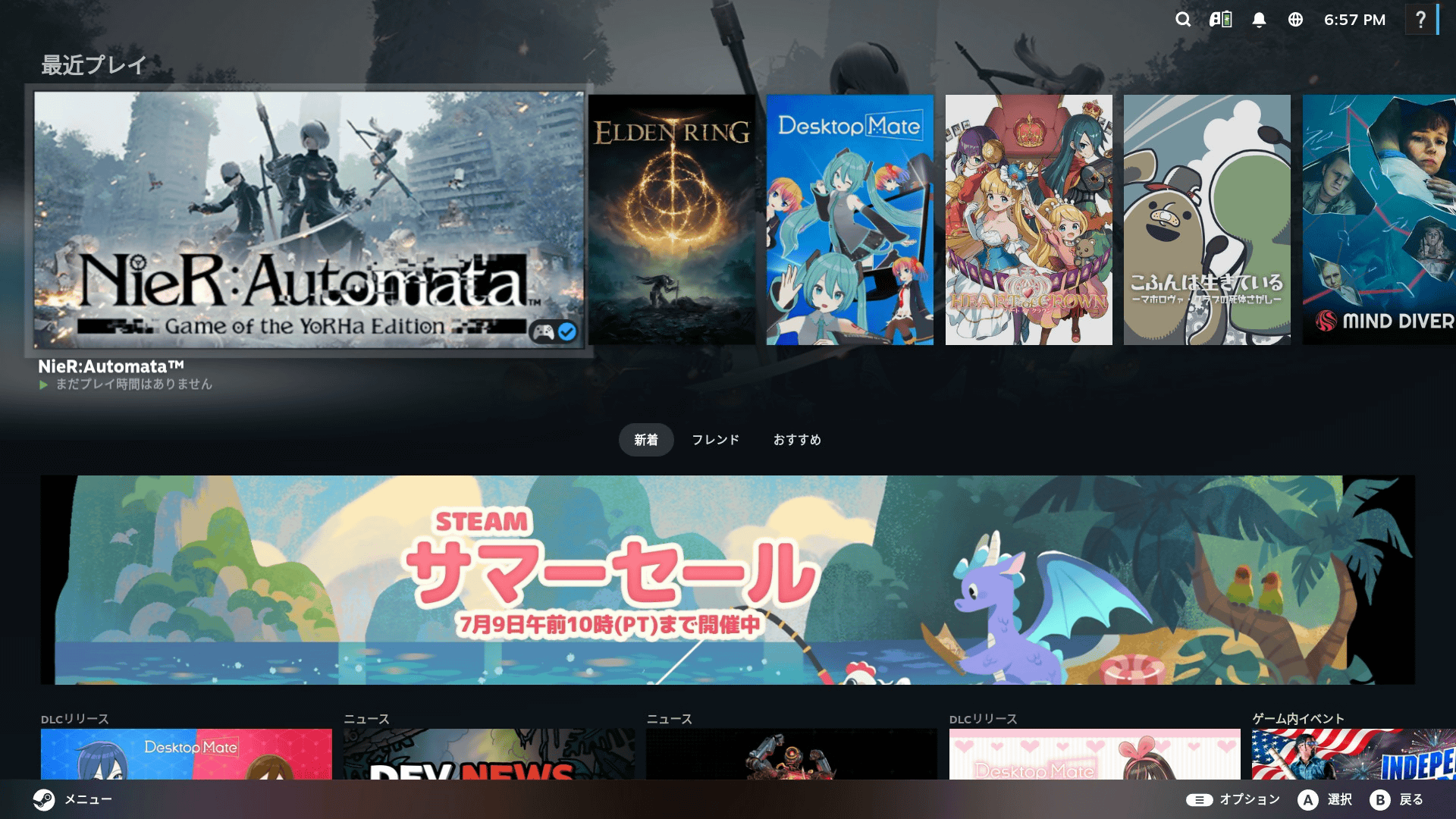
The home screen looks like this. The UI is similar to
Steam’s Big Picture mode , and you can comfortably operate it using only a controller.
In the game library, games compatible with Steam OS are grouped under a tab labeled ‘Steam OS Compatible.’ The GIGAZINE editorial team’s Steam account library contains 343 games, of which 256 are compatible with Steam OS.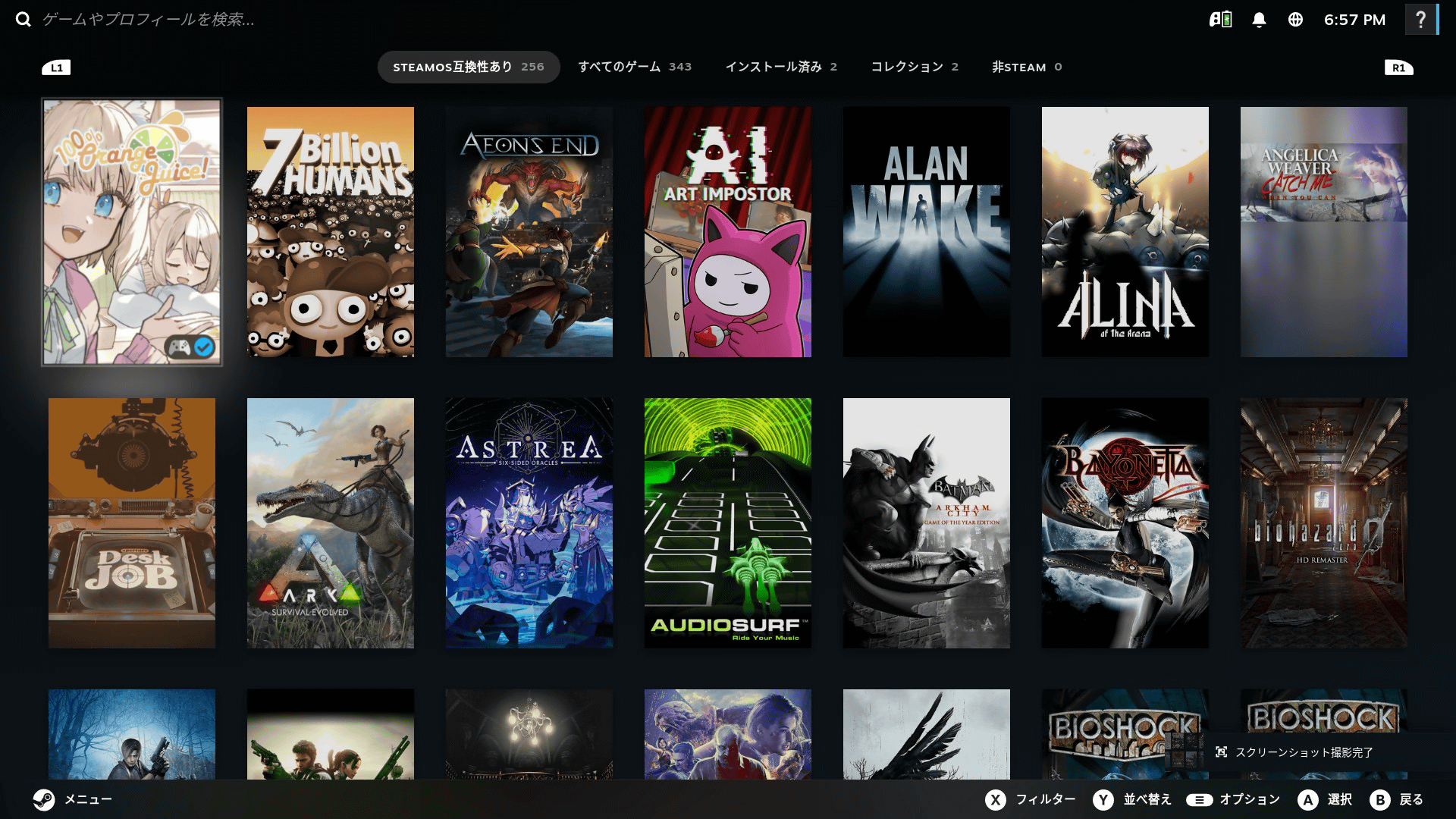
I launched the action RPG ‘
NieR:Automata ‘. It runs smoothly without any problems.
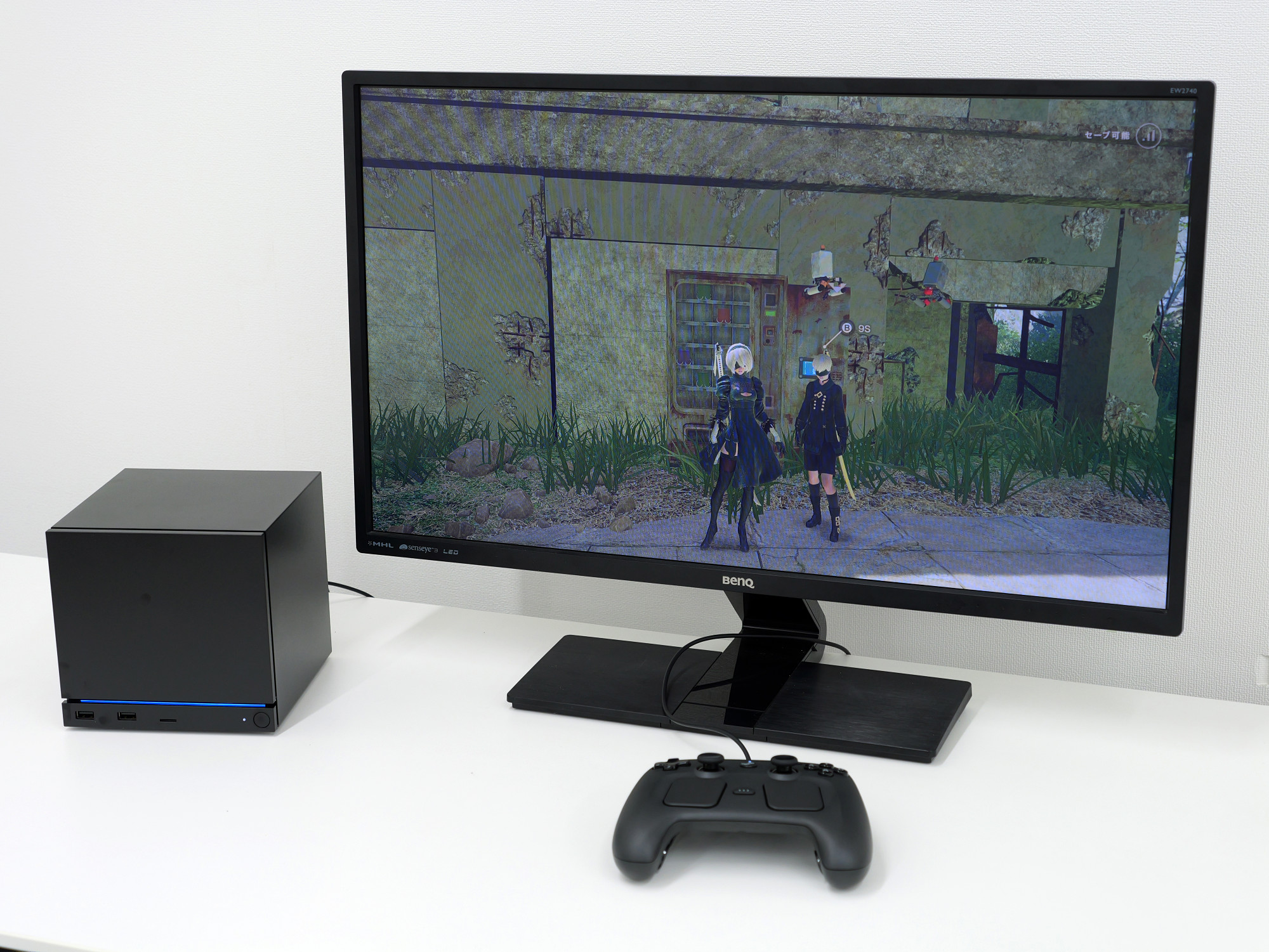
An important feature for a gaming device is how quickly it wakes up from sleep mode. The Steam Machine can wake up from sleep mode in about 7 seconds.
Steam Machine sleep/wake time is like this – YouTube
Steam Machine allows you to display overlays on the game screen showing things like frame rate and GPU usage. To use the overlays, first press the button circled in red on the Steam Controller.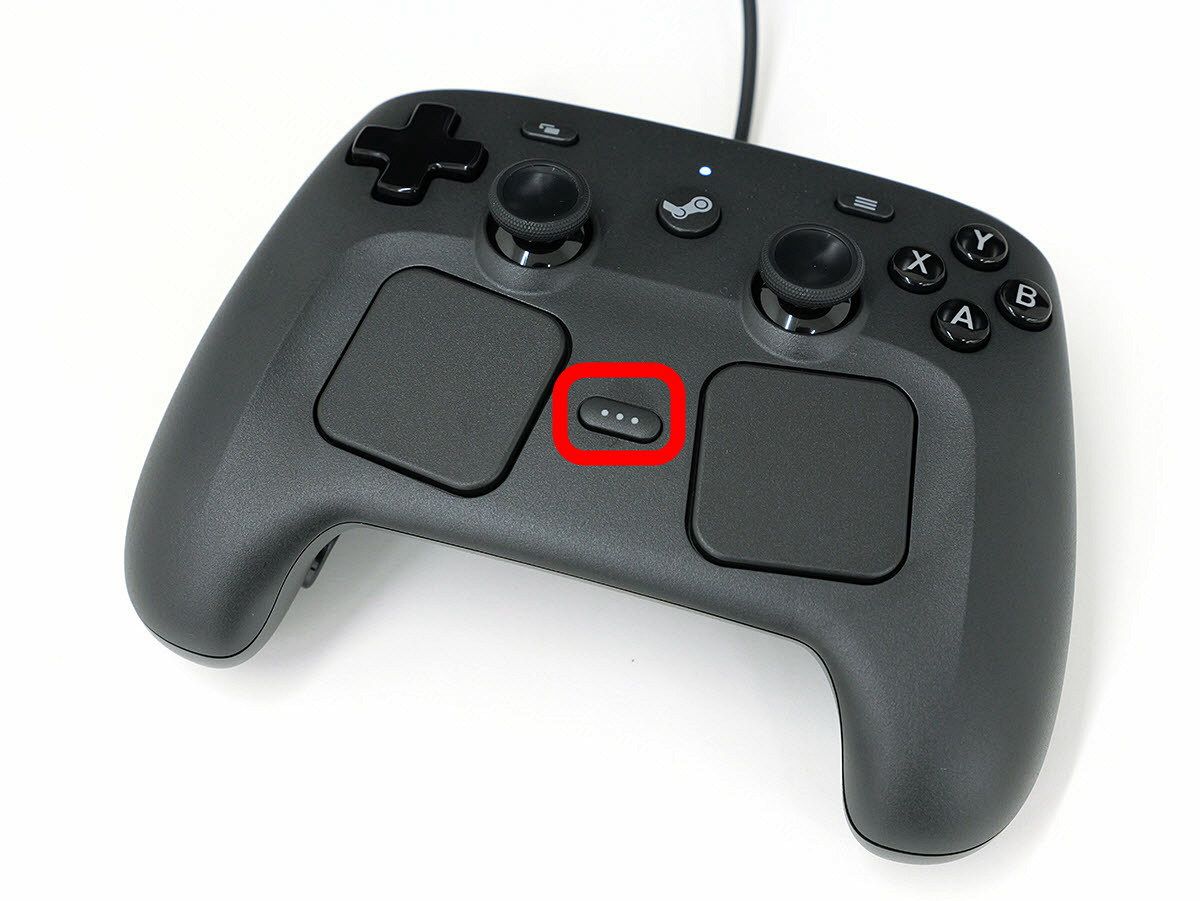
Once the side menu appears, move the slider bar for ‘Performance Overlay Level’ under ‘Performance’ to the right.
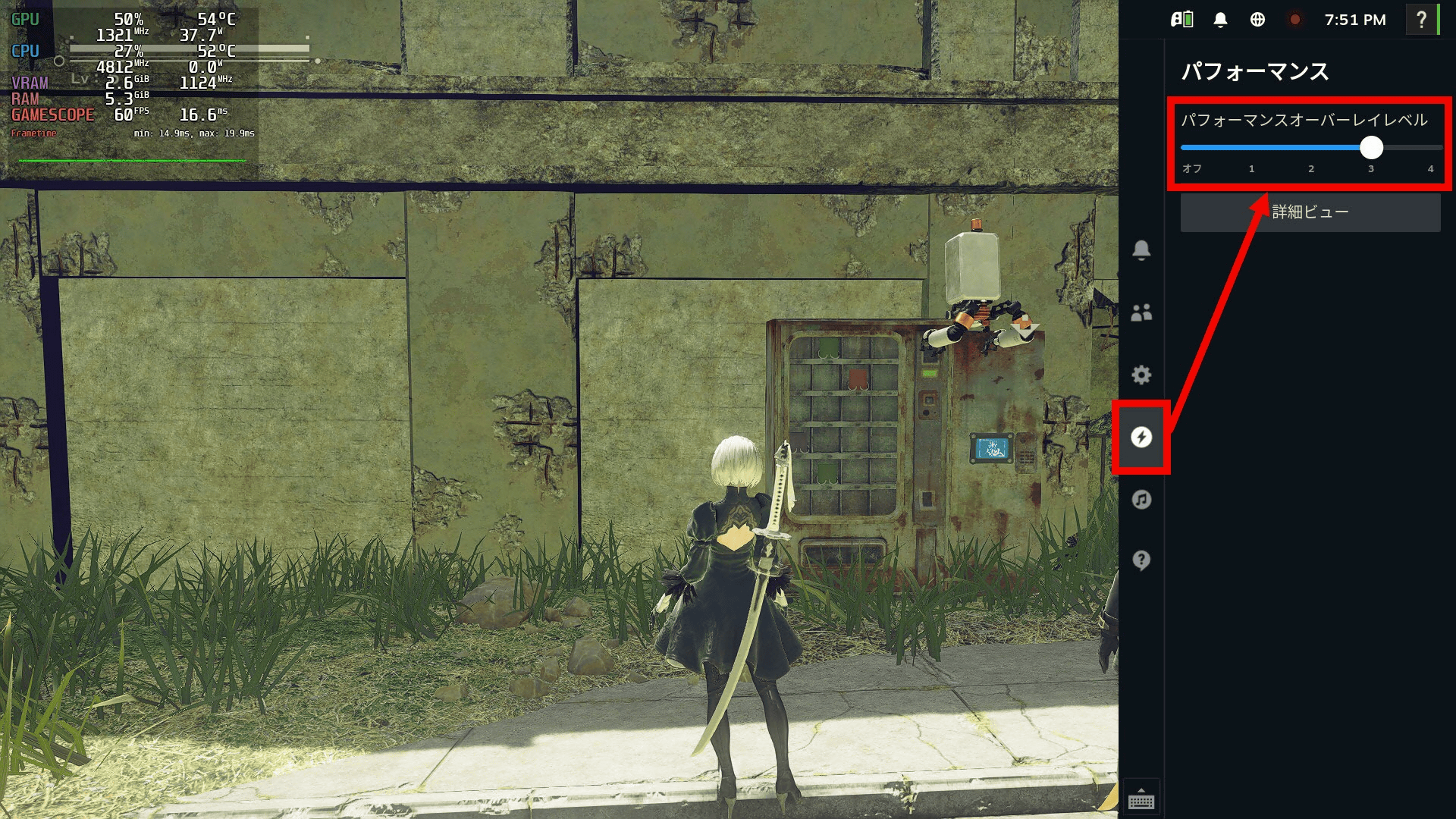
Now, performance information is always displayed in the upper left corner of the screen.
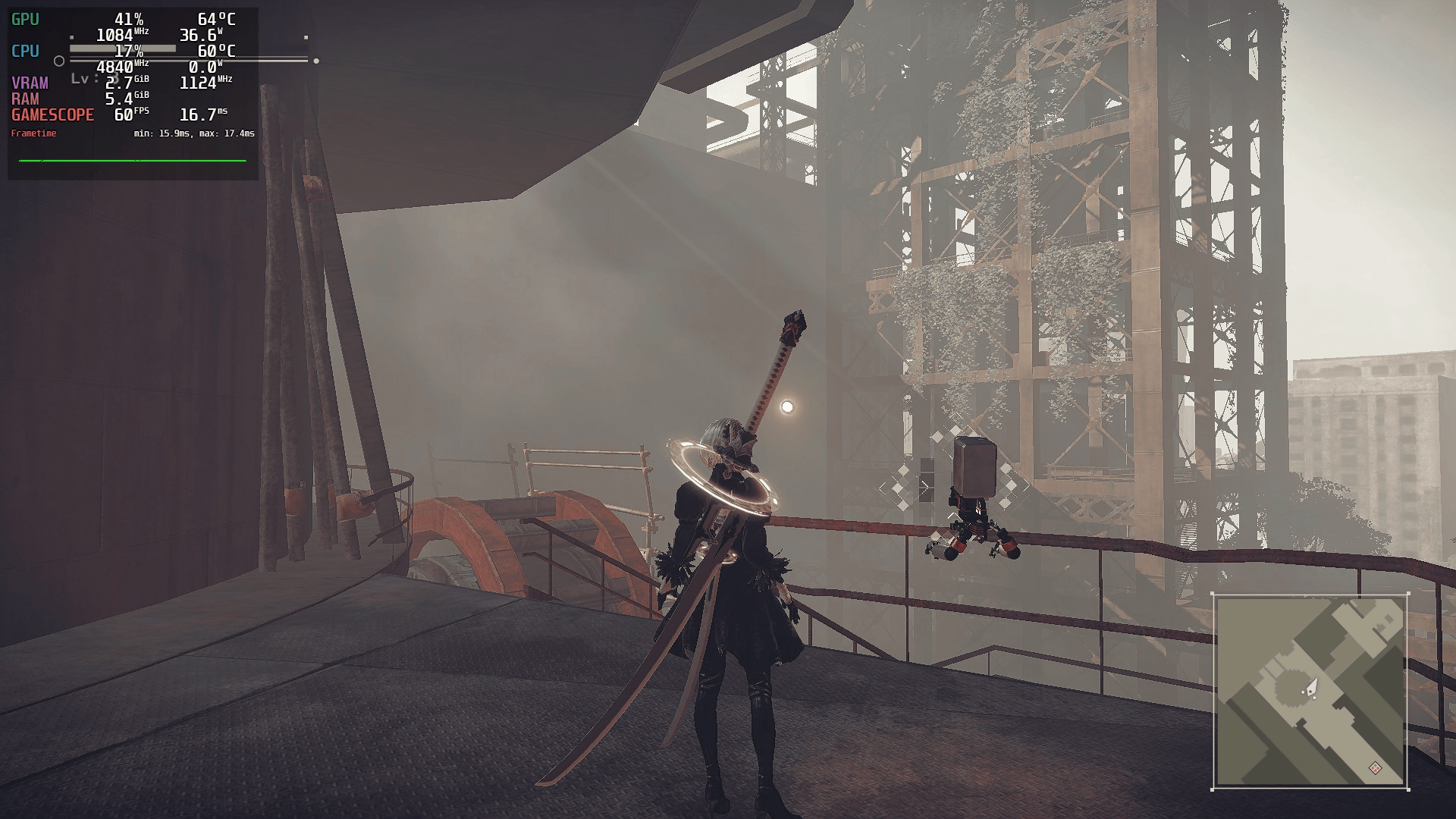
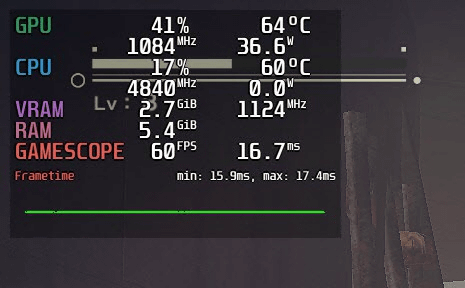
Display items are customizable. In the following cases, ‘GPU usage,’ ‘GPU temperature,’ ‘GPU clock frequency,’ ‘GPU power consumption,’ ‘CPU usage,’ ‘CPU temperature,’ ‘CPU clock frequency,’ ‘CPU power consumption,’ ‘VRAM usage,’ ‘VRAM clock frequency,’ ‘RAM usage,’ ‘rendering frame rate,’ and ‘rendering latency’ are displayed. When playing NieR:Automata in Full HD, it consistently rendered at 60fps.
I also tried playing ‘
ELDEN RING ‘.
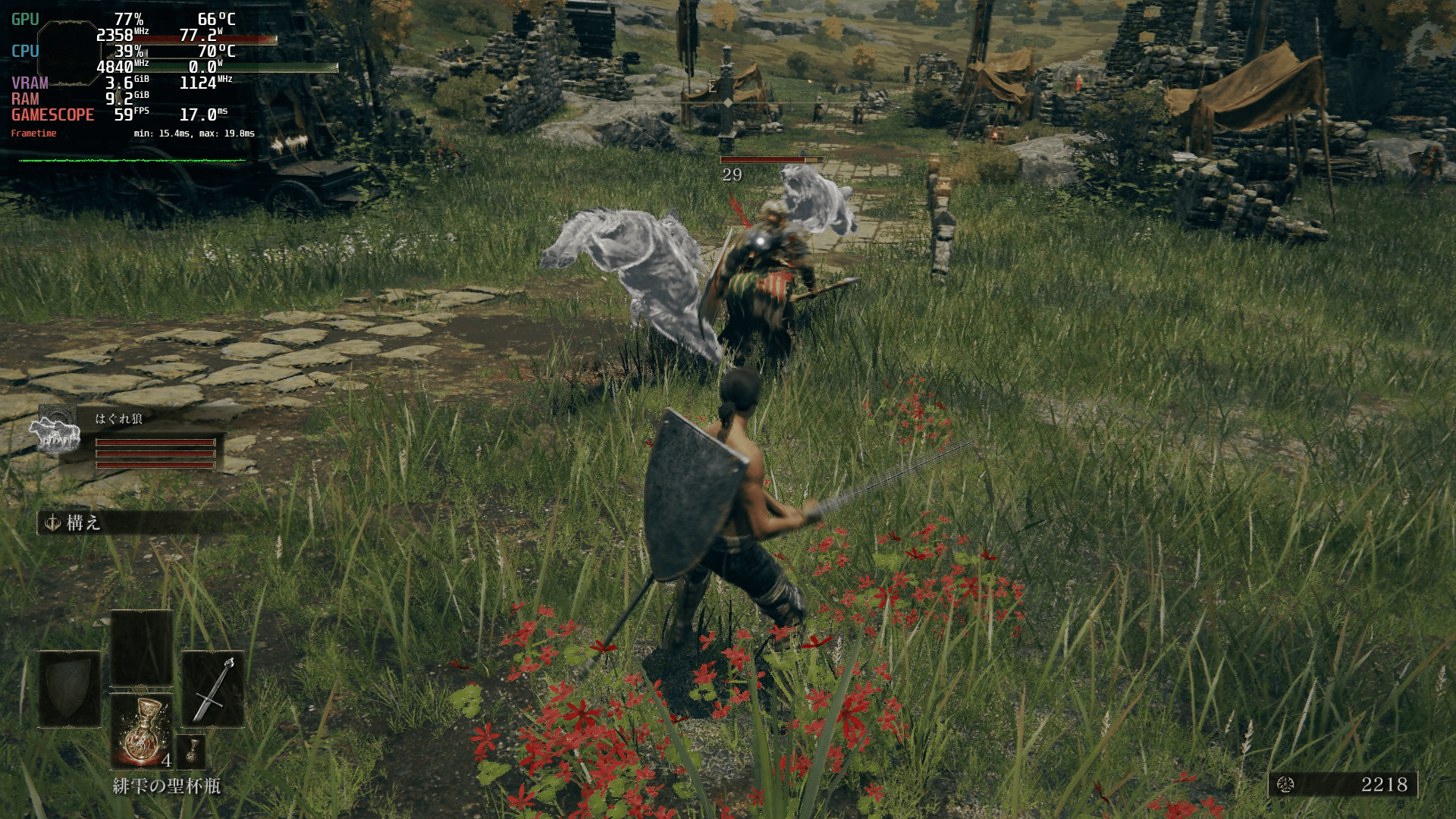
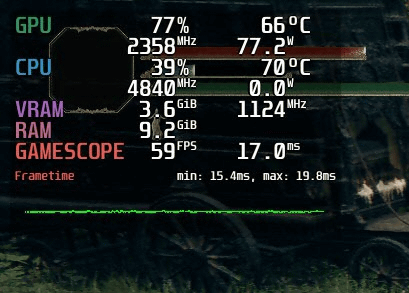
When playing in Full HD with the graphics settings set to ‘highest,’ the frame rate was 55-60fps.
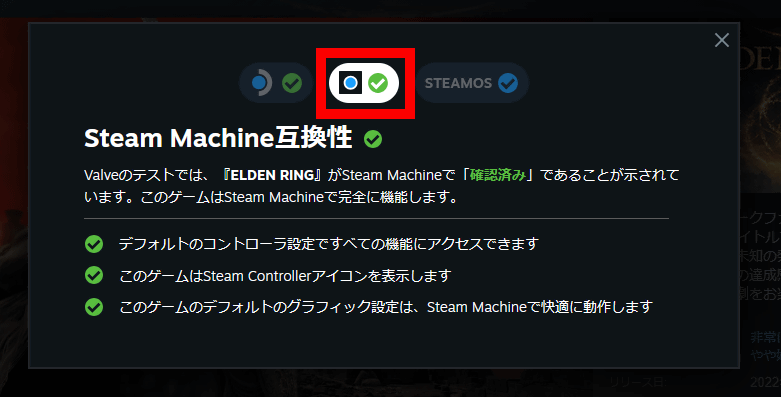
You can check each game’s Steam OS compatibility in the ‘STEAM DECK Compatibility’ section at the bottom of the list of supported languages on the Steam store page. Click ‘Details’ under ‘STEAM DECK Compatibility’.
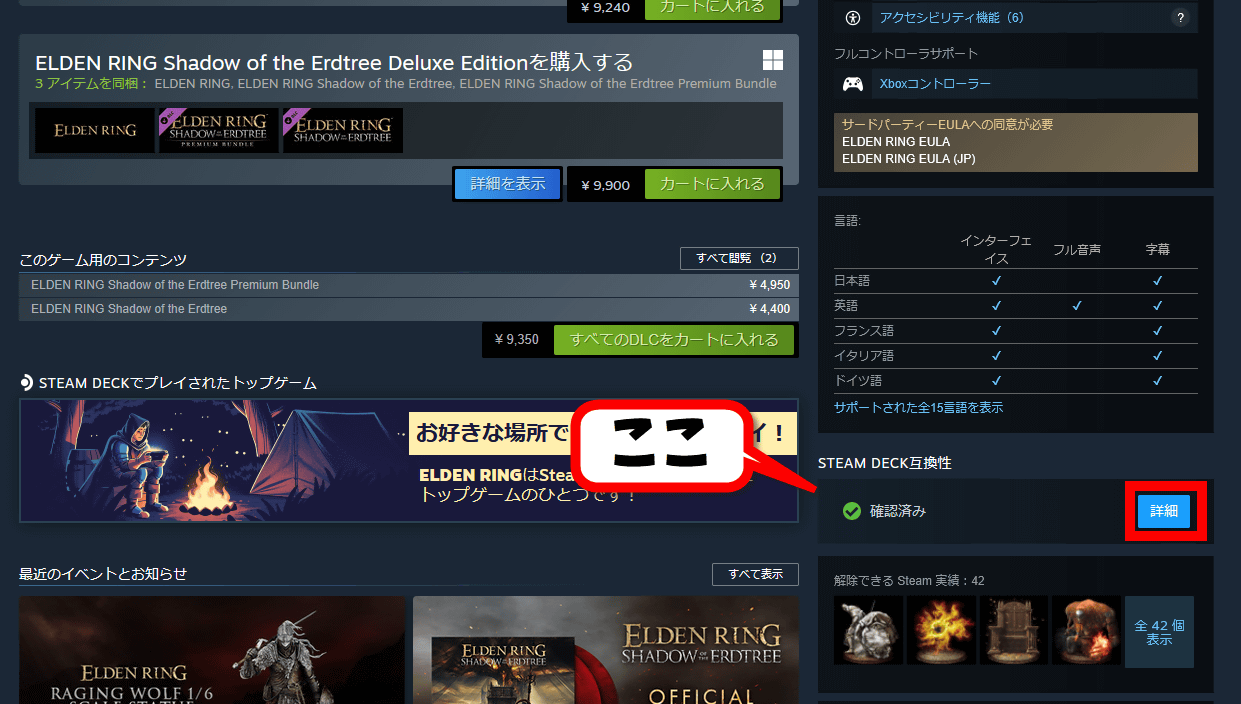
Clicking the button enclosed in the red box will allow you to check whether the game you want to play is compatible with Steam Machine. Please check if the game you want to play is compatible before purchasing Steam Machine.
A Steam Machine is primarily a device for playing games distributed on Steam. While there are
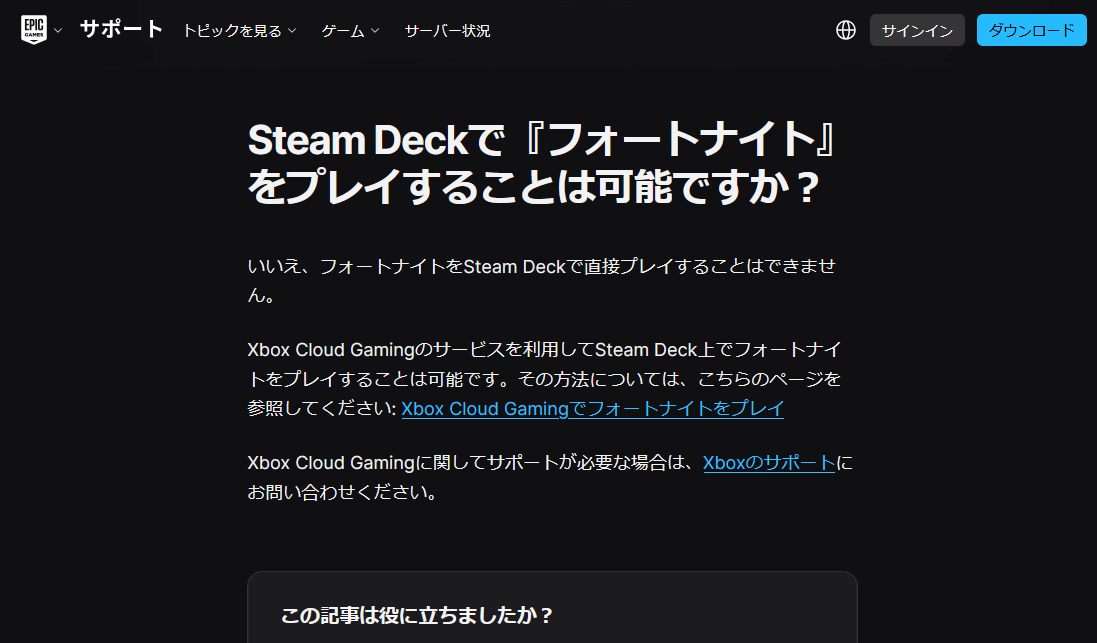
reports of non-Steam games like Genshin Impact being playable on Steam OS , this may change depending on updates to Steam OS and the games themselves. Furthermore, it has been explicitly stated that the popular FPS game Fortnite cannot be played on the Steam Deck, a handheld gaming device running Steam OS. For this reason, it’s best to assume that PC games distributed outside of Steam ‘may work with special operations,’ and to focus primarily on playing Steam games.
◆2: I tried using Steam Machine’s continuous recording function.
Steam Machine has a built-in continuous recording feature that records gameplay in the background, allowing you to later select and edit out the best moments. To use the continuous recording feature, enable ‘Record in background’ in the ‘Game Recording’ section of the settings screen.
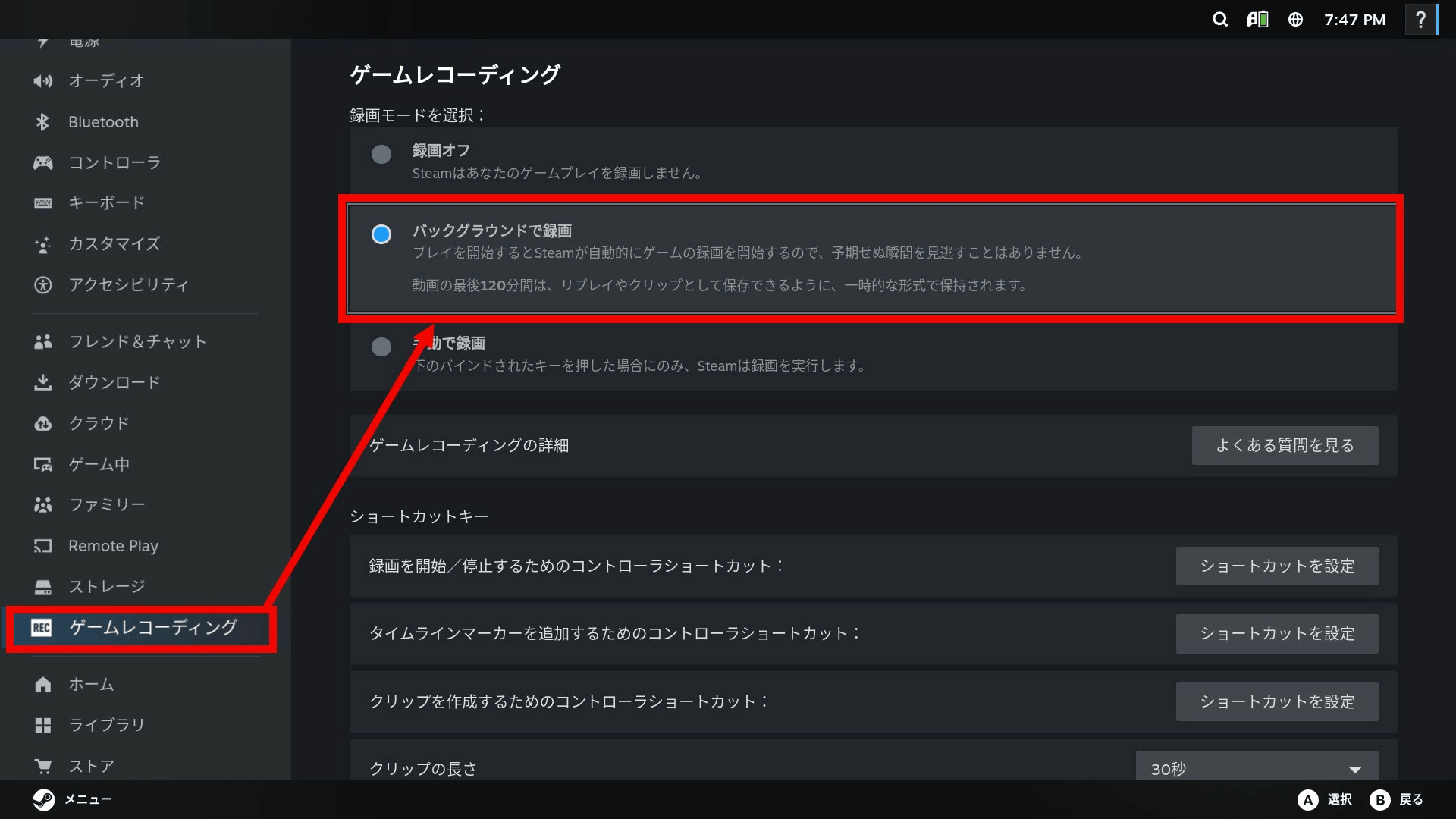
All you have to do is play the game, and the recorded video will be automatically saved to your media library. Once the continuous recording time exceeds 120 minutes, the oldest parts will be deleted.
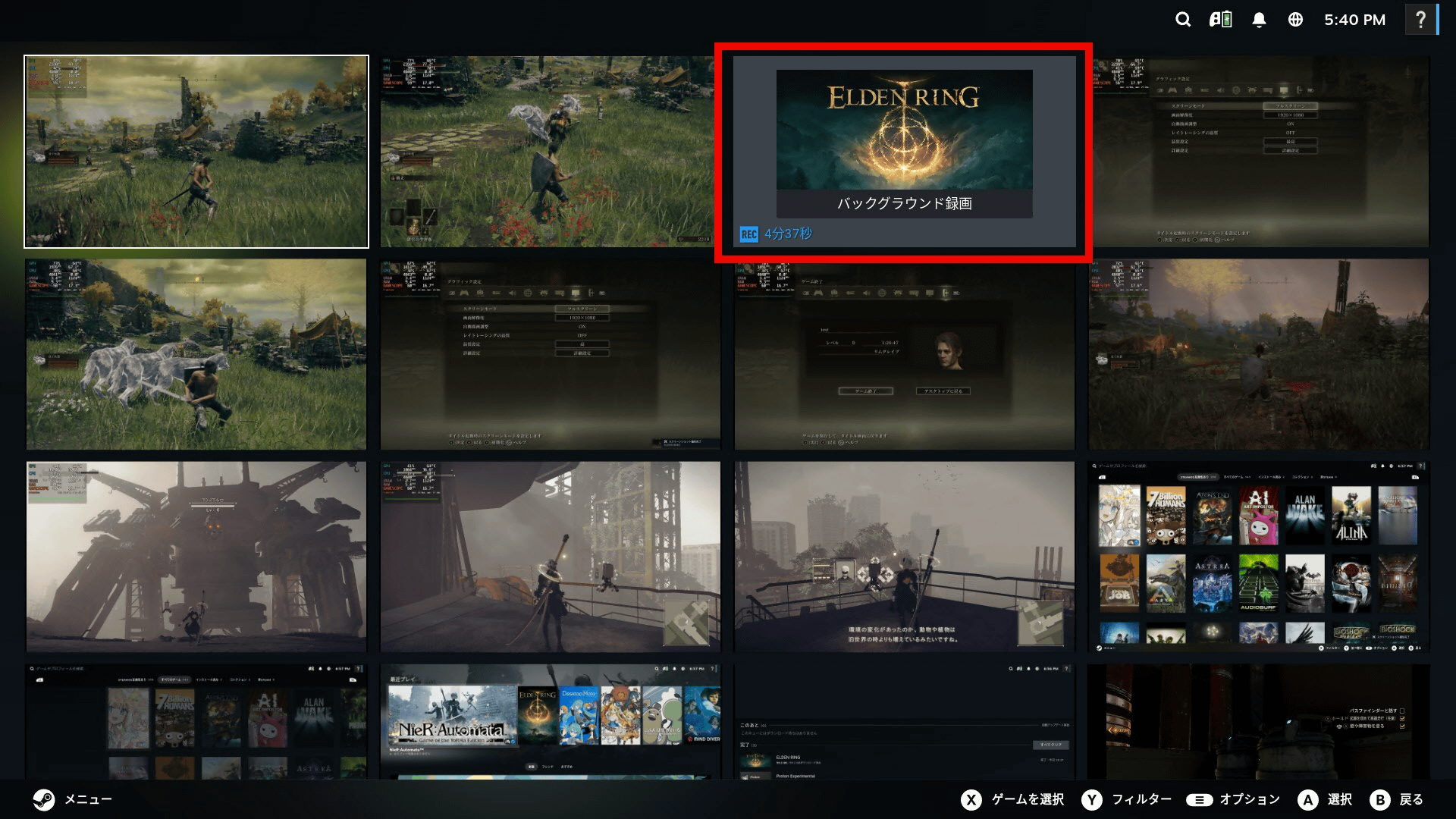
The media library allows you to play recorded videos and crop specific sections.
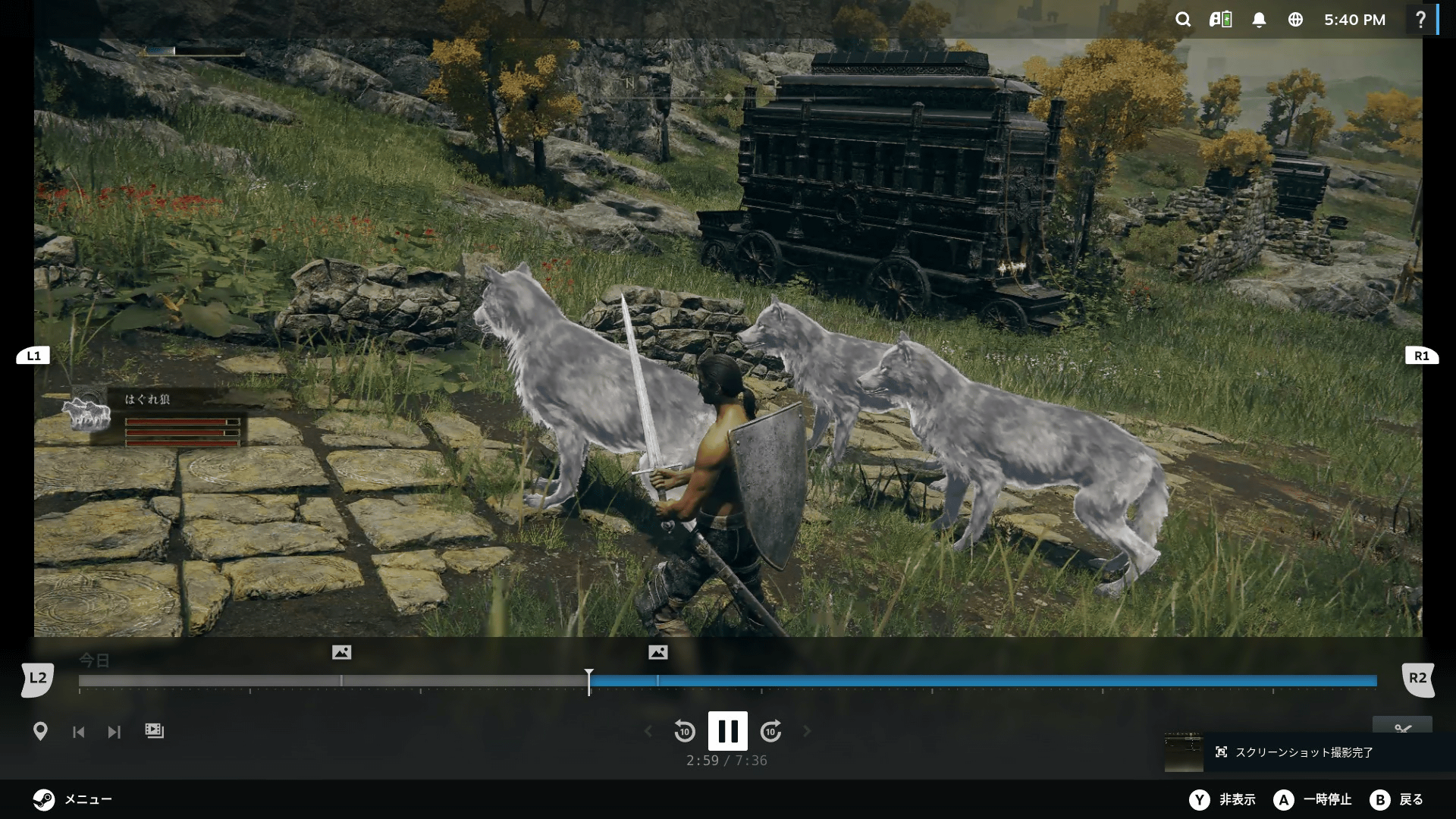
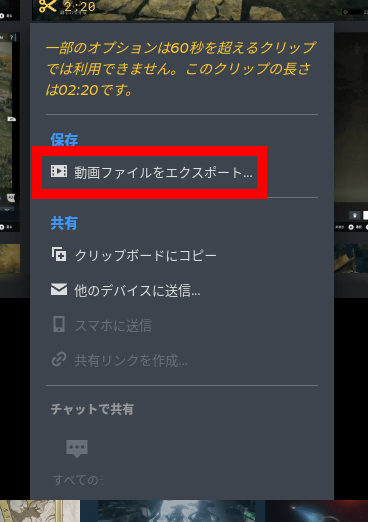
Clipped videos up to one minute in length can be sent to a smartphone or have a QR code created for sharing. Sharing functionality is restricted for videos exceeding one minute.
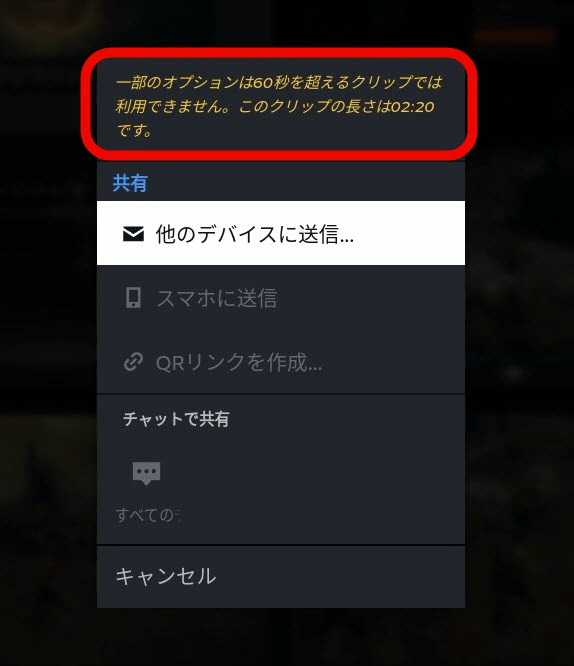
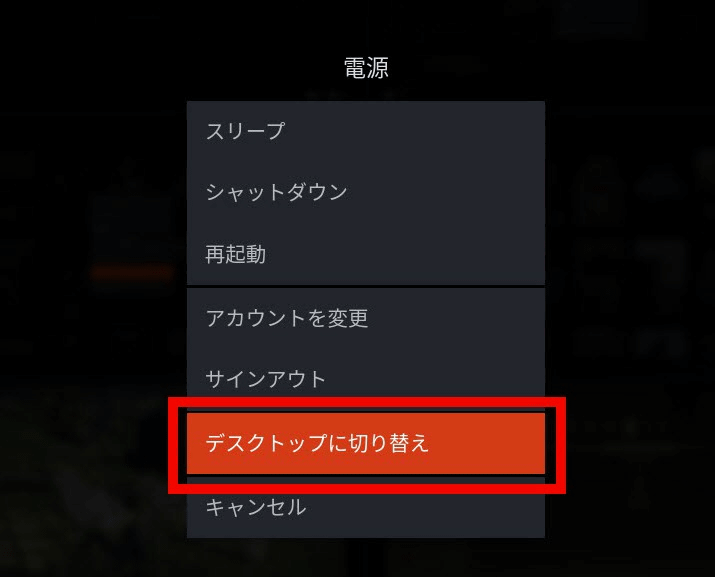
If you want to save a video clip longer than one minute to external storage, you need to switch to desktop mode. To switch to desktop mode, click ‘Power’ in the main menu of Steam Machine.

Click ‘Switch to Desktop’.
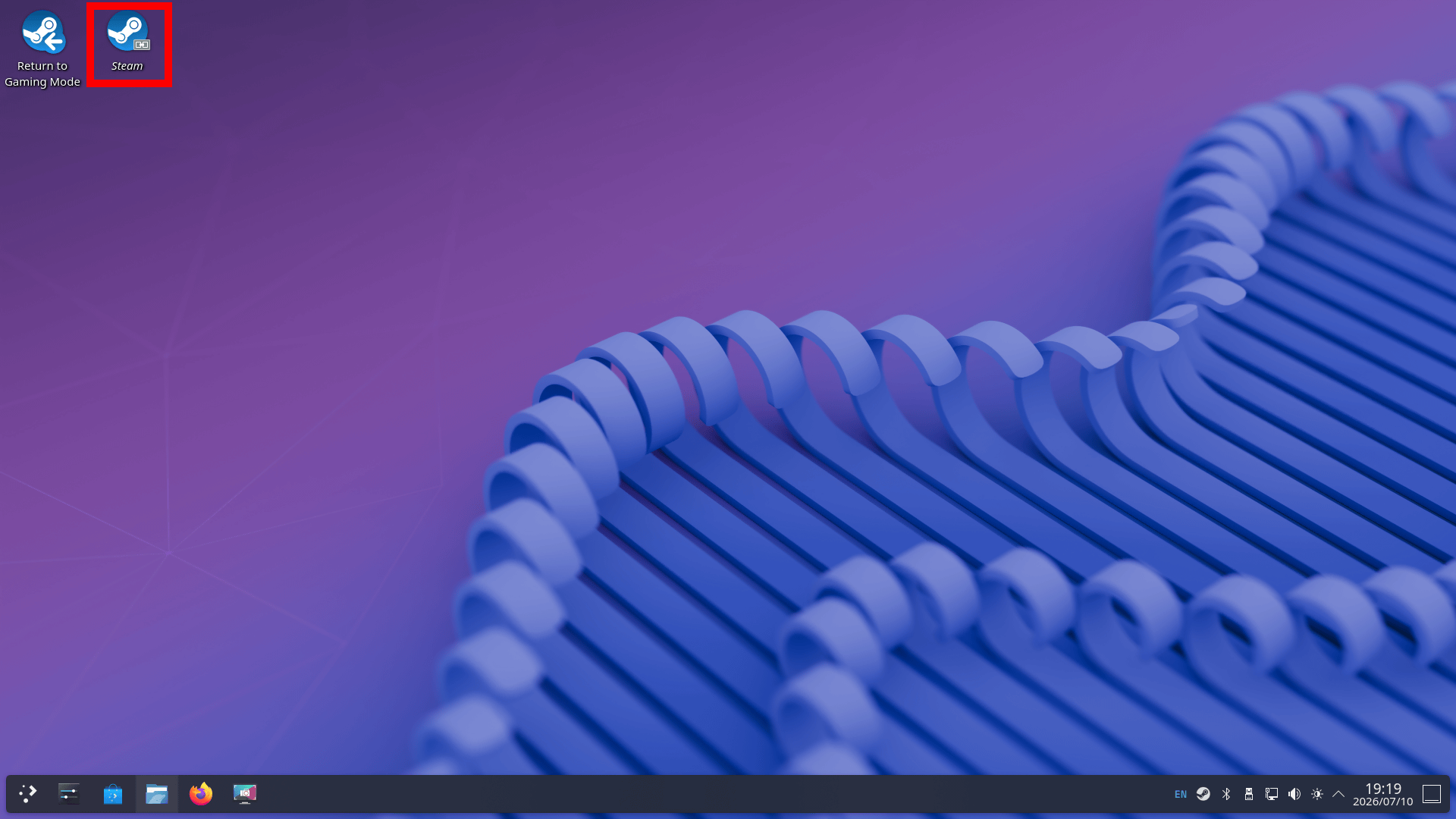
Once the desktop screen appears, double-click the Steam icon located in the upper left corner.
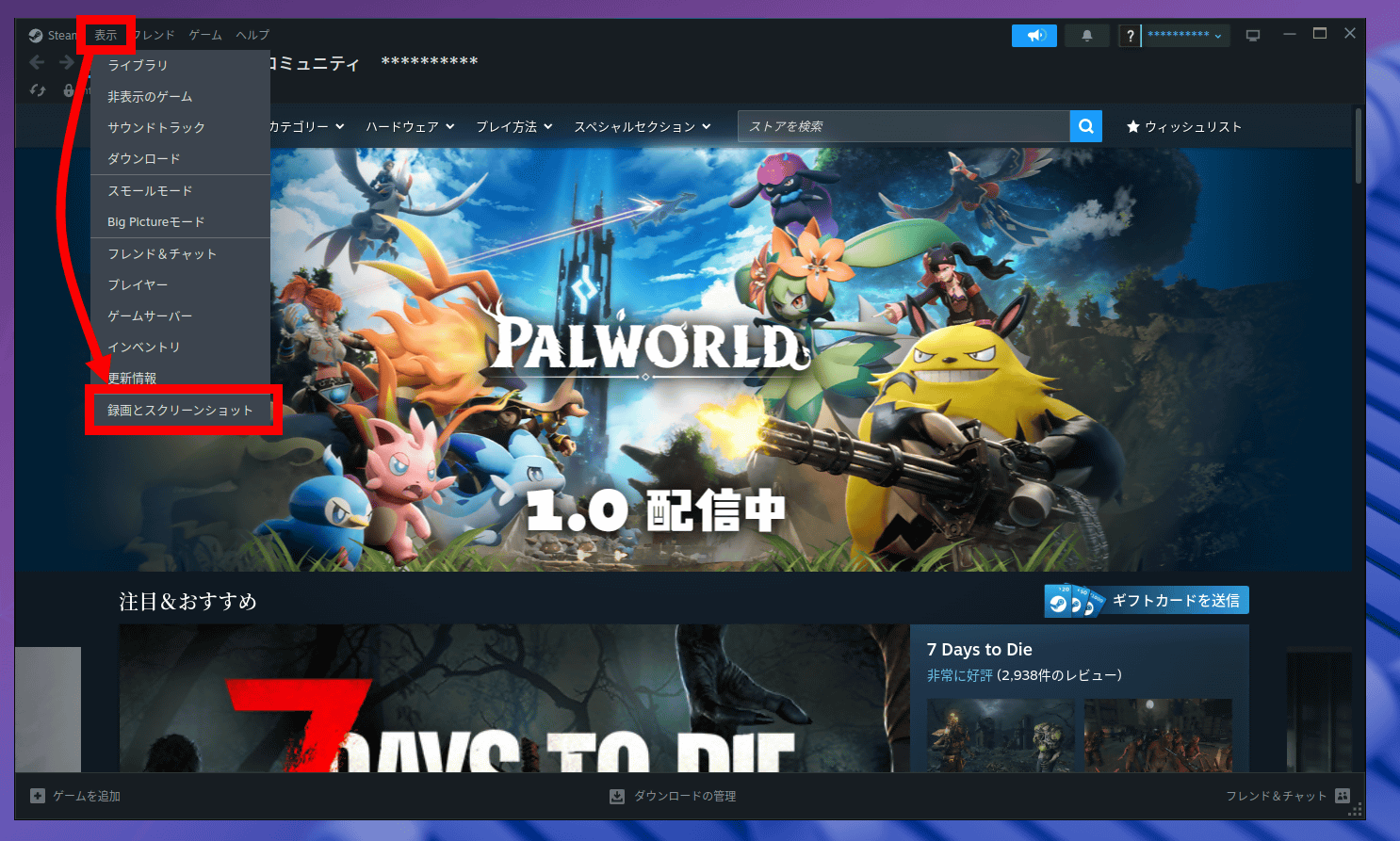
The desktop version of the Steam client will launch, so click ‘View’ at the top of the window, and then click ‘Record and Screenshots’.
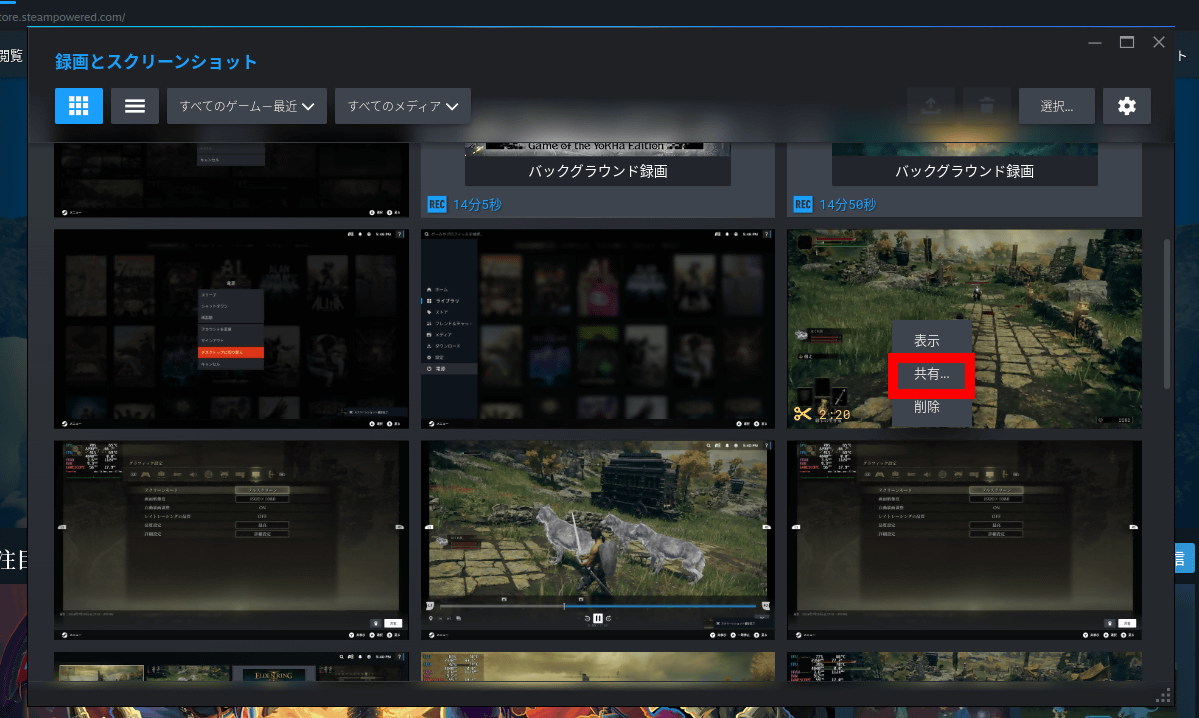
Right-click on the clipped video and click ‘Share’.
Click ‘Export video file’.
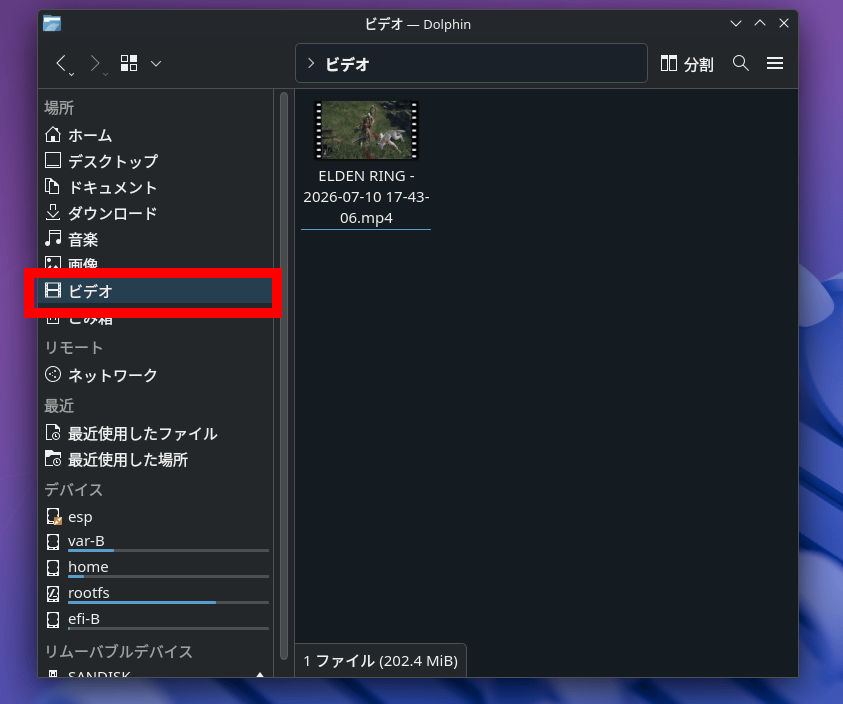
Once the export is complete, click the folder icon in the taskbar to launch the file manager called ‘Dolphin’.

After launching Dolphin, open the folder named ‘Videos’. The clipped videos will be exported into the Videos folder, so you can copy them to external storage or another location.
Here’s an example of a video recorded using the continuous recording function.
Steam Machine can also be switched to desktop mode and used as a PC, as shown here. For those familiar with PCs, Steam OS is an OS based on Arch Linux, and it uses the KDE Plasma desktop environment. Initially, only the basic KDE Plasma applications are installed, but it is possible to install various Linux applications such as Firefox, GIMP, and VLC. A review article exploring what it can do as a Linux PC will be published later.
[to be continued]