I thought every app on my PC was updated — this free tool found 36 that weren’t
Updates are something I take very seriously, partly because my work involves trying new features as soon as they roll out, but also because outdated software is a real security risk. Windows does a decent job of keeping the OS and drivers current, but apps are a different story.
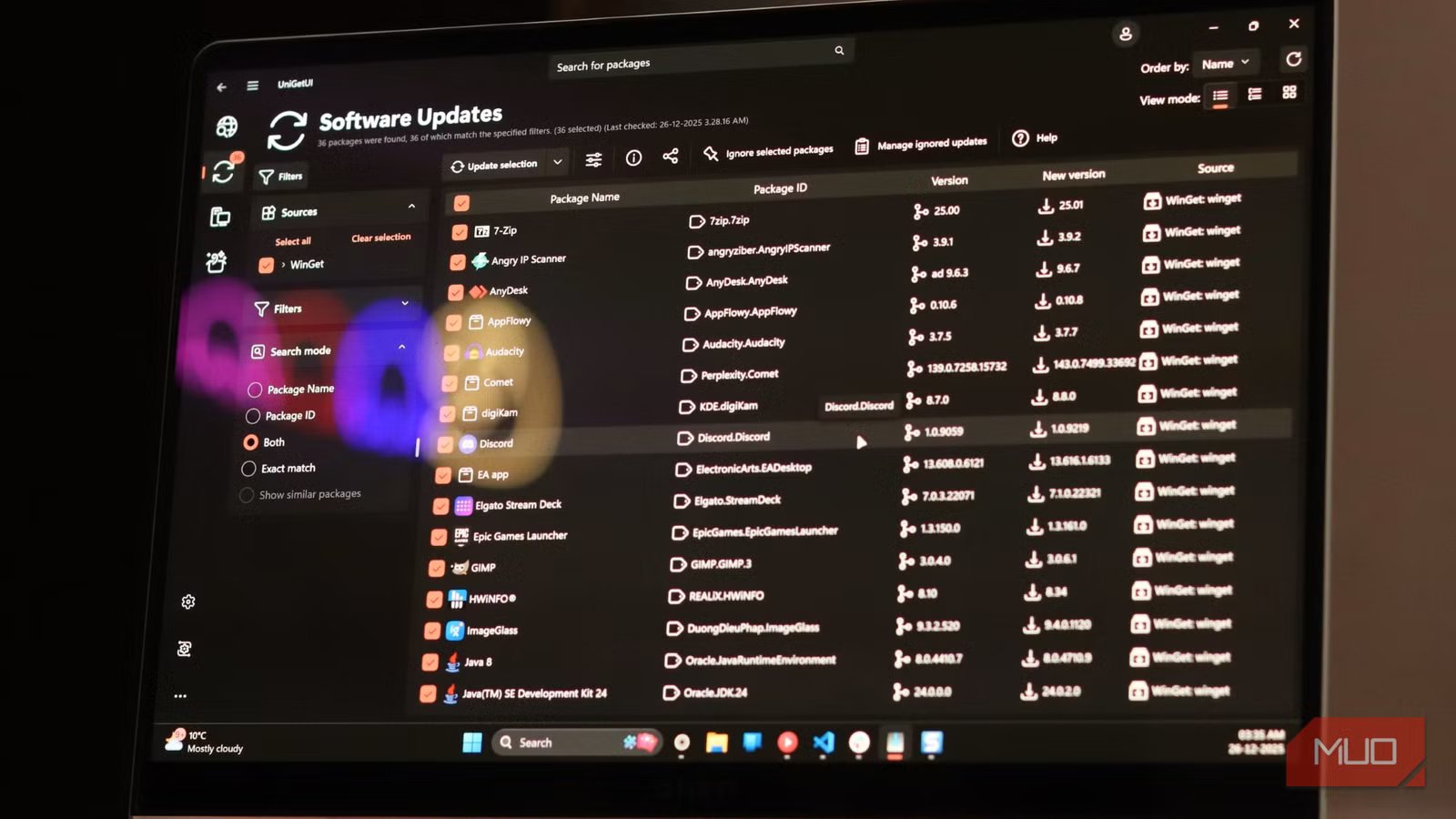
I always assumed the Microsoft Store had my apps covered, but no. When I ran UniGetUI for the first time, it flagged 36 apps that were running outdated versions — none of which the Microsoft Store had flagged, or even knew about.
I thought Microsoft Store was taking good care of all my app
Half my apps were completely on their own

The Microsoft Store has clearly gotten better over the years, but it still has a huge blind spot. It only knows about apps you install through it. Everything else is invisible to it. For instance, there are plenty of apps and tools on my PC that didn’t come from the store. Some because they aren’t available there, others because grabbing them directly from the developer’s site was just easier. For me, that includes tools like WinRAR, WizTree, Proton VPN, 7-Zip, and dozens of others.
Sure, some of these tools are nice enough to check for updates automatically any time I open them. But that’s not the case with every app. So unless I check for updates manually or install them directly from the website, I’m stuck running outdated software, and Microsoft Store won’t lift a finger about any of it.
To be fair, Windows does have a solution for this. It’s called Winget, which is Microsoft’s package manager. I can run the winget upgrade command inside a Terminal window, and it can check for outdated software in seconds. But that still means remembering to do it, and typing commands into a terminal window to check for updates isn’t as smooth as clicking an “Update All” button.
UniGetUI does what Microsoft Store should do
Updates, notifications, and control — all in one place

UniGetUI is a free, open-source app that puts a clean graphical interface on top of package managers like Winget. Instead of running commands inside a terminal window, it offers a Microsoft Store-like interface where updating apps is as easy as clicking a few buttons. The bigger deal, though, is that it checks for every app on your PC, not just those you’ve downloaded from the Microsoft Store.
And it’s better than Microsoft’s Winget because UniGetUI pulls from multiple package managers, including Chocolatey, Scoop, pip, npm, and .NET Tool. So yes, there’s a very slim chance of it missing anything. I also like how it notifies me about app updates. As soon as a new version of an app is available, UniGetUI shows an alert, so I can simply click the Update button to install it.
If you don’t want to see such alerts about individual updates, you can head to its Software Updates menu and update all the apps in one go. There’s even the auto update option if you’d rather just set it and forget it, though it’s turned off by default.
Another thing that’s special about UniGetUI is the control. If you don’t want a specific app to be updated automatically for some reason, you can tell UniGetUI to skip it. So yes, even with auto-update enabled, you’re not flying blind. Finally, while updating those apps, UniGetUI mostly doesn’t bother you with those manual prompts that require you to accept terms or click through confirmation dialogs. It just gets on with it.
It’s packed with such useful features
Updates are only part of the appeal
Seamless app updates aren’t the only reason to use UniGetUI. It can replace the Microsoft Store entirely. For starters, its Discover Packages tab makes it easy to browse and download new apps. And again, you’re not limited to a small catalog. You’ll see almost every app, including those niche ones hosted on GitHub. You can either search for the app specifically or look up broader terms like games, productivity tools, or open source.
There’s also the bulk install feature that lets you install dozens of apps at once. If you’re setting up a fresh Windows install, this alone can save you a lot of time. Bulk uninstall works the same way. Instead of digging through Settings and removing bloatware one at a time, you can select the lot and wipe them in one go.
Its most underrated feature, though, has to be the export and import system. If you’re switching to a new PC or setting up multiple systems, you can simply export the entire app list, complete with version parameters and package sources as a file and then import it on a new machine. This lets you recreate your setup with minimal effort.

- OS
-
Windows
- Developer
-
Martí Climent
- Individual Pricing
-
Free
UniGetUI is a free, open-source GUI for Windows that simplifies installing, updating, and uninstalling apps on your PC.