I turned my old Android phone into a car media server, and it worked better than expected
The hardware lying idle inside your old phone is now more valuable than ever, given how sharply RAM and storage prices have climbed.
Even phones that are nearly a decade old often have at least 4GB of RAM and 32GB of storage, but chances are that most of us have a much better device lying around in a drawer somewhere. I have recently been trying to use my old phones as home servers and replacements for the old Raspberry Pi I have.
After seeing some success with this setup, I took it upon myself to turn an old device into a car media server, one that works as both a streaming hub for passengers and a music streamer for the driver. It was quite easy to set up and has finally put my old phone to good use.
I turned my old phone into a car streaming hub
Using Termux and Jellyfin
Android doesn’t have an official Jellyfin server app, so I used Termux to run the server directly on the phone. This process has become considerably easier because the Termux package repository now includes a native jellyfin-server package, eliminating the need to install a full Debian or Ubuntu environment via PRoot. The current Jellyfin releases require an ARM64 device, although that shouldn’t be a problem for most phones released within the past several years. After installing Termux, I updated its packages and gave it access to the phone’s shared storage:
pkg update && pkg upgrade -y
termux-setup-storage
The second command created links in Termux that Jellyfin could use to access the movies, shows, and music stored on the phone. I then installed Jellyfin Server along with FFmpeg:
pkg install jellyfin-server ffmpeg -y
Starting the server was equally straightforward. I used Termux’s FFmpeg installation explicitly because the Jellyfin package can occasionally have trouble locating or using its bundled transcoder:
jellyfin --ffmpeg "$(which ffmpeg)"
Once the server had started, I opened http://127.0.0.1:8096 in the phone’s browser. Jellyfin presented the same setup wizard you get on a regular computer, where I created an administrator account and added separate libraries for movies, shows, and music. The media folders were available through Termux’s storage/shared directory, so I didn’t have to move everything into a special application folder. Jellyfin uses port 8096 for its web interface and local streaming by default.
I completed the initial library scan while the phone still had an internet connection because Jellyfin needs internet access to download posters, descriptions, and other metadata. Once that information had been cached, the server itself worked without an active internet connection. That made it suitable for the car, where mobile coverage can disappear without warning.
For the actual in-car network, I enabled the phone’s Wi-Fi hotspot and connected the passengers’ phones and tablets to it. They could then open the Jellyfin app or enter the server phone’s local IP address followed by port 8096. The phone became both the wireless network and the media server, so none of the streams had to pass through the internet.
The one thing I deliberately avoided was live video transcoding. Jellyfin’s validated hardware-acceleration options don’t include Android through Termux, and software transcoding can overwhelm an older phone. I stored the videos in formats that the passenger devices could play directly, allowing the phone to serve the original files without converting them during playback.
Your phone can also double as a Wi-Fi music streamer
Just use AirReceiver
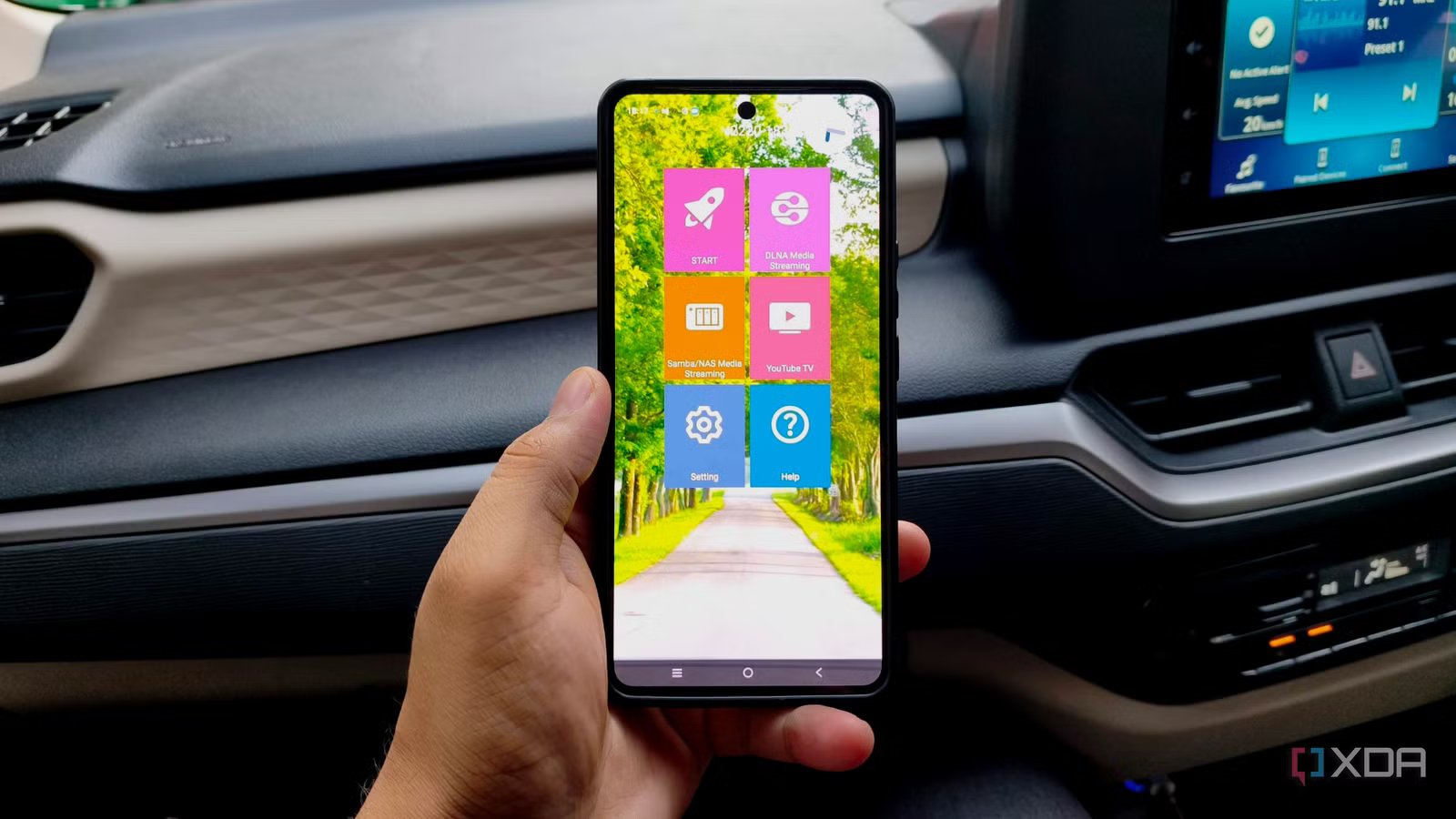
The same phone that runs my Jellyfin server also handles music playback in the car. For this part of the setup, I installed AirReceiver on the old phone. The app allows an Android device to act as an AirPlay, Google Cast, and DLNA receiver, so another phone can send music to it over the local Wi-Fi network. AirReceiver runs as a regular Android app, so it doesn’t need to be installed via Termux alongside Jellyfin.
After opening AirReceiver, I enabled AirPlay and gave the device a recognizable name so I could easily find it on my iPhone, my daily driver. Since the old Android phone was already creating a Wi-Fi hotspot for the Jellyfin server, I connected the iPhone to that same network. The AirReceiver device then appeared as an available AirPlay output inside the iPhone’s media controls.
The final step was connecting the old phone to the car’s audio system. Bluetooth was the easiest option in my case, although a 3.5mm cable or USB audio connection would also work if the car supports it. The iPhone sends the music to AirReceiver over Wi-Fi, and the old phone passes that audio to the car stereo. I can control playback, switch tracks, change playlists, and adjust the volume of my iPhone without touching the server phone.
This arrangement also keeps the car connected to only one audio source. I don’t have to repeatedly pair my daily phone with the stereo, and passengers can continue using the old phone’s hotspot to access Jellyfin while music plays in the background. Streaming services will still need an internet connection, so I either use downloaded music or enable mobile data on the phone providing the hotspot.
Android will try everything to wreck your setup
Because a phone is not meant to be a media server

A phone can handle this setup, but it was never designed to run Jellyfin, maintain a Wi-Fi hotspot, receive AirPlay streams, and remain connected to a car stereo for hours. Android will eventually restrict background activity, especially after the screen has been off for a while. You need to disable battery optimization for Termux and AirReceiver, allow both apps to run in the background, and use a wake lock to prevent the Jellyfin server from being suspended. Android’s Doze and App Standby systems deliberately defer background processing and network activity when a device remains unused.
Heat is the bigger concern. Running a server and hotspot while charging generates plenty of it, and a phone left inside a parked car can become dangerously hot even before you start using it. Prolonged use or charging at high temperatures accelerates battery deterioration, while the phone may also throttle performance or limit charging to protect itself.
The battery inside an old phone has already lost some capacity, and keeping it plugged in for long periods can damage it further. I wouldn’t leave this setup permanently installed or charging inside the car. Check the phone regularly for unusual heat, rapid battery drain, or swelling, and stop using it immediately if the back panel begins separating. Samsung also recommends avoiding prolonged charging at 100 percent, as it can contribute to battery degradation and swelling.