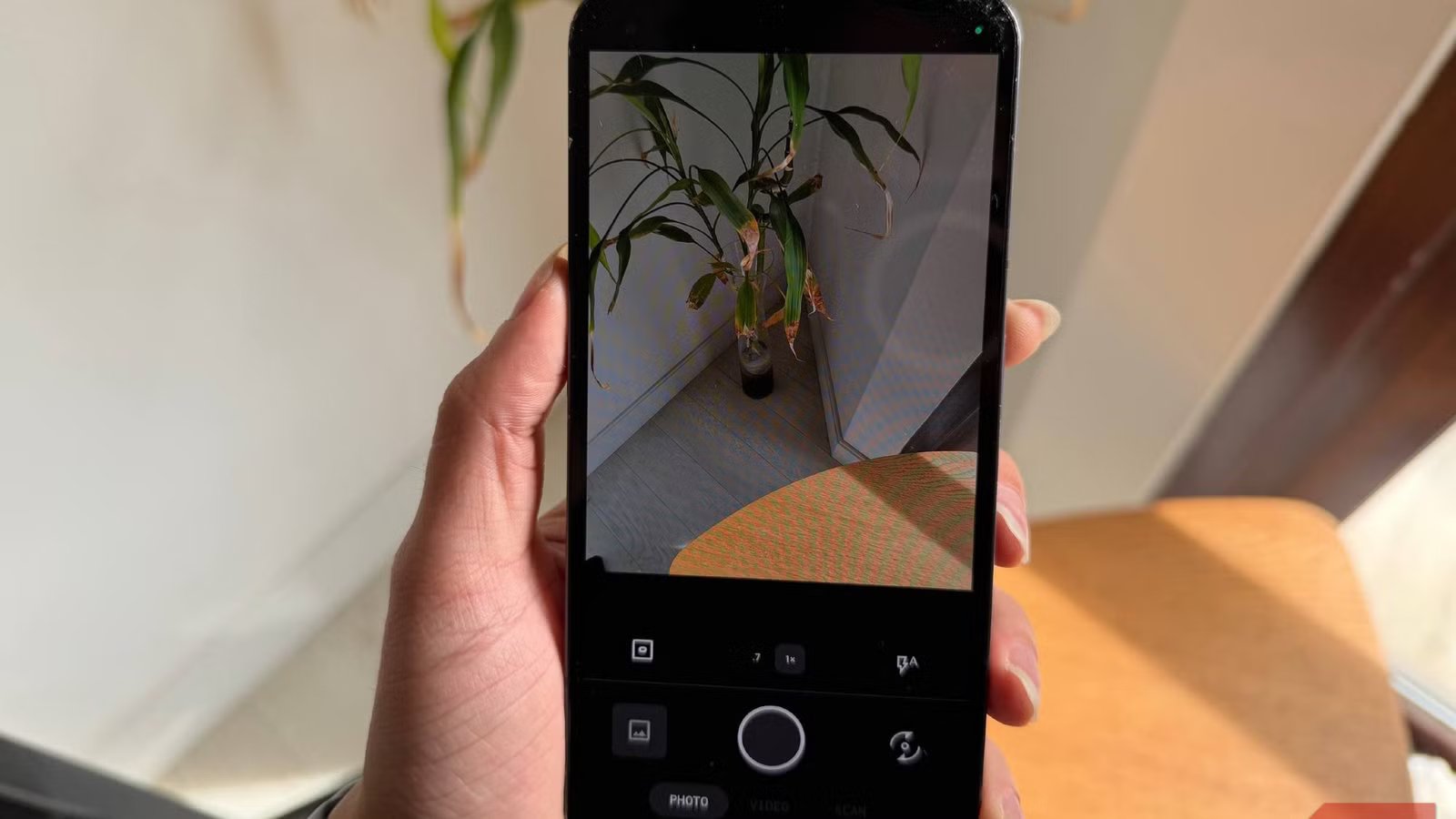
I turned off 4 phone camera features and finally stopped getting blurry photos
Most people assume blurry photos come from moving too fast or not holding the phone steady enough, so they try to fix it by slowing down and bracing harder. That sometimes works, but it misses the actual cause of not taking good photographs. A lot of the blur isn’t coming from you at all. It’s coming from features your phone turned on by default, running constantly in the background. You can turn them off for a much better picture. These add milliseconds in some cases, but put together, they add up.
Tracking focus makes your camera work too harder
The constant movement creates a delay when you shoot

Tracking Auto-Focus looks like the perfect tool for capturing fast-moving kids or pets, but it’s actually one of the most common reasons your photos come out blurry. When you turn it on, the camera never stops working. It’s constantly analyzing the scene, calculating where your subject is moving, compensating for your handshake, and physically shifting the lens to chase a focus lock.
It sounds impressive, but all that continuous work creates a real delay at exactly the wrong moment. That’s why your view shifts between blurry and sharp.
The problem gets worse when you actually try to take the picture. If you hit the shutter while the camera is still mid-hunt, it will fail you. It needs to finish what it’s doing before it can capture the frame. On top of that, when the camera is struggling to get a clean focus lock on something moving fast, it will quietly lower your shutter speed to help itself out. That means the shutter stays open longer, and instead of freezing the action, you get motion blur.
Turning tracking auto-focus off is the best thing I ever did. When you tap to focus and the lens locks onto a fixed point, it stops moving. It stops recalculating. So when you press the shutter, there’s nothing to wait for, and the camera just shoots, so you get better smartphone photos.
Scene optimizer slows down your camera
Background processing causes too much lag
By this point, AI has been shoved into your phone any way it can fit. These features are designed to automatically recognize what you’re pointing your camera at, but they’re not worth the tradeoff. Things like Scene Optimizer or Scene Detection work by analyzing your camera’s live feed in real time, trying to figure out whether you’re looking at a plate of food, a sunset, your dog, or an open field.
Once it thinks it knows, it automatically tweaks the colors and contrast to make dark scenes brighter, food look better, and grass look greener. The problem is that all of this analysis happening in the background puts a serious strain on your phone, and that strain slows down how quickly your camera can actually take a picture.
It’s noticeable if you need a shot quickly. On top of that, your phone has to constantly adjust the image based on what the AI is seeing before it saves anything. So if your hand shifts even slightly, or your subject moves, the whole analysis starts over from scratch.
Turning it off means fewer dropped frames in your viewfinder, less lag between pressing the button and hearing the click, and a much better chance of getting a sharp photo of something that’s moving.
Auto HDR ruins pictures if your hand moves at all
Combining multiple shots leads to blurry edges

Auto HDR sounds great because HDR is a well-known fix that magically balances bright highlights and dark shadows on monitors. This is supposed to work the same way in your photos.
This generally grabs multiple frames at different exposure levels and stitches them together into a single image when you press your shutter. The idea is that this prevents washed-out skies or pitch-black foregrounds. The problem is that merging three or four frames opens the door to a lot of errors.
Even the tiniest hand movement between shots produces ghosting and motion blur, and when the camera’s alignment software can’t perfectly line those frames up, you get soft, smeared edges. That misalignment is actually the most common way HDR goes wrong.
On top of that, your phone needs to capture a longer exposure after you’ve already pressed the shutter button, just to pull enough detail out of the darker areas of the image. This means you have to keep your phone completely still for up to half a second after you think the photo has already been taken.
Turning Auto HDR off solves this immediately. The phone goes back to capturing a single frame the moment you press the button, with zero shutter lag. There’s no multi-frame merging to fail, no extended hold time, and no ghosting. The camera just captures exactly what it sees, exactly when you tell it to, and you get a sharp photo.
Night mode keeps your shutter open for too long
It’s almost impossible to keep your phone perfectly still

Shooting in dark places is one of the trickiest situations for any camera, but especially for a smartphone. Phone cameras have tiny sensors that can’t pull in much light on their own, so the software tries to make up for that by leaving the shutter open longer. Instead of snapping a quick photo, the camera essentially holds the shutter open for a full second or more, trying to soak up as much light as possible.
Night mode makes the blur issues even worse. This is another case of having to hold the phone steady without knowing you have to. If your hand shifts even slightly or your subject moves at all, the software can’t align the frames properly, and you end up with ghosting and blur.
Turning off those automated night features forces the camera to work differently. Without them, it can’t artificially extend the exposure time, so it falls back on much faster shutter speeds.
You don’t have to buy anything new
None of this needs a newer phone or a better camera app. These are settings that already exist on your device, and most of them are on by default because they test well in demos, not because they help in real shooting conditions. To be fair, some of these features do useful work in very specific situations. If you need them, then use them. For everything else, especially anything moving, these four settings are working against you more than they’re helping.

- SoC
-
Snapdragon 8 Elite Gen 5
- Display
-
6.7-inch Dynamic AMOLED 2X
The Samsung Galaxy S26+ is a premium, large-screen smartphone that serves as the middle option in Samsung’s high-end lineup.