My internet felt slow for years, and the fix was in my router, not my plan
When the internet feels slow, it’s easy to second-guess your internet plan or even blame the ISP. But sometimes, it’s the way your router is set up that holds things back more than anything.
Recently, I tweaked the channels my router was using, and my internet stopped feeling slow. I wasn’t on the wrong internet plan — it’s just that my router was competing for congested Wi-Fi channels when it didn’t really need to.
Wi-Fi channel congestion was slowing everything down
Too many routers and not enough breathing room

Your router isn’t the only one broadcasting signals in your building. Your neighbors’ routers are doing the same thing, and there’s a good chance they’re all fighting over the same narrow slice of wireless spectrum. Wi-Fi on the 2.4GHz band works across 11 channels in most countries, but the only ones that don’t overlap with each other are 1, 6, and 11. That’s it. Every other channel bleeds into the ones next to it, which means if your router is on channel 3 and your neighbor’s is on channel 4, they’re probably interfering with each other without either of you knowing.
Now, in your building, you might have six or eight routers all stomping for the same frequencies at once. The 5GHz band has more channels to work with, sure, but it also suffers from the same fundamental problem in crowded environments.
By default, most routers are set to “auto” channel selection, which sounds like it should help, as the router can pick the least crowded channel on its own. But the problem is it only does this once when it boots up and then just… stays there. That means it’s not constantly adapting as new networks move in or the channels are vacated.
Finding the best Wi-Fi channel wasn’t as difficult as I thought
I regret not doing it sooner
Once you realize why the “auto” channel selection falls short, the next obvious step is to find channels that are less congested. There are several ways to do it, but the most convenient one is to use a Wi-Fi analyzer app on your phone.
These apps essentially show you a live map of every wireless network in range, which channel each one is sitting on, and how strong their signals are. You can see at a glance which channels are packed with competing networks and which ones are relatively empty. On 2.4GHz especially, it becomes obvious fast which of channels 1, 6, and 11 has the least competition.
On 5GHz, there are far more non-overlapping channels available, so even in a busy building, you’re likely to find a few that nobody nearby is using. The whole process only takes a few minutes, and if you don’t want to get into the weeds of it, the app will even tell you the best Wi-Fi channel for both 2.4GHz and 5GHz bands.
Wi-Fi analyzer apps usually ask for your location access, which is normal. That’s just how Wi-Fi scanning works on Android. Some modern routers also include a wireless scanning tool, so if yours has one, you can skip the app entirely.

- OS
-
Android
- Price model
-
Free (open source)
Picking the right channel made the internet feel faster
Only takes a few clicks

Once you know which channel has the least competition, the fix is simple. Log into your router’s admin panel, head to the wireless settings, and manually select a channel for each band. The exact steps can vary a little, but it’s not too difficult to do. Once you switch to a less congested channel, the difference should be noticeable.
Obviously, nearby routers can switch channels too, so a clean channel won’t stay that way forever. And for that same reason, it’s also a good idea to rescan every now and then.

- Brand
-
TP-Link
- Wi-Fi Bands
-
2.4GHz, 5GHz, 6GHz
- Ethernet Ports
-
5
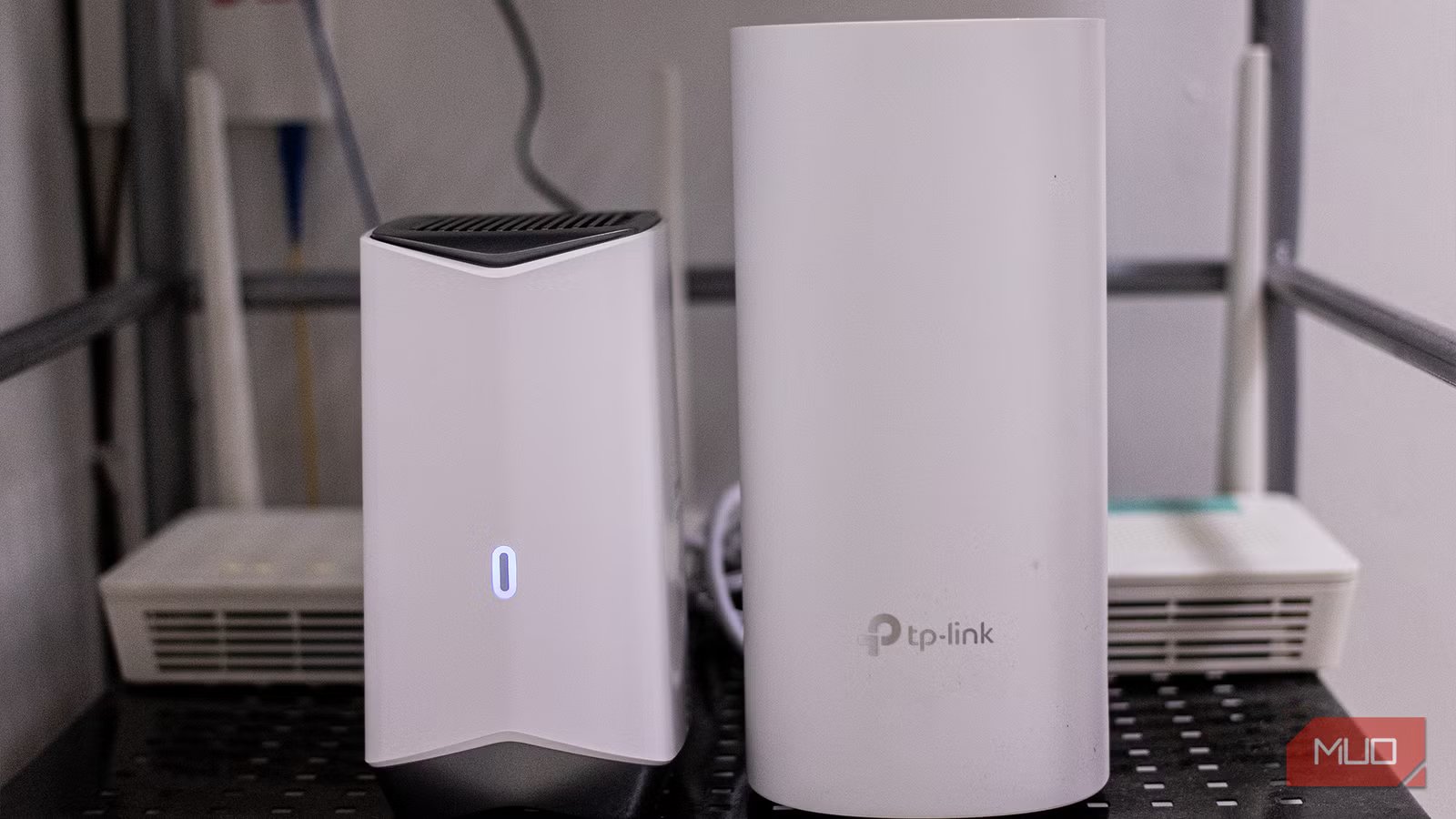
The TP-Link Tri-Band BE9300 is a powerful WiFi 7 router built for ultra-fast internet. It uses three wireless bands to deliver speeds up to 9.3 Gbps. With advanced technology, it cuts down lag and connects dozens of smart home devices easily. It is perfect for smooth 4K streaming and gaming.
Don’t stop with channels — optimize other router settings too
Fixing the Wi-Fi channel is a good start, but it’s not a magic bullet. Your router’s other settings matter just as much. For instance, QoS (Quality of Service) is a feature that lets you tell the router the type of traffic and devices that are important to you so it can prioritize those when things get busy. It can be especially helpful if your video calls keep getting choppy or your main PC or phone isn’t getting the bandwidth you want.
Switching away from your ISP’s default DNS can also help. Third-party providers like Google DNS and Cloudflare are usually faster and more reliable. They can also fix that annoying delay that occurs before a page starts loading.
Even simpler things like updating your Wi-Fi’s firmware, moving it to the right location, and adjusting the antennas can sometimes do wonders. So yes, it’s worth trying those things before you blame your ISP or upgrade your plan.