One Galaxy Z Fold 8 and Ultra feature every new user should try
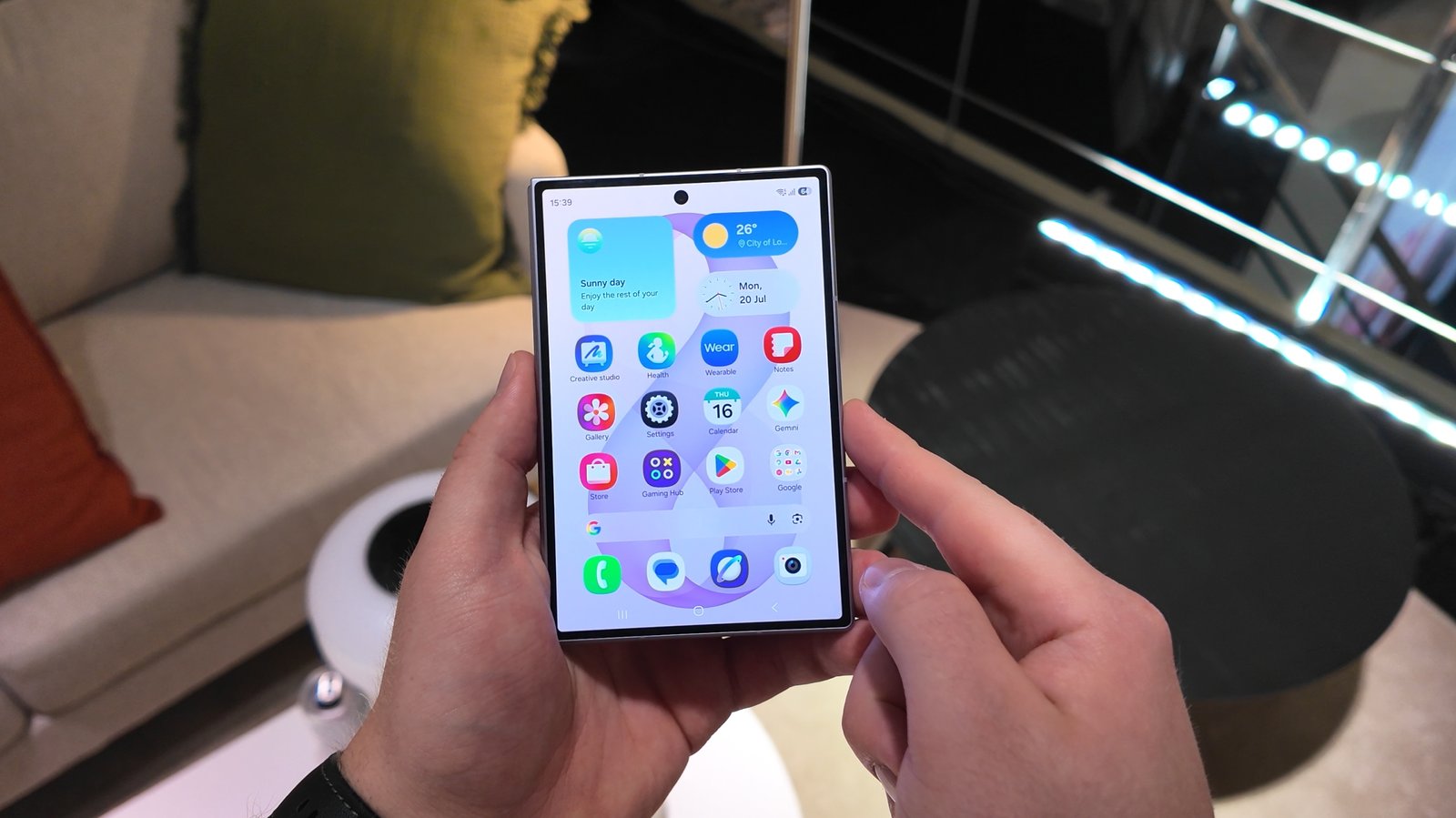
The Galaxy Z Fold 8 and Galaxy Z Fold 8 Ultra offer a few customization options that simply wouldn’t make sense on a regular smartphone. One of the best is the ability to use separate home screens for the cover and inner displays.
It may seem like a small feature, but it gives you much more freedom to tailor each screen to the way you use it. If you’ve just picked up Samsung’s latest Fold, here’s how it works.
Why use separate home screens?
By default, the Galaxy Z Fold 8 and Fold 8 Ultra use a single shared home screen for both the cover and inner displays. Whatever you place on one display appears on the other as well. You can’t change one without the other.
Oddly enough, in mirrored mode, the left half of the unfolded screen corresponds to the first home screen page on the cover display, while the right half corresponds to the second — even if it doesn’t yet exist.
Here’s the catch: If you want to keep the cover display to a single home screen page, you can’t place anything on the right half of the unfolded home screen. As soon as you do, One UI automatically creates a second home page for the cover display.

Mihai Matei / SamMobile
Galaxy Z Fold 8 home screen settings – Source: Mihai Matei / SamMobile
It’s a bit unusual and can get confusing and disorganized. Because each display has a different aspect ratio, this isn’t an easy puzzle to solve if your aim is keeping both screens clean.
Thankfully, there’s a solution. One UI lets Fold users have separate home screen setups for each display. You trade a bit of Samsung’s simplified default setup for much greater flexibility. The fix is easy:
Pinch the home screen > Settings > Cover screen mirroring > OFF

Mihai Matei / SamMobile
Galaxy Z Fold 8 home screen settings – Source: Mihai Matei / SamMobile

Mihai Matei / SamMobile
Galaxy Z Fold 8 home screen settings – Source: Mihai Matei / SamMobile

Mihai Matei / SamMobile
Galaxy Z Fold 8 home screen settings – Source: Mihai Matei / SamMobile

Mihai Matei / SamMobile
Galaxy Z Fold 8 home screen settings – Source: Mihai Matei / SamMobile
Once cover screen mirroring is disabled, each display has its own home screen layout. And you can freely place items on the left or right half of the foldable panel without affecting your cover screen setup.
Many home screen settings still apply globally even when mirroring is turned OFF. For example, “App size on Home and Apps screen” affects both displays regardless of whether home screen mirroring is enabled.
However, you can have separate home screen layouts, wallpapers, widgets, and even folder grid sizes. Options are plentiful.

Mihai Matei / SamMobile
Galaxy Z Fold 8 home screen settings – Source: Mihai Matei / SamMobile
One last thing: turning off cover screen mirroring won’t overwrite your current mirrored home screen layout. Samsung saves mirrored and separate home screen configurations independently, so you can switch between the two modes whenever you want without losing your customizations.