That sluggish Windows 11 feeling isn’t a performance problem — it’s this outdated registry setting
Windows 11 has become the OS everyone seems to dislike, yet can’t let go of. Sure, Linux is a good alternative, but you miss out on a lot of essential features by switching. Now, you can try to make Windows 11 faster via de-bloating and removing the forced AI features, but you’ll still find the OS to be slow.
At some point, the sluggishness becomes more of a design flaw rather than a performance issue. Fortunately, this can be fixed (just like every other problem with Windows 11), and you won’t need a separate app for that — a simple registry key edit will do just fine.

Ever noticed the slight hiccup and delay it takes for the Windows menu and UI to load when you click on them? That’s not a performance issue at all, but the perceived sluggishness makes it seem so. It’s actually more of a long-standing legacy feature from earlier Windows iterations that was meant to add a micro delay of around 400ms that impacts hover-trigger menus, classic Windows menus, submenus in File Explorer, etc.
The delay was meant to counteract problems with hover-based menus. This delay would then allow your system to avoid visual clutter or prevent you from bringing up any menu that could be brought up with a hover interaction.
This key has become outdated on Windows 11 because this OS barely has any hover-based functions and there aren’t many menu trees where a delayed interaction would be needed.
The delay feels worse than it should
Inconsistent application creates cognitive friction

The reason why delayed menu setting is perceived as a slowdown is that humans associate delays above 100ms with performance hiccups on computers, even if nothing is broken. Moreover, this gets worse when you consider the fact that this delay isn’t universal and only impacts certain Windows 11 elements. Third-party app elements remain unaffected by this.
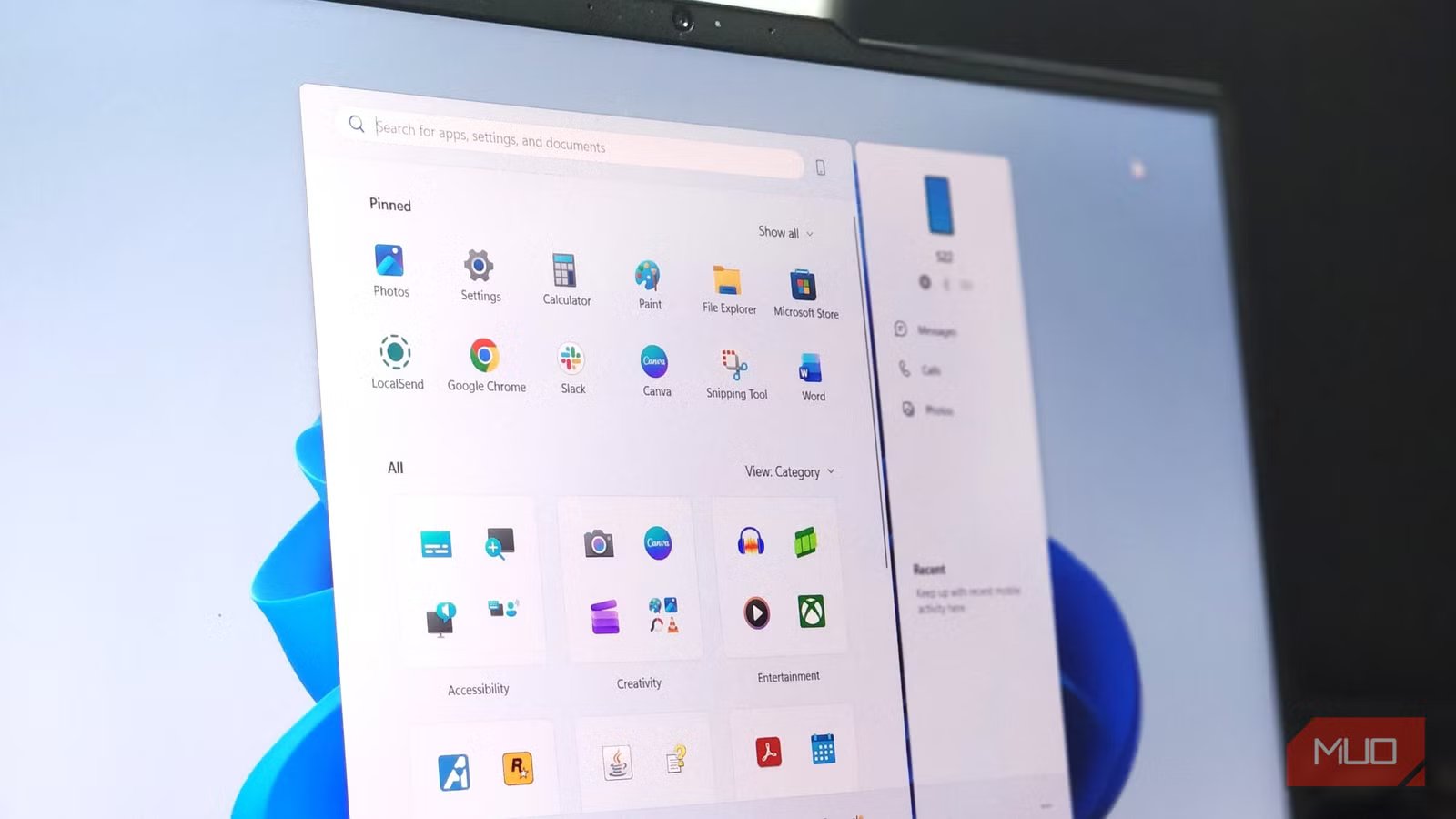
Some newer elements within Windows 11 do not use the old cascading hover system where this delay doesn’t apply, e.g., Settings and the Start Menu. This irregular application actually makes the delay worse and causes cognitive friction, a phenomenon where a system or process fails to match user expectations.
Just a simple registry tweak can fix the delayed response
Registry Editor may seem like a daunting app for changing most keys, but changing the menu delay is a straightforward process. To do so, follow these steps:
- Open Registry Editor.
- Navigate to this path: HKEY_CURRENT_USER\Control Panel\Desktop
- For the entry MenuShowDelay, double-click to change the Value data from 400 to your desired delay.
Personally, I’ve set the value to 0 for an instantaneous reaction. You can reduce the delay to around 100 if you prefer the delay, or if it annoys you when the menu gets brought up during the hover interaction, although that is rarely an issue. For the changes to take effect, you’ll either need to restart Windows or restart explorer.exe and run it again by typing the same name in New Task from the Task Manager.
It’s highly recommended to back up your registry in case of a mishap, just to be on the safe side, even if you mean to change a single key. Also, for MenuShowDelay, change the Value, not the DWORD entry, which is a common mistake.
A quick bonus tweak for hover actions

MenuShowDelay fixes the delay before the submenu appears and works for hovering menus too. However, hovering the mouse over non-menu buttons also triggers other actions, like tooltips, previews, etc.
Realistically, hovering action is something I rarely have to do, but when I do so, the wait becomes annoying. Windows has the same default 400ms delay for hovering actions, and MouseHoverTime can reduce the response time. The rundown is quite similar, and here’s what you’ll need to do:
1. Open Registry Editor.
2. Go to HKEY_CURRENT_USER\Control Panel\Mouse to find MouseHoverTime.
3. Double-click the key and change the value from 400 to your desired value.
For MouseHoverTime, I don’t recommend setting the value to 0 because that would mean an instantaneous action, and when you just pass a mouse through an action, it becomes annoying. Rather, I recommend keeping the value at 100 to give it enough time to register so you don’t accidentally do that.
A responsive fix, not a performance one
Windows 11 features a hybrid of Win32 elements and newer features based on the Acrylic design, and the latter aren’t impacted by the menu timing delay. This is why Microsoft hasn’t discarded the MenuShowDelay and MouseHoverTime keys with Windows 11. Changing these keys to your desired value can make your system feel way faster. This tweak doesn’t change performance at all — it just removes the perceived system friction.