This NotebookLM workflow turned my newsletter graveyard into a searchable goldmine
I subscribe to newsletters I actually want to use. So, remembering their content is a battle. I usually lose as I forget most of what’s in them. That’s the real reason I started an experiment to pipe newsletters into NotebookLM: I wanted to recall what I’d read, not just archive it.
My hope is that some real value will show up between issues and between newsletters covering related themes. Maybe I can cross-pollinate ideas in ways a normal inbox never allows. NotebookLM has no built-in email connector, so I had to build the bridge myself with a handy automation tool and NotebookLM.
Free methods for getting newsletters in
Every option is a workaround with variable effort

Before automation, you’ve got three manual options: copy-paste text directly into NotebookLM, batch-export a Gmail label to PDF once a month, or set up a Google Apps Script that auto-saves matching emails to Drive.
I tried copy-pasting first because it needed zero setup. It felt great for a week, then I missed two issues and gave up entirely. The other two methods were either cumbersome or technical for me.
That’s the pattern with manual methods. They work for a newsletter you read occasionally, but a weekly subscription needs something that doesn’t depend on you remembering to do it.
Build a two-step Zap to automate the pipeline
Zapier’s free tier is enough for one newsletter
Zapier’s free plan caps you at 100 tasks per month and allows one trigger and one action per Zap. A weekly newsletter uses four or five tasks a month, so you’ve got plenty of room. You can also take a look at this free, open-source Zapier alternative.
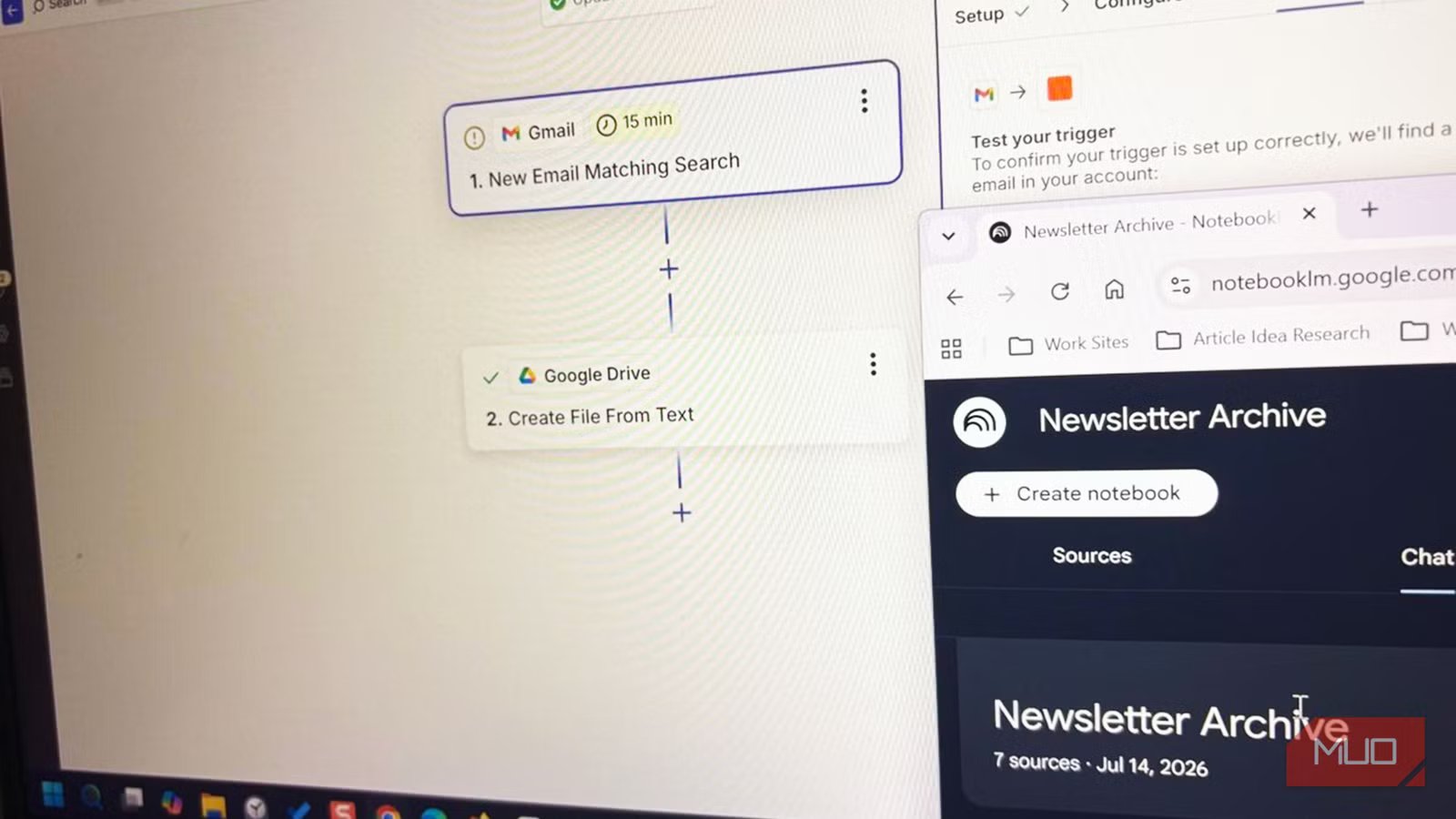
There are different ways to set up the Gmail trigger. Set Gmail as your trigger app and choose New Email Matching Search. Use a query like “from:newsletter@example.com” in the Configure screen, so only that sender fires the Zap; nothing else in your inbox gets touched. I went with a New Labeled Email trigger event for the “Newsletter” label (the third screenshot).
Set Google Drive as your action app and choose Create File From Text. Map the email body into the content field and save it to a Drive folder you’ll add to NotebookLM as a source. Turn the Zap on, and every new issue lands in Drive on its own. You will have to add the individual issue to the Sources panel. While NotebookLM can auto-sync with a document in Drive, it still can’t do the same with changes made to a Drive folder.
I couldn’t find or add a filter step to clean up HTML clutter first. This leaves my source full of broken formatting and stray links. I tried setting up the Zap for plain-text files, too, but it also carries the HTML markup in the text. The hunt for a clean way to extract the emails is still on (apart from the copy-paste manual route).
In practice, “Create File From Text” renders newsletter HTML for NotebookLM to read. For us, reading the source is a pain with the detritus of HTML markup; you have to go back to the inbox and read the original email. If your newsletter is unusually image-heavy, that’s the one case where a manual PDF export still beats automation.
Since I had already amassed a ton of back issues, I used a label filter (“Newsletter”) to trigger the Zap. For subsequent issues, I have automated the Gmail label. You can choose your own trigger… For instance, starring the emails.
Use prompts to turn issues into real research
The right prompt does more than summarize

Once a few issues sink into your notebook, NotebookLM can find patterns across them, not just give you a summary for each one. Your best NotebookLM prompts can be the scalpel rather than a shovel. NotebookLM automatically offers suggestions. Beyond that, I usually ask it to get a bird’s-eye view of all NotebookLM sources, compare how a topic has changed across several issues, or pull together every recommendation (especially apps and tools) the writer made into one list.
Across all the newsletter issues in this notebook, identify any recommendation, tool, or idea the writer has mentioned more than once. List each one, how many times it came up, and whether their opinion of it changed between issues.
Simple prompts can beat reading every issue. Usually, newsletter topics aren’t linear. So, prompts can find common threads between issues better than our eyes can.
The value shows up over time, not on issue one. After a few months, you’ve got a searchable archive instead of scattered memories of “that one issue where they mentioned X.” That’s the whole point of routing it through NotebookLM instead of just leaving it in your inbox.
Audio Overviews and mind maps for a passive review

NotebookLM’s Studio panel can turn your newsletter archive into an Audio Overview, a mind map, or a written report, without you writing a single prompt.
I default to the NotebookLM mind map first, since it shows how the newsletter’s recurring themes actually connect before I decide what’s worth a deeper prompt.
An Audio Overview works well if you’d rather catch up on a month of issues during a commute. Though I recommend you use it on issues with the same topic. Either way, Studio Tools turns a static archive into something you can review passively, then follow up on with real prompts.
Scale the workflow to your other newsletters
Duplicate the Zap for each new source

The simple two-step Zap you built for one newsletter works the same way for a second, third, or tenth. Duplicate the Zap, replace the Gmail search query with the new sender, and point it to a new Drive folder.
Dealing with multiple newsletters felt like overkill compared to just filtering one newsletter I really love into NotebookLM. You can try it out with multiple newsletters that are on similar topics.
Organizing your NotebookLM notebooks makes them easier to maintain. Separate folders and separate NotebookLM notebooks or labels, keep each newsletter queryable on its own; you can always cross-reference them later if a theme spans more than one source.

- OS
-
Android, iOS, Web-based app
- Developer
-
Google
- Pricing model
-
Free
NotebookLM is Google’s AI-powered research notebook that reads what you upload and helps you transform it into structured summaries, explanations, and visuals.
Start with one Zap and one newsletter
Build the Zap for a few issues of your single favorite newsletter, let it run for two weeks, and check whether NotebookLM’s prompts actually surface something you’d have missed by just reading the emails.