Your Roku could be stuck at 1080p and you’d never know
There was a famous infomercial in the late 1990s in the U.S. about the Ronco Showtime Rotisserie. The pitchman would talk about how you could load up the cooking machine with food and then “set it and forget it.” That motto and principle have been used in tech for years, as devices want to make it easy on the users. They don’t want them to worry about making adjustments by making the factory settings good enough for most people.
Unfortunately, for consumers, sometimes this isn’t the best thing. In fact, anybody who has adjusted the settings of their computer, headphones, or other electronic devices knows that there are plenty of changes you can make to better your experience. The same goes for a Roku. Because if you don’t take a look, “setting it and forgetting it” might give you a worse experience.
There are a ton of settings you can change on a Roku
You need to do some digging

Roku OS is known as a user-friendly device that makes it easy for consumers to get the content they want. The grid-style design has been upgraded recently to take your preferences and offer you suggestions based on those. While you may not want Roku to track your activity, if you do use the algorithm the way it’s intended, it will give you recommendations for content.
For those who don’t want to be tracked, you can go into the Settings menu to stop it. Opting to hide Roku’s recommendations is even just a way to get rid of them on your main screen.
You can also use the Settings menu to save power on your device. You can stop the auto-play of videos on the home screen with just the click of a button. Your viewing can be smoother if you’re experiencing any difficulty with the picture. Just going to Advanced display settings and adjusting the refresh rate will improve your picture.
Roku even lets you choose what your captions look like when you’re streaming content and want to use subtitles. It’s worth looking around to see how best your Roku can serve you and your TV.
Different Roku devices might have slightly different settings menus. If you have an older Streaming Stick or a newer Roku Ultra, you might see that the options are different, solely based on the technological advancements made between products. When it comes to software changes, as long as the Roku is updated, they will be the same.
You can change the display type of your Roku
This should match the resolution of your TV
On one TV in my home, I have an older Roku Streaming Stick that I’ve had for years. On another, I have a newer Roku Streaming Stick. The green displays are from the older TV and the Roku Streaming Stick. The purple photos are from the newer TV and Streaming Stick. Neither of the TVs is a smart TV on its own.
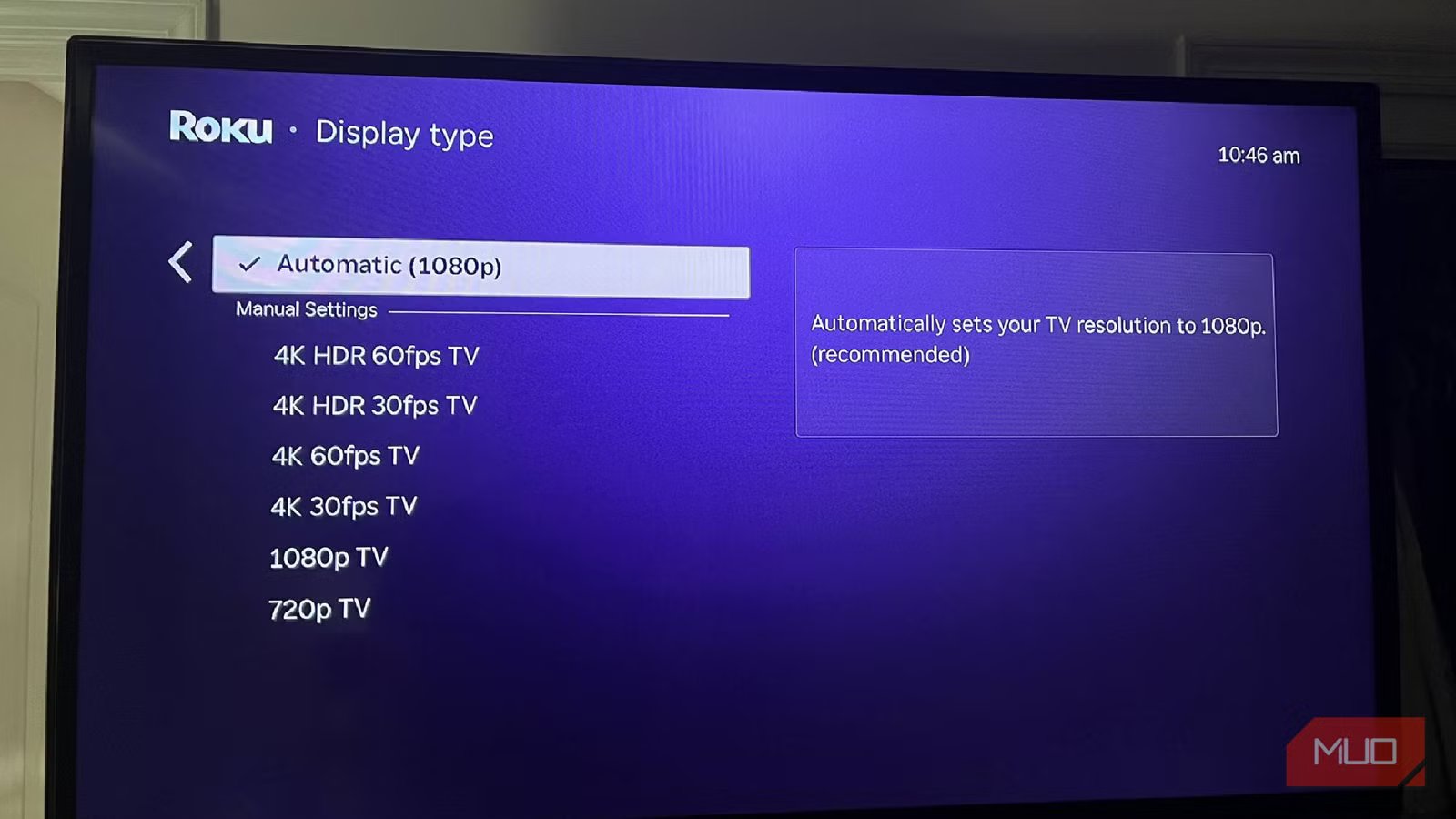
You can change the display type on your Roku so it better matches the resolution that your TV can show. To do so, you must go to Settings and then Display type. You’ll see several display options that Roku can default to.
Rokus are set to choose the standard option that your TV allows. For both of my TVs, this is 1080p. I do have the option to choose 720p if I want though. I don’t mind 1080p on these TVs at all as it is high definition viewing, which is just fine for me. Both of these TVs are in bedrooms, so I don’t need the best viewing capabilities. We’re usually just watching the news or streaming a show on Netflix or Disney+ from bed when using any of them.
I do have a Samsung Frame TV downstairs that supports 4K HDR but I don’t usually use my Roku with that. When I did plug in the Roku to the One Connect box, it allowed me to choose any of these other options.
Why you might want to change it
There are reasons why you might not to

If you’re watching something specifically, like streaming a sporting event, you might want to go with the higher 4K option or even the 1080p if you have been watching in 720p. This will provide you with clearer visuals and help you watch something in better detail.
It’s also smart to use a higher option, such as 4K HDR, if you’re watching a movie that could benefit from the brightest colors. I like to rely on something like Filmmaker Mode and turn off things such as motion smoothing to give me the best picture while watching on my big TV.
Shows and movies with dramatic light and intense visuals are worth putting in the better display types. If you want to get the most out of your TV, you can do so by switching this on your Roku.
You might want to save your bandwidth though, which is used up exponentially more when you’re streaming in 4K compared to HD. If you have a lot of devices connected to your Wi-Fi alongside your Roku device, it could cause your network to slow down considerably.
There’s also the argument that streaming in 4K compresses the audio and video too much, and it doesn’t show it in as natural of a format as HD does. This is where a debate about physical media versus streaming can come into play.
Make sure you’re comfortable with Roku’s choice of display type
Your Roku device will automatically choose what display type to use to stream your content. It’s a simple choice to change it, as you just need to scroll in the Settings menu and select a new one if you want to switch. You can do this manually based on what you’re watching or just rely on Roku to do it for you. How much involvement you want is entirely up to you.