You’re barely using half of what Chrome on Android can do
Chrome on Android sports a minimal interface, but don’t let that fool you. It’s packed with tricks and features that are easy to miss but can change the way you browse forever. And no, I’m not talking about the usual stuff like locking incognito windows, moving the address bar to the bottom, or enabling parallel downloading. You probably already know all that. I’m talking about hidden, overlooked features that you should absolutely try at least once.
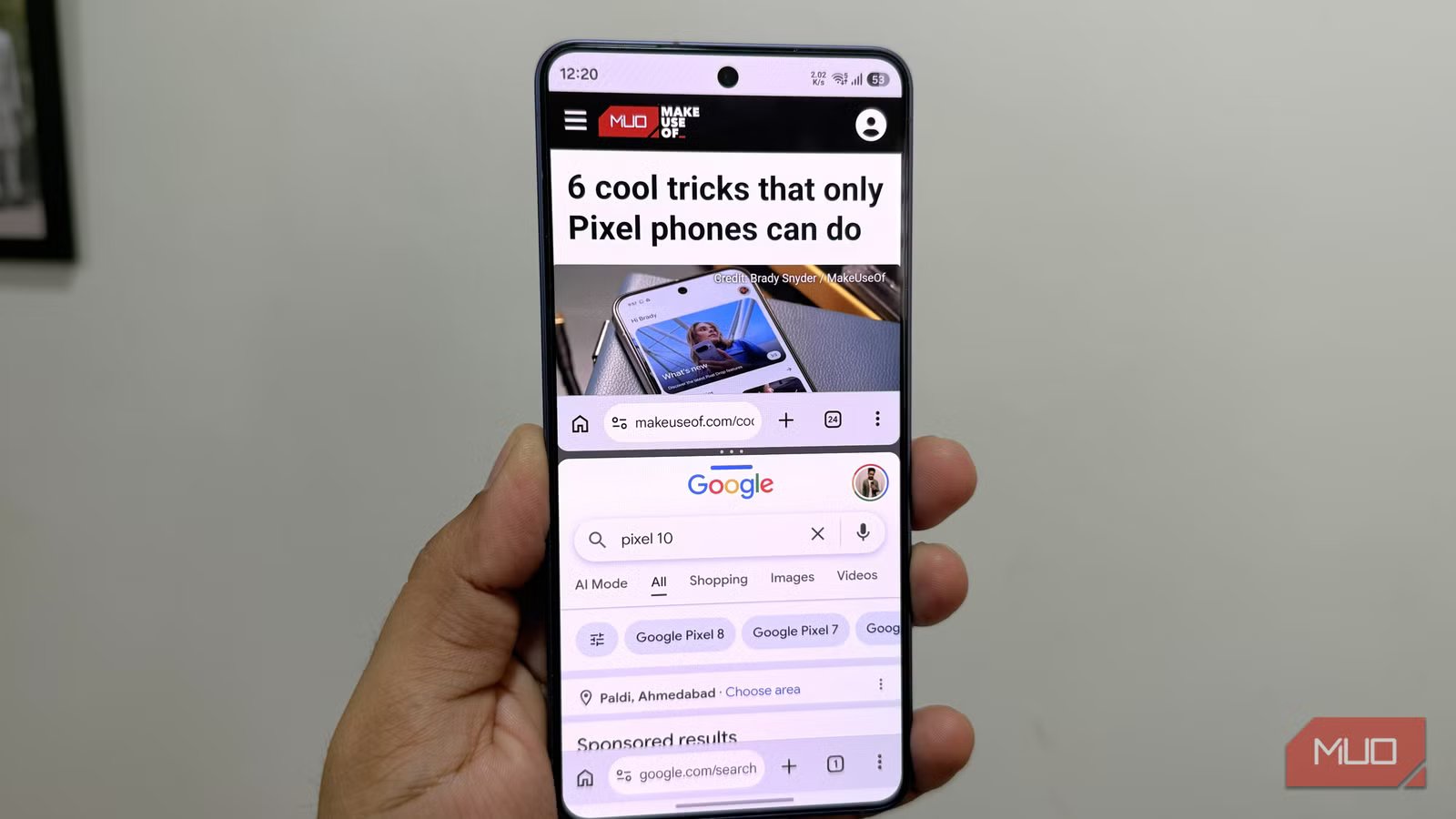
Browse two Chrome tabs in split screen
No need to switch back and forth
Split-screen on Android usually doesn’t let you run two instances of the same app. Well, that’s not the case with Chrome. You can easily browse two tabs at once to compare products or simply multitask in general.
To pull this off, open Chrome and navigate to whatever page you want in the first half. Then open the app switcher menu, tap the Chrome icon and choose Open in split screen view. Once Chrome locks to the top half of the screen, select any random app for the lower half. Now, tap Chrome’s three-dot icon and choose New window. That’s it — you’ll now have two Chrome tabs running in split screen.
Make use of those gestures
Don’t miss out on these

The most fun part about using Chrome on Android is those touch gestures you get to use. You may already be using swipe down to refresh, but there are a few more worth knowing. The most useful one is swiping left or right on the address bar to switch between tabs.
Another useful trick is long-pressing on those icons in the address bar. For instance, long-pressing the plus button lets you edit your toolbar shortcuts. Long-pressing the tabs icon gives you options to move the tab to a new group or open an incognito window. And long-pressing the home button lets you edit your homepage.
Let Chrome clean up old tabs for you
Because you’re never going to do it yourself

It’s easy to pile up hundreds of Chrome tabs on your phone without realizing it. And closing them isn’t as quick either, unless you want to nuke everything at once. Thankfully, there are a couple of settings that can help with the tab overload.
Head to Chrome Settings > Tabs and tab groups > Move to inactive section. Here, choose 7 days inactive and Chrome will automatically shift any tabs you haven’t touched for 7 days to the “Inactive” section. So when you open the tab view, you’ll only see your recent tabs. There’s also the Automatically close inactive tabs, which closes tabs you haven’t opened in three months, which makes sense.
Another handy option is Archive duplicate tabs, which does exactly what you think. If you’ve accidentally opened the same tab multiple times, Chrome will automatically manage them.
Peek at pages before opening them
Look before you leap

This one’s easy to miss because nothing about Chrome’s UI hints that it exists. When you’re on a page with multiple links and aren’t sure if they’re worth opening or not, you can simply preview them first. Long press on the link and choose Preview page.
Chrome will pull up a small preview of that page so you can get a feel for whether it’s actually worth opening. If not, you can dismiss it right away.
Silence noisy sites by default
Avoid surprise blastoffs

It can be annoying if you open a site, and it starts autoplaying videos at full volume. Unfortunately, Chrome doesn’t have an ad-blocker that can stop those videos from loading, but you can at least make them less annoying.
By default, Chrome allows every site to play sound, but you can change that. Head to Chrome Settings > Site Settings > Sound and turn off the toggle. Now, Chrome will mute audio on every site you land on. The good thing is that you can easily add exceptions for specific sites by tapping the controls icon on the left of the URL and heading to Permissions > Sound.
Force dark mode on almost any site
No exceptions

Enabling dark mode in Chrome also makes the site follow the setting. But that doesn’t apply if a site doesn’t have a dark mode at all. And there are plenty of those, even in 2026. The good news is that Chrome has a flag that can force dark mode on every site you visit.
Type chrome://flags in the address bar and hit Enter. Search for Auto Dark Mode for Web Contents and set it to Enabled. Restart Chrome and you’re set. Chrome will invert colors on sites that don’t support dark mode natively. It may not look pretty on all the sites, but it’s better than getting blinded while browsing at night.
Turn any article into a podcast
Too long, didn’t read? Just listen

If you’ve ever opened a long article and immediately closed it because you’re too tired to read, Chrome has a fix. On certain text-heavy articles or sites, you can tap the three-dot icon and choose Listen to this page option. Chrome will start reading the article for you.
What makes this worth using is that there are two modes. Standard playback reads every word on the page as-is, while AI playback turns the article into a podcast-style conversation. The latter is obviously a lot more fun and Chrome even gets controls for play, pause, rewind, and playback speeds in both the modes.