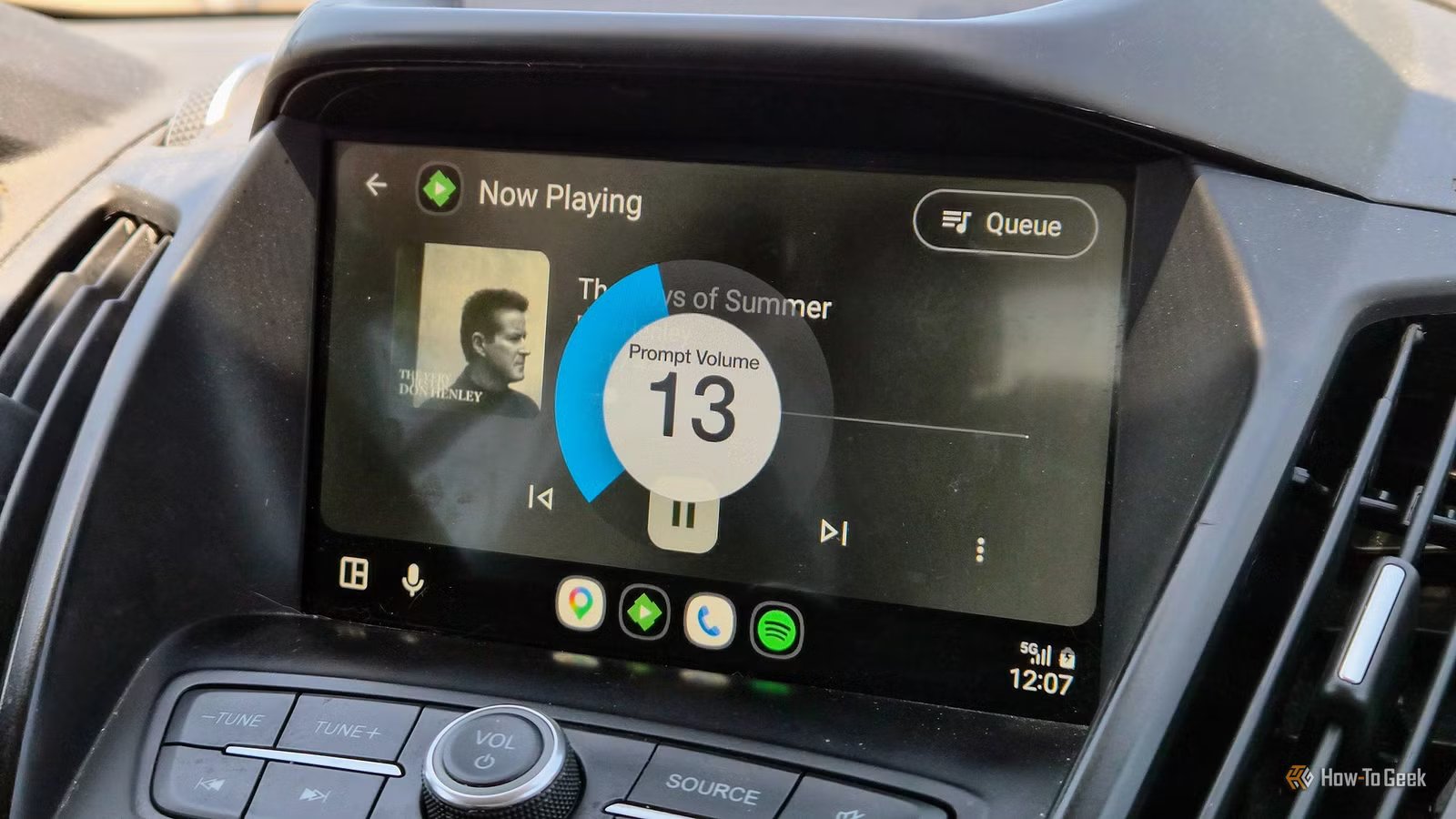
I stopped dreading rental cars once I brought my own Android Auto setup
Rental cars are fine until you actually have to drive one. Android Auto doesn’t just make everything feel smooth, and you may not be ready to try a whole new style. Instead of going to pick up the car with nothing ready, you should make a checklist with some hardware choices, software prep, and small configuration decisions that will make the car feel like your own.
Get the right hardware so your phone stays connected
Pick a vent mount and a reliable cable
Turning a rental car into something that actually feels like your own setup comes down to having the right hardware. You need small stuff that works everywhere and takes seconds to set up without leaving a scratch or sticky residue behind.
Windshield suction cups and adhesive bases tend to be more trouble than they’re worth in a rental because they fail in the heat, leave marks, and put your phone directly in the sun, which causes it to overheat and throttle itself into uselessness. A clip-on vent mount is the better movement.
I’ve used plenty of tools you can buy from a dollar store, and they’ve lasted a while. Parking your phone in front of the air conditioning isn’t just convenient either; it’s probably the most effective way to keep processor temperatures down when Android Auto is running hard.
Don’t overlook the cable and don’t buy one from the gas station. If you want consistent quality that will feel natural in any car, you need a consistent cable. The wireless adapter still needs to plug into the car’s USB port, and a cheap cord is normally responsible for a lot of dropped connections, lagging displays, and unnecessary heat.
You want a USB-IF certified USB-C 3.1 cable that is around three feet. Shorter cables mean less electrical resistance, which keeps heat down and keeps the data signal clean. Look for one with EMI shielding and a 56k-ohm pull-up resistor to safely handle older USB-A ports without overloading them.
Not every rental car is the newest model, so you never know if you need the extra help. This will at least make sure the quality is consistent at a hardware level.
Set up your apps before you leave home
Save offline maps and automate your settings

Picking the right hardware gets you connected to a rental car, but the real difference comes from how you set up your software before you ever leave home. A little prep work goes a long way, especially when you want a consistent look and feel.
The first thing worth doing is downloading offline maps. Cell service has a way of disappearing when you’re not near cities, and there’s no guarantee that you’ll always be close to a city. Sometimes you’ll lose it on long highway stretches or in rural areas, and trusting a live connection in those situations is a gamble.
Apps like Google Maps and OsmAnd both let you save entire regional maps directly to your phone, so directions keep working no matter what the signal looks like. As a bonus, your phone isn’t constantly pinging cell towers or grinding through live map data, which actually helps keep it from overheating on long drives.
One thing I like to do is use an app for some basic automation so my phone shifts into driving mode on its own. MacroDroid is my favorite for this. It can detect the moment your phone connects to your wireless adapter through Bluetooth and kick off a whole sequence from there.
It can dim the screen to save battery and reduce heat, close out any apps running in the background, and launch your music right where you left off. Make sure focus mode kicks in the minute you plug your phone in, so notifications stop competing for your attention while you’re navigating an unfamiliar car on an unfamiliar road.
When you’re in the car, it’s worth spending a few minutes on how everything looks on screen. Rental cars come with all kinds of different dashboard displays, and Android Auto doesn’t always render the same way across all of them.
Most wireless adapter companion apps let you manually adjust the DPI settings, which lets you override whatever the car defaults to and lock in a layout that looks the way you want it to.
Keep your phone cool and working on long drives
Make sure you are ready for connection drops and overheating on the road

Keep in mind that running your phone hard on long drives means you get more heat. When your device is handling GPS, streaming video to the car display over Wi-Fi, and maintaining a cellular connection, it generates a lot of thermal load.
Stick it on a dashboard mount or drop it in a cupholder, and you’re adding direct sunlight into the mix, which can push the phone past its thermal limits and trigger slowdowns or outright shutdowns. I actually got the Uber screen burn-in on my last phone due to how much I did it.
This can be helped with the air conditioning trick mentioned above, but you can also disable 3D map buildings, skip wireless charging, or just make sure your phone is not running anything in the background that it should not be.
Wireless dropouts are another issue worth being ready for, particularly in busy areas. I tend to switch my phone from Wi-Fi to mobile data and turn Wi-Fi off entirely. I find that this gives me a much easier time than just messing with Wi-Fi settings. If your rental gives you Wi-Fi, make sure it is safe to use and that you’re not going into anything that is too sensitive. Just use it for navigation.
This is fairly easy to start
None of this means you should buy expensive equipment or take a lot of time. The equipment can be as expensive as you want it, but the mount itself can be found anywhere. The one real limitation is that wireless adapter performance still varies depending on the car’s head unit, so older rentals can be hit or miss no matter how well you’ve prepared. If you rent cars more than a couple of times a year, though, the consistency you get from having your own setup is worth the small upfront effort.
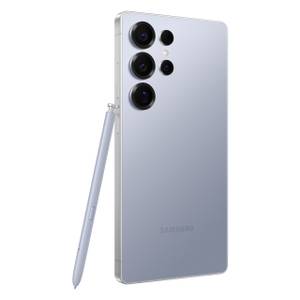
- Brand
-
Samsung
- SoC
-
Snapdragon 8 Elite Gen 5
Get the new Galaxy S26 Ultra with AI smarts and an all-new privacy display. It’s big, powerful, packed with AI, and you’ll love the S-Pen stylus.