I used my calendar as a notes and task hub, and my workflow finally made sense
If there’s one term that describes most of my life perfectly, it’s organized chaos. I’ve always been the type of person who needs a million things going on in her life simultaneously to be able to actually focus. Ultimately, I’m doing as much as I realistically can at any given moment, and the only way that doesn’t collapse into pure chaos (and lose the organized element entirely) is by having certain systems in place. I’ve tried practically every productivity app that you’ve heard of. Notion, Obsidian, Todoist, Structured, Tana, Google Keep, a dozen more I don’t even remember the names of anymore.
I download each app with the same optimism, thinking that it’s the one. I tell myself that this one is different and that this is the app that will finally hold my whole life together and make me the organized person I aspire to be. Every single time, I build out an elaborate setup over a weekend, use it religiously for about ten days, and then quietly let it die. A few weeks ago, I ditched all of my apps for just my calendar. It turned out to be the only productivity system that ever actually stuck.
Practically every system I used before had the same problem
Every app was just one more thing to check
The issue with every system I’d settled with before was there was just too much friction. Every system would be spread out across different apps, and at the very least, different tools. For instance, say I’m using Notion to handle everything. I’d need to switch to Notion Calendar to see my schedule, then jump back to log a task, then open a separate page for notes. Every switch was a little hit of friction, and every hit gave me one more excuse not to bother. Eventually, not bothering won. This is how practically every system I used ended.
It worked until it didn’t, and before I knew it, I was just working on vibes until the next deadline snuck up on me and reminded me why I downloaded the app in the first place. Then the guilt would kick in, I’d swear I’d get back on top of it, and the whole cycle would start over with a shiny new app a few weeks later. I eventually realized that the friction was the biggest problem here, rather than the apps I had installed. No matter how good the tool was, if using it meant hopping between three different surfaces to capture one thought, I was always going to lose the battle against my own laziness eventually. The number of apps I was juggling at any given time was the problem. So, I thought, why not reduce the number of apps to just one?
My calendar was the one app I never had to remember
The best app is the one you never close

Given that I wanted to use only one app, I needed it to be one I was guaranteed to open without forcing myself. It needed to be an app I was used to opening out of habit, rather than out of discipline. That ruled out every dedicated productivity tool immediately, since the whole problem with those is that opening them is essentially a choice. You have to remember and decide to check in.
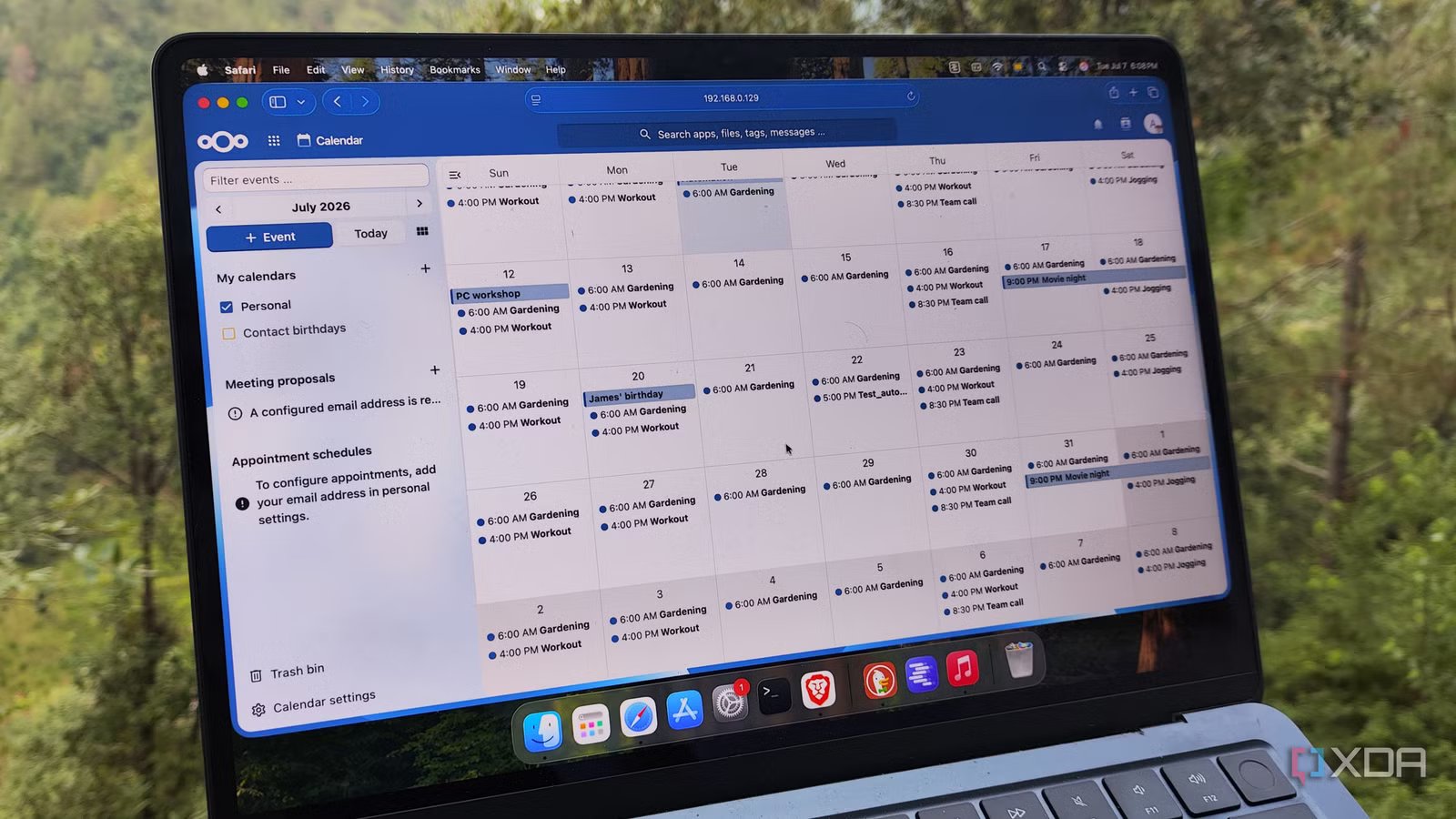
My calendar, though, was different. I already opened it a dozen times a day without thinking, just to answer the most basic question of all: what am I supposed to be doing right at this minute? As someone who time-blocks every second of her calendar (yes, I’m one of those people), I was already living inside it from the moment I woke up to the moment I went to bed. Every hour of my day was already an event. This meant that adding my tasks and notes to it wasn’t some new habit I had to build. Instead, it was just putting more information where I was already looking.
The setup is simpler than you think
You’ve had these features the whole time
The whole appeal of this system is that there’s barely any setup to abandon. There’s no elaborate database to build, no templates to download, nothing at all to set up. In my case, I’ve always been a Google Calendar user, and I simply needed to start using features that were already sitting right in front of me.
Tasks is the simplest of them all, since Google Tasks is built right into Google Calendar. You’ll find it under the checkmark icon in the sidebar, or you can click any empty time slot and switch the entry from “Event” to “Task” before saving. That’s the entire setup. Any tasks you create show up right alongside your events, sitting on the day and time you assign them, so they’re impossible to miss when you’re already looking at your schedule.
Incomplete tasks roll over to the next day automatically, which is something I’ve always appreciated about Google Tasks. This has helped me more times than I’d like to admit, because it means a task I miss doesn’t just quietly disappear the way a skipped event does. It keeps following me into the next day, and the day after that, tapping me on the shoulder until I either actually do it or make the conscious decision that it doesn’t matter anymore.
Given that this functionality is linked completely to Google Tasks, everything I add syncs straight into the Google Tasks app and shows up across Gmail, Drive, and my phone too. I’m creating tasks inside my calendar, but they’re not stuck there! The same list follows me everywhere Google does.
Next up is the note-taking bit! Every single event or task you create has a description field attached to it, and most people never type a single word into it. That field is exactly what turns my calendar into a note-taking app. For instance, if I have time-blocked for interview preparation, I’ll drop everything I need straight into the event itself. My prep notes, the questions I want to ask, the links I’ll need to open, all go into that description box! Then, during and after the interview, my takeaways go into the exact same place.

Similarly, if I have time slotted for writing a certain article, the description field becomes the home for everything that piece needs: my outline, the angle I’m going for, links to sources, stray sentences I don’t want to lose, even the headline ideas I’m still deciding between! By the time I actually sit down in that block, I’m not staring at a blank page wondering where I left my notes.
Color-coding, despite how obvious it sounds, is another reason why the system works so well. While a lot of people color-code just for the sake of it, using it deliberately is a great way to read your entire week with just a single glance. Instead of assigning a few random aesthetic colors to each event, I give each color a fixed meaning and then stick to it religiously. For instance, my university’s colors are blue, so all university-related tasks are color-coded blue. Any time I’ll spend there and work I’ll do that’s tangentially related to university will be color-coded blue.
I write across MUO and XDA. The former’s colors are red and black, and XDA’s colors are purple. So, anything I’m writing for XDA gets slotted in as purple, while MUO’s work takes on its red. The second I open my calendar, I can tell exactly how much work I have for each publication and how much of my time will be spent doing university-related things, all without reading a single event title. If it’s a wall of purple, I know XDA is eating my week. If blue is creeping in everywhere, I know coursework is about to demand more of me than I’d planned. The colors do the thinking for me, so I can spot an overloaded week before it turns into a 2 a.m. panic instead of after.
This system works so well because of how simple it is
The only reason why this system works so effectively is because I’m not constantly jumping from app to keep it running. My tasks, my notes, my schedule, and my sense of where my week is heading all live in the exact same place!
Best of all, this system is completely free to set up and run. There’s no premium tier I’m eventually going to hit, no subscription quietly renewing in the background, and no paywall standing between me and the features that actually matter. Everything I’ve described is built right into Google Calendar and Google Tasks, and both come free with any Google account.