The Easy Way To Test If An Ethernet Port Is Working Without Any Specialist Equipment
While Ethernet connections are undoubtedly more reliable than Wi-Fi connections, there are times when hardware just refuses to communicate even over a cable. In these instances, there can be several possible causes, with your Ethernet port being one of these potential failure points. This is a useful piece of hardware — you can use an Ethernet port for more than connecting your computer to your router — which means it can be incredibly inconvenient if it breaks. With the right equipment, pinning down such a problem is simple, but what if you have no specialist equipment on hand? The good news is that armed with a little knowledge and some non-specialist hardware, diagnosing a faulty Ethernet port on a home network is a simple process.
While the process doesn’t require specialized hardware, it does require having some known-good hardware to help. What you’ll need is an Ethernet cable you’re sure works, a second device that can make an Ethernet connection, and access to a working router or network switch. This applies even if the router in question has the dubious Ethernet port. It’s also wise to check that the Ethernet cable isn’t so old that it slows down your connection. This isn’t a deal-breaker for diagnostic purposes, but it’s always good practice to use the right Ethernet cable for your computer.
Armed with this basic hardware, it’s possible to narrow the problem down to any given Ethernet port — or not, as the case may be. Let’s look at how to troubleshoot a networking problem and determine if it’s an Ethernet port that’s causing your networking headaches.
Starting with the basics
Before we can even begin to entertain the idea of a faulty Ethernet port, we need to make sure that the basic network gear is doing what it should. We’ll begin with the hardware tests. Things like cables are easily checked simply by swapping a known-good cable for the cable on the suspect connection. While this might seem like a method for identifying a dodgy Ethernet cable, it’s always good practice to rule out the simplest failure point first.
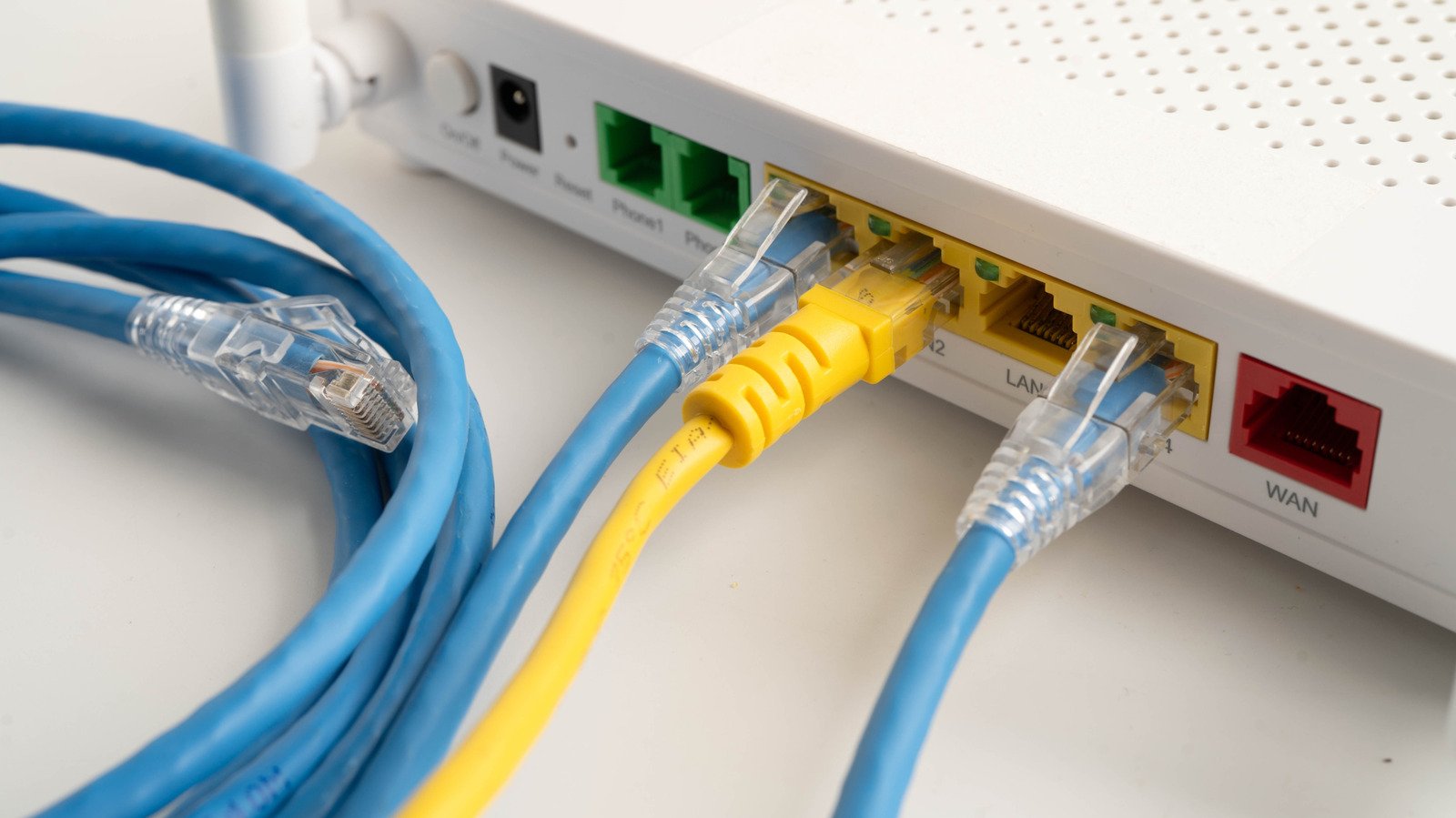
If this works, congratulations, you’ve successfully tested your Ethernet port and found it to be in good working order. If not, then we need to continue the detective work. If changing the cable doesn’t work, restart both the device and router before continuing your investigation. If you still don’t have any luck, a good next step is to turn your attention to the router or switch that your device is connected to. Most routers have an LED that indicates whether a cable is connected to a specific port; understanding what Ethernet port lights mean can help diagnose connectivity issues. If the router lights on the port the cable is connected to aren’t illuminated, then switch the cable to another port. If this works, then the Ethernet port on the router is likely the problem. We cover how to test this a little later.
If no router lights come on after swapping ports, the next step is to try a known-working piece of hardware using the same cable and the new router port — a laptop, MacBook, or even a smart TV will do; just remember to make sure that it is connected through Ethernet and not Wi-Fi. If this connects, then all the clues are pointing toward the suspect device. However, before you dash out and buy a replacement, we need to check that the problem is hardware.
More advanced troubleshooting
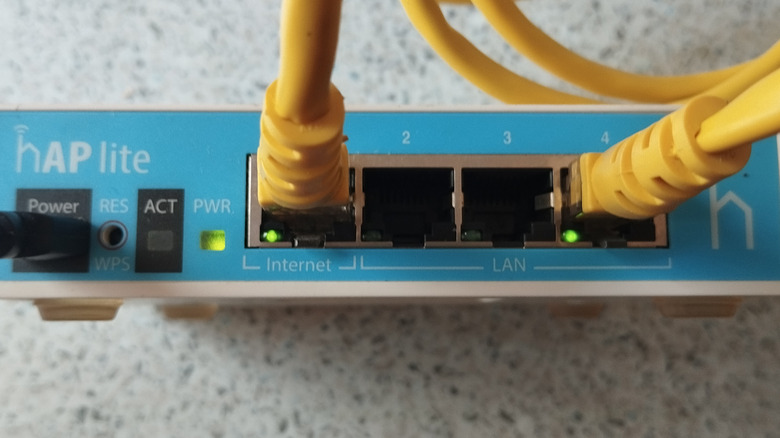
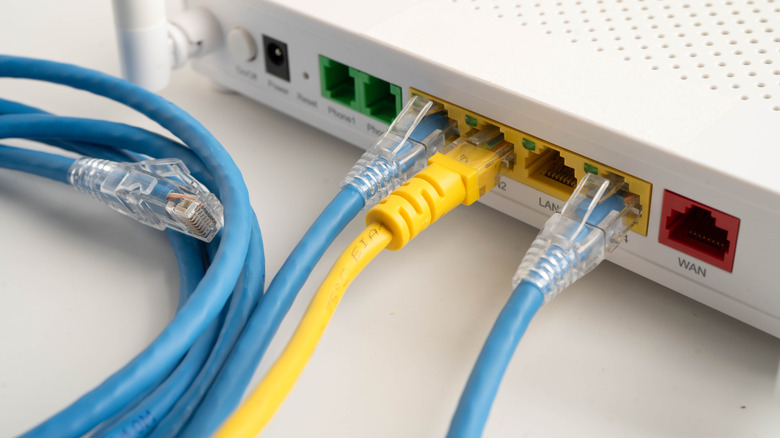
This section covers two scenarios: one where the port on your router is suspect and the other where the Ethernet port on your device is the potential failure point. Starting with the router, one way to test an Ethernet port on supported models is to perform a loopback test. This involves connecting the suspect port directly to the router’s WAN or internet port using a known-good Ethernet cable. If the link lights on both ports illuminate almost immediately, then the ports can establish a physical connection. If neither light comes on, that suggests that the router port is faulty. It’s worth trying the same test using the router’s working ports just to verify that the test is working as it should. Some routers also display port status in their admin interface; this can be used to confirm whether the port is even attempting to negotiate a connection.
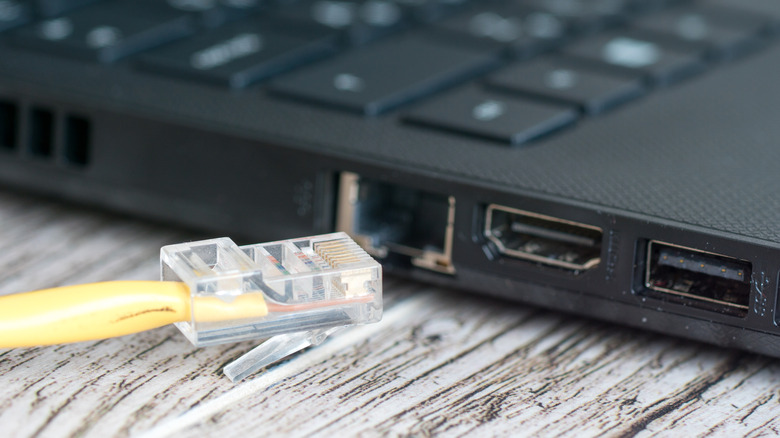
If the router checks out, the remaining suspect is the device itself. However, that doesn’t necessarily mean that the hardware has failed. So, before rushing out and buying a replacement Ethernet adapter, there are a couple of things you can try. The first is to make sure that the network adapter is enabled in the system, has the latest drivers installed, and isn’t being restricted by options like power-saving settings. These are always worth checking as they can be behind the problem and can mimic a faulty port. For Apple users, Apple Diagnostics can help to identify problems. Once you’ve ruled out any system or configuration issues and the Ethernet port still refuses to play ball, the port is very likely the culprit.